
Symbol Mapping
Configure symbol mapping for different brokers. Learn how to handle symbol differences between TradingView and your broker.
Introduction
Different forex brokers often use different symbol naming conventions. While TradingView uses EURUSD for the Euro/US Dollar pair, your broker might use EURUSD.m, i.EURUSD.micro, or EURUSD.ecn. Symbol Mapping converts these symbols in real time, acting as a translation layer between TradingView and your broker so trades execute with the correct symbol names.
Advanced and higher
Symbol Mapping is included on the Advanced and Professional plans. If your plan drops below Advanced, it switches off and your mappings are kept for when you upgrade.
What you get:
Automatic Conversion
Automatically converts TradingView symbols to your broker's format without manual intervention.
Multi-Broker Support
Configure different mappings for different symbols and brokers all in one place.
Real-time Processing
Symbol conversion happens in real-time as signals are received and processed.
Key benefits:
Simplified Setup
Create one set of TradingView alerts that work with any broker, regardless of their symbol naming convention.
Reduced Errors
Eliminate failed trades due to symbol name mismatches between TradingView and your broker.
Setting Up Symbol Mapping
Open the Symbol Mapping card. In your TradeSgnl dashboard open the Signals page, then the Signal Modifier tab. Symbol Mapping is the second card on that tab.
Open Signal Modifier Page
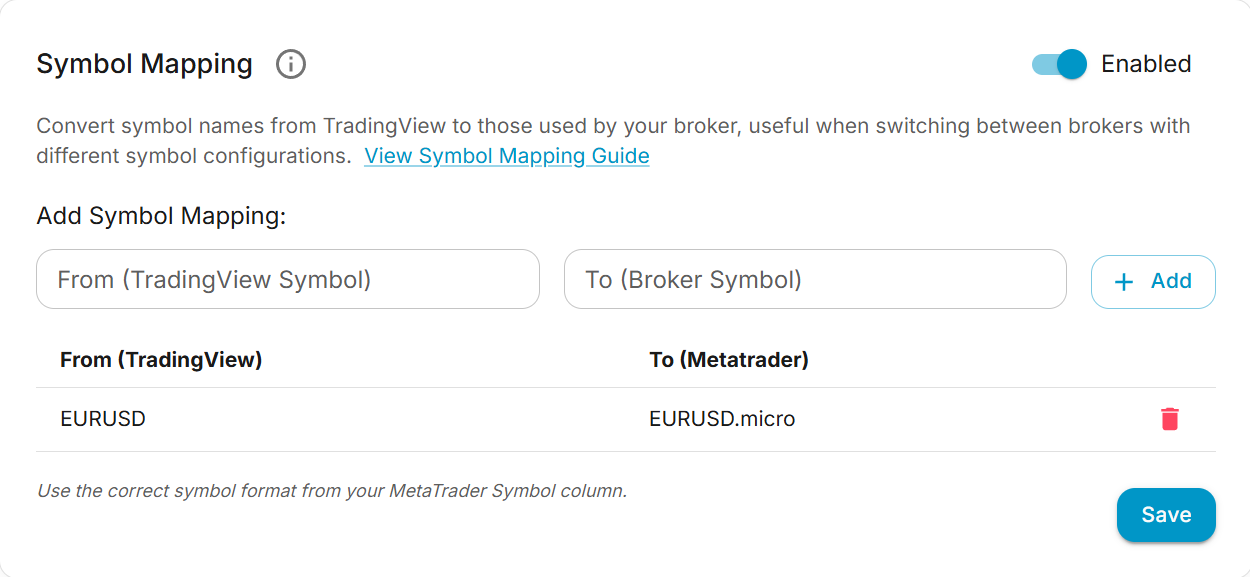
Turn symbol mapping on. Flip the switch in the card header so it reads Enabled. It applies immediately, there is nothing to save. While it is off the card is greyed out and signals go to your broker untouched, but every mapping you saved is kept and comes back when you switch it on again.
Add a mapping. Click Add mapping. A row opens in the table with two fields:
- From (TradingView): the symbol your alert sends, for example
XAUUSD. - To (your broker): your broker's name for the same instrument, for example
XAUUSDm.
Click Add, or press Enter, and the mapping saves straight away. Cancel or Escape discards the row. Symbols are matched exactly, including case, so copy the broker name exactly as your broker writes it. Adding a mapping while the feature is off switches it on for you.
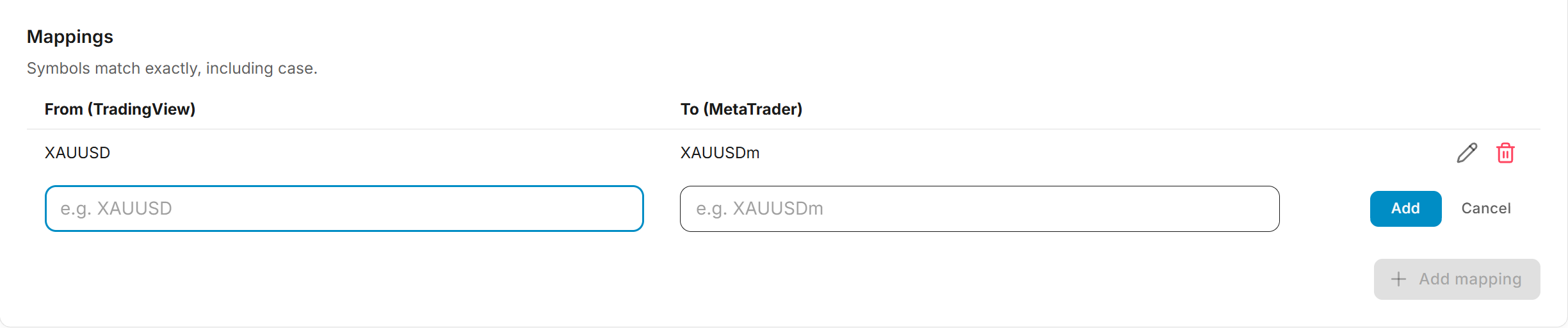
Edit or delete a mapping. The pencil icon on a row reopens it as the same two fields, with the button now reading Update. The delete icon removes it, after a confirmation that spells out the consequence: that symbol goes to your broker as-is again.
No Save button
Every control on this card saves itself: both switches, Add, Update and delete. Each change confirms with a short message, and if a save fails the card rolls back to what it showed before.
Test your configuration. Send a test signal from TradingView and check your account to confirm the trade opened on the mapped symbol.
Important
Make sure the symbols you map to actually exist at your broker. If the converted symbol doesn't exist, the trade will fail.
Tip: Finding your broker's symbols
Use the correct symbol format from your MetaTrader Symbols List (Ctrl+U). For MT5, use the symbol from the Symbol column. You can also check the Market Watch window to see the exact symbol names used by your broker.
Symbol Suggestions and Auto-Match
When a signal names a symbol your broker does not list, the EA rejects it with error 6007 Invalid Symbol. Since EA 0.65 the rejection also carries suggestions taken from your broker's own symbol list, so you rarely need to open Market Watch to find the right name.
Where suggestions appear:
- Signal Logs: expand the signal and the rejected delivery shows "Did you mean XAUUSDm?" with an Add mapping shortcut, and an Enable auto-match shortcut when the match is one auto-match could have taken itself.
- Alert History, the signal-error email, and the Telegram message carry the same hint and link.

The shortcut opens this card with the row already filled in, from the symbol your alert sends to the suggested broker symbol. Review it and click Add; nothing is saved until you do. If the bad symbol came from a mapping you already saved, the row opens in place of that mapping and the button reads Update.
How matches are ranked:
| Match | Example | Auto-match may trade it |
|---|---|---|
| Same name, different case | xauusd → XAUUSD | Yes |
| Same core with a broker prefix or suffix | XAUUSD → XAUUSDm, EURUSD → EURUSD.r | Yes |
| Well-known alternate name | GOLD → XAUUSD, NAS100 → USTEC | No, suggestion only |
| One or two characters off | XAUUDSc → XAUUSDc | No, suggestion only |
Auto-match
Auto-match is off by default. Turn it on with the Auto-match broker symbols switch on the Symbol Mapping card, confirm the dialog that explains what it will do, and the EA trades the suggested symbol itself, under two conditions:
- The match is in one of the first two tiers above (case, or a broker prefix or suffix).
- It is the only tradeable candidate in those tiers. Two plausible symbols (for example
XAUUSDmandXAUUSDcon the same account) still produce a rejection with both listed.
Saved mappings are applied before auto-match and always win. Auto-matched deliveries show what was substituted in Signal Logs with a Pin as mapping shortcut, so you can make the choice explicit.
The switch needs an account on EA 0.65 or newer. If every connected account still runs an older EA the switch stays locked off, since nothing would honour it. Turning auto-match on also enables symbol mapping if it was off.
You are responsible for auto-matched trades
Auto-match places real orders on a symbol you did not name. Keep it off if your broker lists several variants of the same instrument and you want to choose between them yourself.
Placeholders
If the hint says the alert still contains a placeholder, TradingView did not replace it when the alert fired. Check the symbol field of your alert message rather than adding a mapping.
Troubleshooting
Frequently Asked Questions
Symbol mapping on cTrader and TradeLocker
A license's mappings apply to every account on it. On a cTrader or TradeLocker account, when the mapped name is not offered by that broker, the name in the alert is tried instead, so a mapping made for an MT5 broker (for example BTCUSD to BTCUSDm) does not get in the way. These accounts also have their own Symbol mapping in the card's Settings, with its own switch, prefix, suffix and mappings. It applies to that account only, on the same plans.
Multiple Strategies
Run several strategies on one trading account without them interfering. How the comment parameter groups trades, which EA features it scopes, and why some signal flags stick to the whole group.
Signal Authentication
Learn how to configure secure signal authentication for TradeSgnl. Protect your trading signals with authentication tokens and webhook security.