
Backtesting
Learn how to backtest your trading strategies with TradeSgnl. Analyze historical performance and optimize your automated trading systems.
Introduction
Backtesting is a critical process for evaluating trading strategies using historical data before risking real capital. The TradeSgnl EA offers powerful backtesting capabilities that allow you to:
Enhanced TradingView Strategies
Test TradingView strategies with advanced trade management features including trailing stops, pyramiding, and recovery systems
Versatile Signal Processing
Validate any CSV-based trading strategy from any source that can export to CSV format
Professional Performance Metrics
Gain insights through comprehensive statistics and interactive charts
Risk Management Optimization
Fine-tune stop loss, take profit, and position sizing settings for optimal performance
Unlike simple backtesting systems that only simulate basic entries and exits, the TradeSgnl backtesting system incorporates sophisticated trade management features that can significantly improve your strategy's performance.
License Requirement
Backtesting requires a TradeSgnl license with backtesting privileges. Ensure your license is active before beginning.
Preparing Your CSV File
The TradeSgnl EA uses a CSV (Comma-Separated Values) file as input for backtesting. This file contains your trade signals, including entry and exit points. Here's how to create and format your file correctly.
Required columns:
- Type — Values should be:
ENTRY LONG,ENTRY SHORT,EXIT LONG, orEXIT SHORT(case-insensitive). - Date/Time — Preferred format:
DD/MM/YYYY HH:MM:SS(e.g.,15/06/2023 10:00:00).
The EA recognizes various column header variations like "Action" for "Type" and "DateTime" for "Date/Time".
Optional column:
- Comment — Use comments to categorize trades or differentiate between strategies.
The Comment field is extremely useful for:
- Testing multiple variations of a strategy in a single backtest.
- Separating data for different symbols or timeframes.
- Filtering results in the analytics dashboard.
Sample CSV file format
Create a spreadsheet with the following columns and format:
| Type | Date/Time | Comment |
|---|---|---|
| ENTRY LONG | 15/06/2023 10:30:00 | MACD_Cross |
| EXIT LONG | 15/06/2023 14:45:00 | MACD_Cross |
| ENTRY SHORT | 16/06/2023 09:15:00 | MACD_Cross |
| EXIT SHORT | 16/06/2023 15:30:00 | MACD_Cross |
| ENTRY LONG | 17/06/2023 11:00:00 | RSI_Overbought |
| EXIT LONG | 17/06/2023 16:15:00 | RSI_Overbought |
This example shows how the data would appear in spreadsheet software like Microsoft Excel or Google Sheets. We recommend using these tools to create and edit your files for simplicity, then saving them as CSV format when finished.
Important Notes
- The EA uses its built-in settings for volume, stop loss, and take profit values. These are not defined in the CSV file.
- The EA supports multiple date formats, but
DD/MM/YYYY HH:MM:SSis recommended for consistency. - Save as CSV format with comma separators.
Format Flexibility and Recommendations
While the EA is flexible with formats, following these recommendations ensures best results:
- Use
TypeandDate/Timeas column headers, though variations are supported. - For trade actions,
ENTRY LONG,ENTRY SHORT,EXIT LONG, orEXIT SHORTare accepted in any case and with variations likeENTRY_LONGorENTRYLONG. - The EA can handle various date separators (
/,-,.) butDD/MM/YYYY HH:MM:SSformat is preferred. - The
csv_exitsparameter controls whether exit signals from the CSV are used. Set to false to ignore them.
Exporting from TradingView
One of the most powerful features of the TradeSgnl backtesting system is the ability to take strategies developed in TradingView and enhance them with our advanced risk management features. Follow these steps to export your TradingView strategy results.
Create a strategy in TradingView. You have several options for creating your trading strategy:
- Pine Script — Develop a custom strategy using TradingView's Pine Script language.
- Built-in TradingView Strategies — Use TradingView's pre-built strategies and customize parameters.
- TradeSgnl Strategy Builder — Use our intuitive strategy builder to create strategies without coding. Documentation.
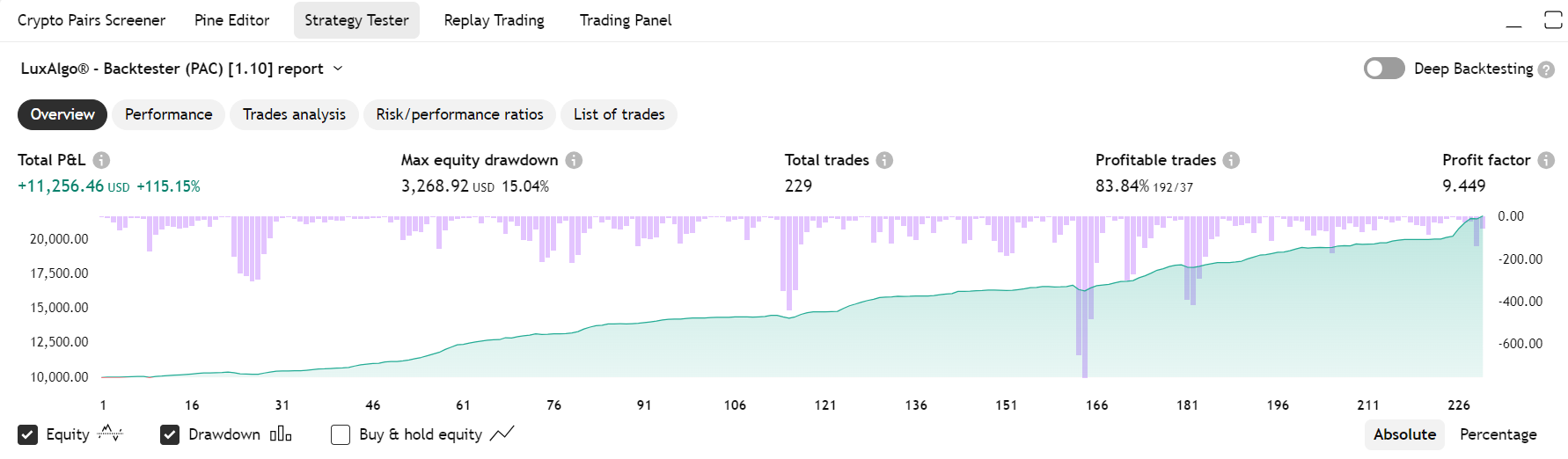
Run your strategy and export trade data. After creating your strategy, test it and export the results:
- Add your strategy to the chart and adjust settings if needed.
- Click on the Strategy Tester tab at the bottom of your chart.
- In the Strategy Tester panel, click on the List of Trades tab.
- Click on the strategy name dropdown on the top left of the panel.
- Select Export data.
- The file will be saved to your browser's default download location (typically the Downloads folder).
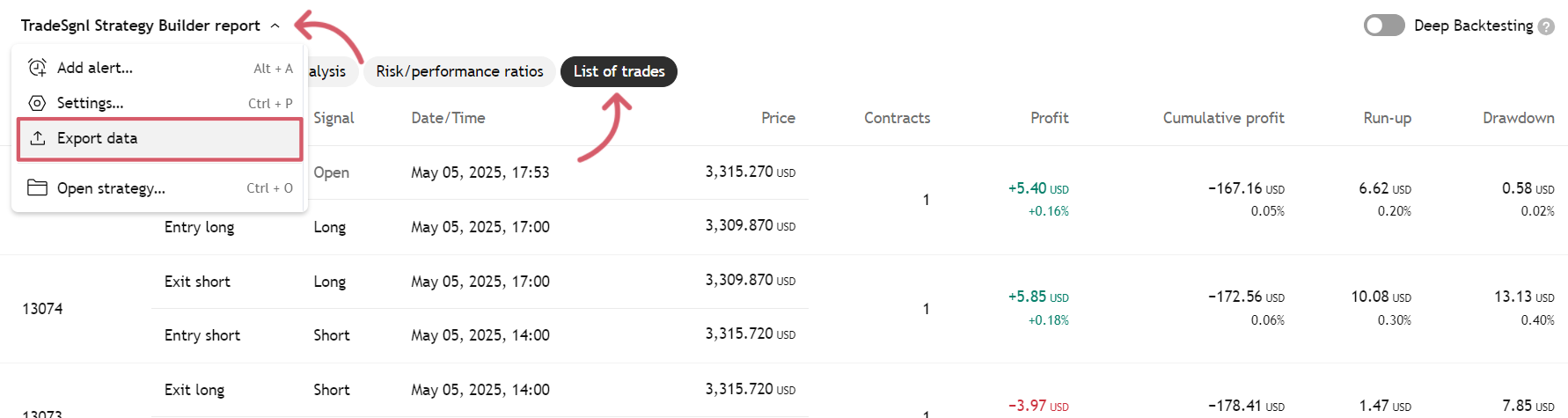
You can change your default download location in your browser's settings if needed.
Format the exported file. The TradeSgnl EA is already optimized to work with TradingView's export format (as of May 25, 2024), so only minimal modifications are needed:
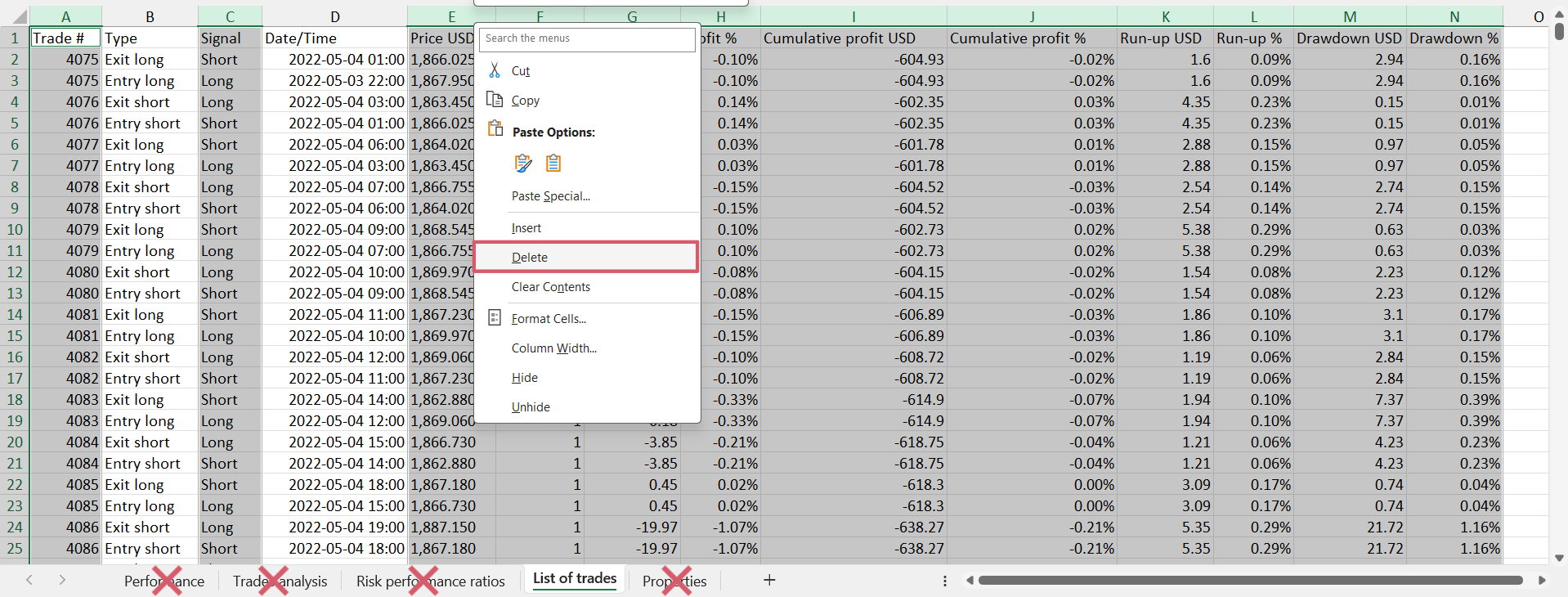
- Open the downloaded file in Excel, Google Sheets, or another spreadsheet program.
- Delete all sheets except for the List of Trades sheet.
- In the List of Trades sheet, you can delete all columns except
TypeandDate/Time. - Optionally add a
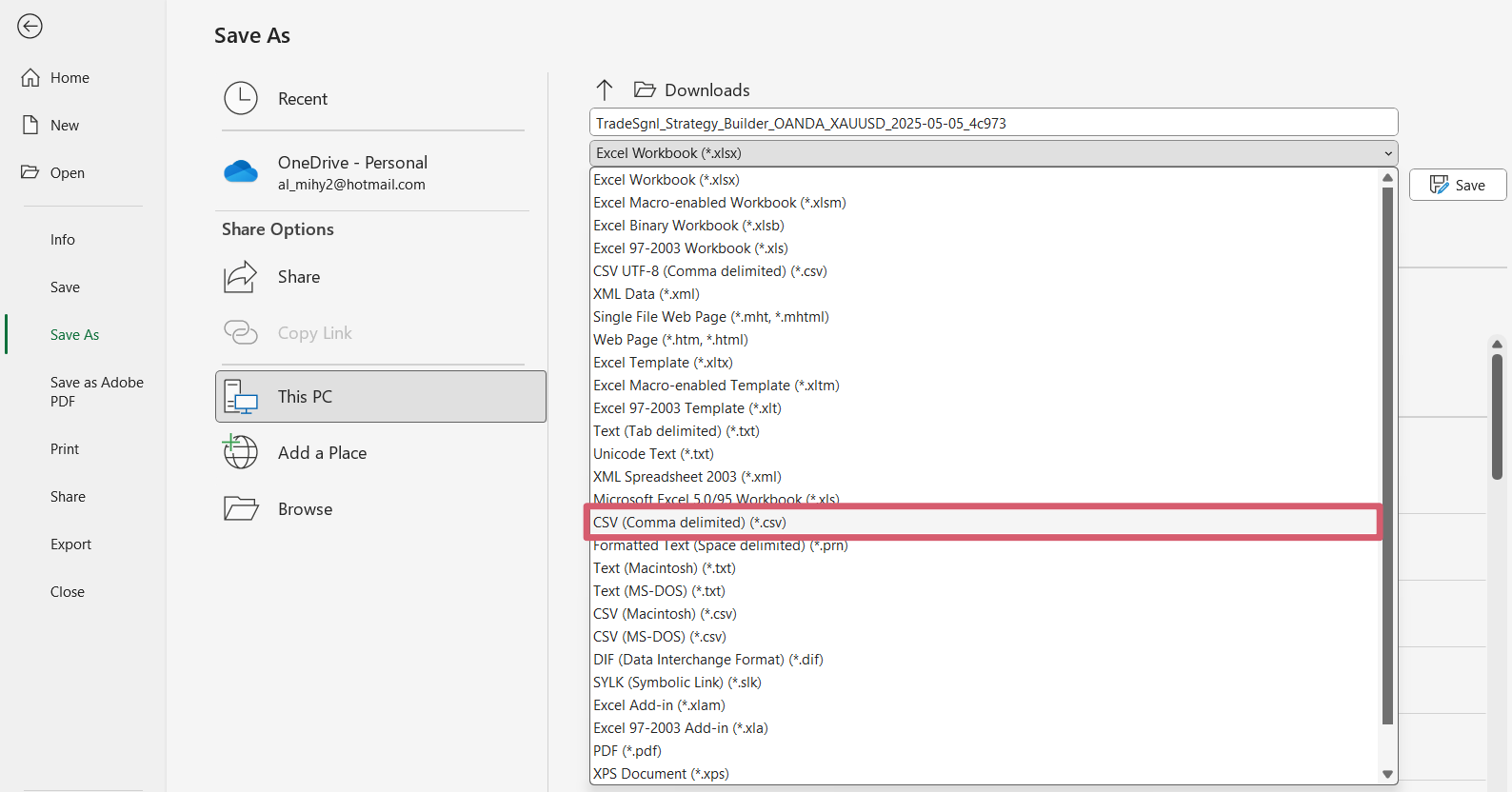
Commentcolumn to categorize your trades. This is useful for identifying different strategies or testing variations. - Save the file as CSV format in your MetaTrader
MQL5/Filesfolder (or specify a different location in the EA settings).
Testing multiple strategies together
To test how multiple strategies work together:
- Export each strategy separately from TradingView.
- Format each file as described above.
- Add a
Commentcolumn to each file with a unique identifier for each strategy. - Combine all strategies into a single CSV file by copying and pasting the rows.
- Make sure to maintain the column headers in the combined file.
Helpful Tips
- Use Ctrl+F to open the Find & Replace dialog for quick modifications of multiple entries at once.
- We will continually update our EA to stay compatible with TradingView's export format.
Importing Your CSV File
The CSV file needs to be placed in a specific folder for the EA to find it. Follow these steps.
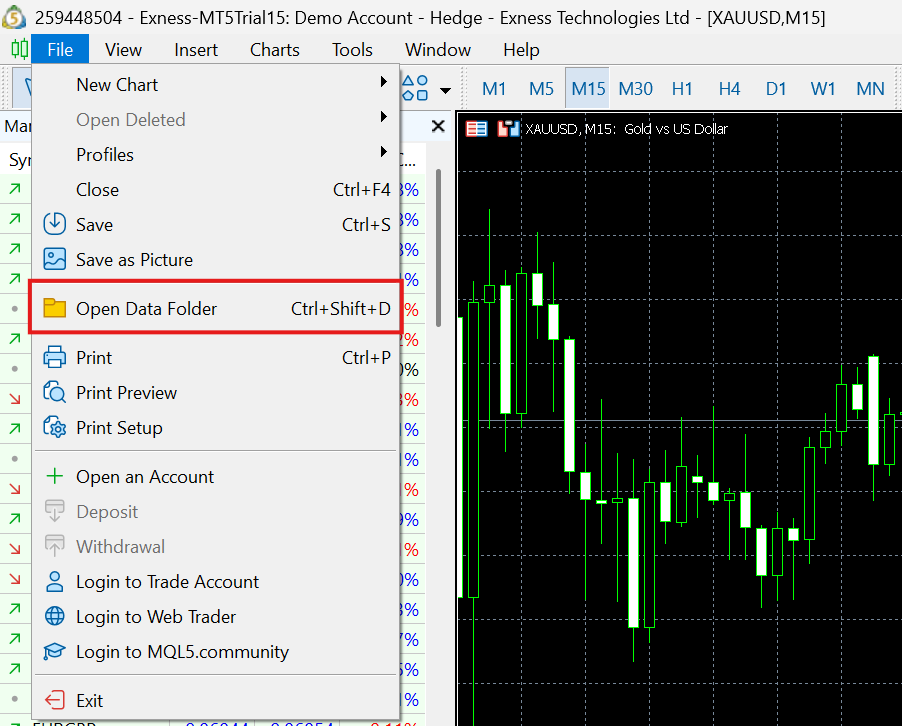
Open Data Folder from MT5. In MetaTrader 5, click on the File menu and select Open Data Folder.
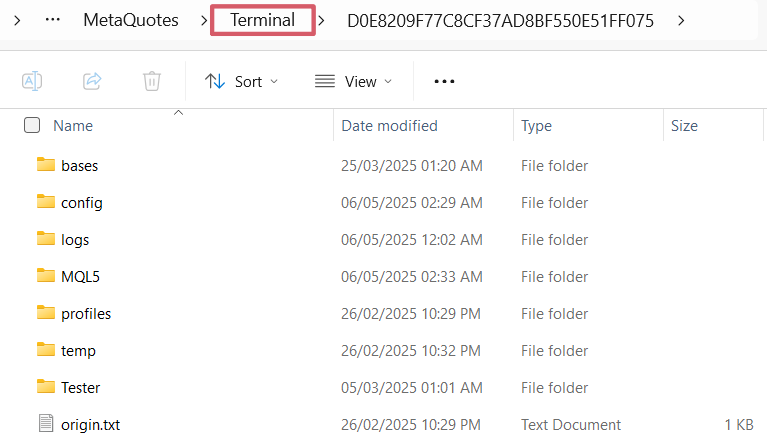
Navigate to Terminal Folder. When the MQL5 folder opens, go up one directory level to the Terminal folder.
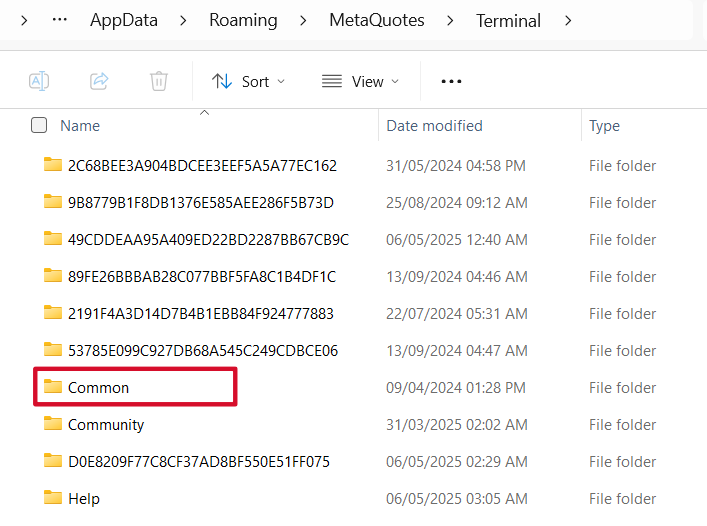
Open Common/Files Folder and Place Your CSV. Inside the Terminal folder, open the Common folder, then open the Files folder. Copy your CSV files into this folder.
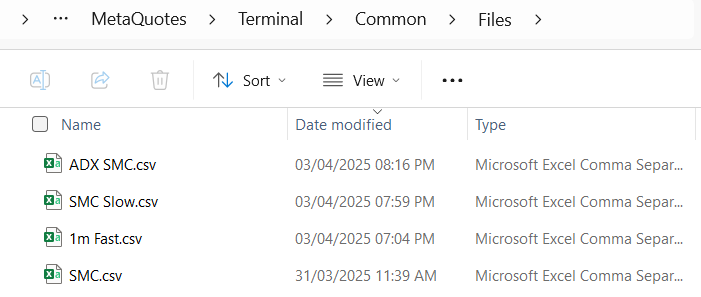
You can create a shortcut to this folder for easy access in the future. This is especially helpful if you'll be running multiple backtests with different CSV files.
Setting Up MT5 Strategy Tester
After preparing your CSV file with trading signals and placing it in the correct folder, you're ready to set up and run your backtest with the TradeSgnl EA. Follow these steps to get actionable results.
Install and locate the TradeSgnl EA. If you haven't already installed the TradeSgnl EA, download it from your dashboard and install it in your MetaTrader 5 terminal. For detailed installation instructions, refer to our Setup Guide.
Open the Strategy Tester. In the Navigator panel on the left side of MT5, find the TradeSgnl EA under Expert Advisors. Right-click on it and select Test to open the Strategy Tester with the EA already selected.
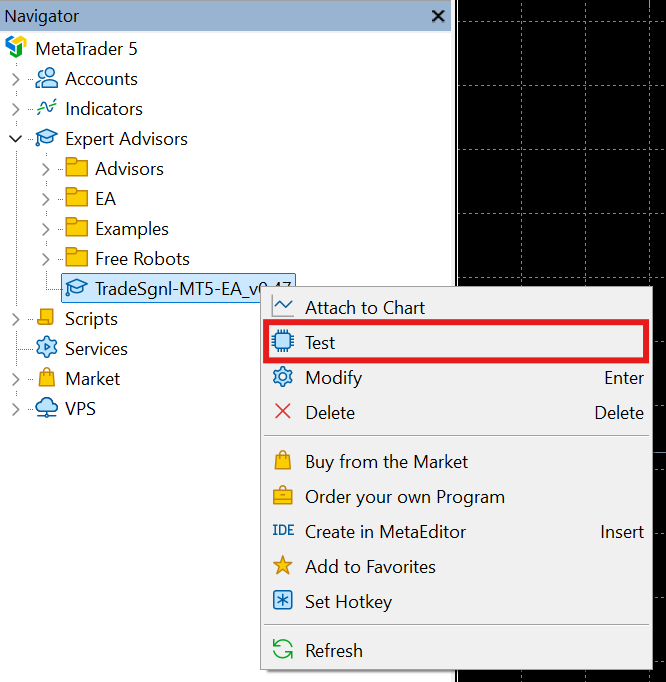
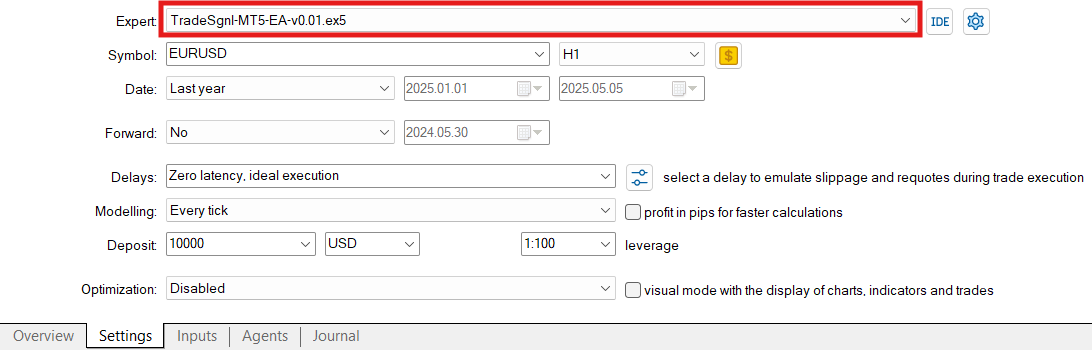
Configure the Strategy Tester settings. In the Strategy Tester panel, configure the following settings:
- Choose the symbol (currency pair) you want to test.
- Set Model to Every tick for the most accurate results.
- Select a date range that covers all trades in your CSV file.
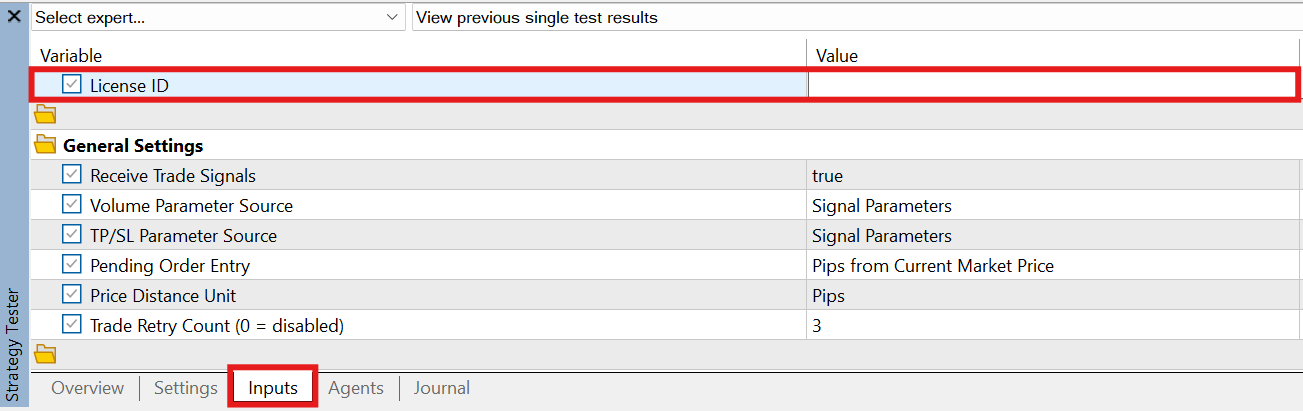
Go to the Inputs tab and enter your License ID. In the Strategy Tester panel, click on the Inputs tab. At the top, find the license_code parameter and enter your valid TradeSgnl license ID. This is required for backtesting to work.
Important
A valid license with an active subscription is required for backtesting. The EA will check your license when the backtest starts and will terminate if no valid license is found.
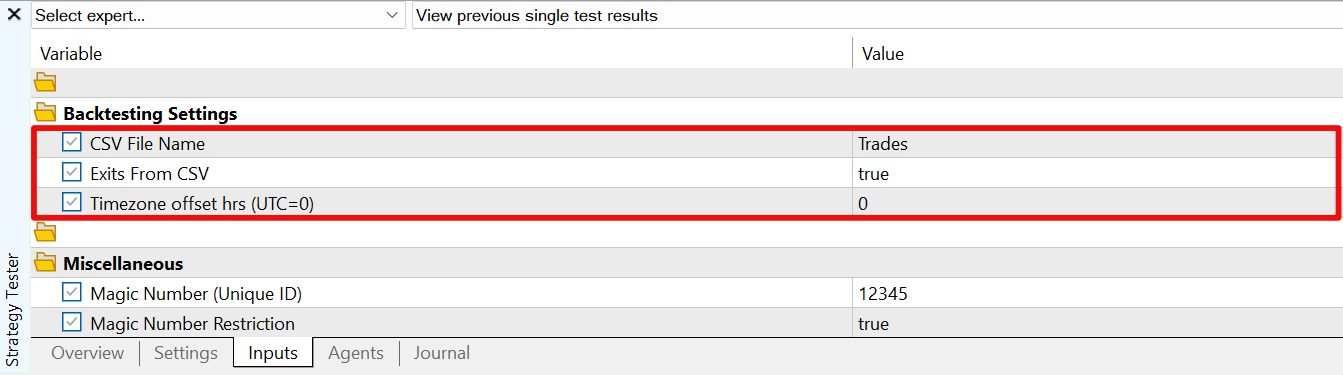
Configure backtesting parameters. Scroll down to the Backtesting Settings section and configure the following parameters:
- CSV File Name — Enter the name of your CSV file without the extension (e.g.,
TradesforTrades.csv). - Exits from CSV — Set to true if you want to use exit signals from your CSV file, or false to use EA-managed exits.
- Timezone Offset — Adjust the timezone offset if your CSV timestamps differ from your broker's server time.
Enhance your strategy
You can also configure other EA parameters like trailing stops, take profit, stop loss, and position sizing to test how they would improve your strategy's performance. This is a great way to optimize your trading approach before going live.
Run the backtest. Click Start to begin the backtest. The EA will validate your license, load your CSV file, and execute trades according to your signals. You'll see the equity curve forming in the Strategy Tester window.
When complete, the EA will automatically upload your results to the TradeSgnl portal for detailed analysis. You'll see a confirmation message in the MT5 journal.
If the upload fails due to connectivity issues, simply run the backtest again when your connection is restored. Access your results in the Backtests section of your dashboard.
Analyzing Results
Once your backtest is complete, TradeSgnl provides a comprehensive analytics dashboard where you can evaluate your strategy's performance. Access your results by logging into your TradeSgnl account and navigating to the Backtests section.
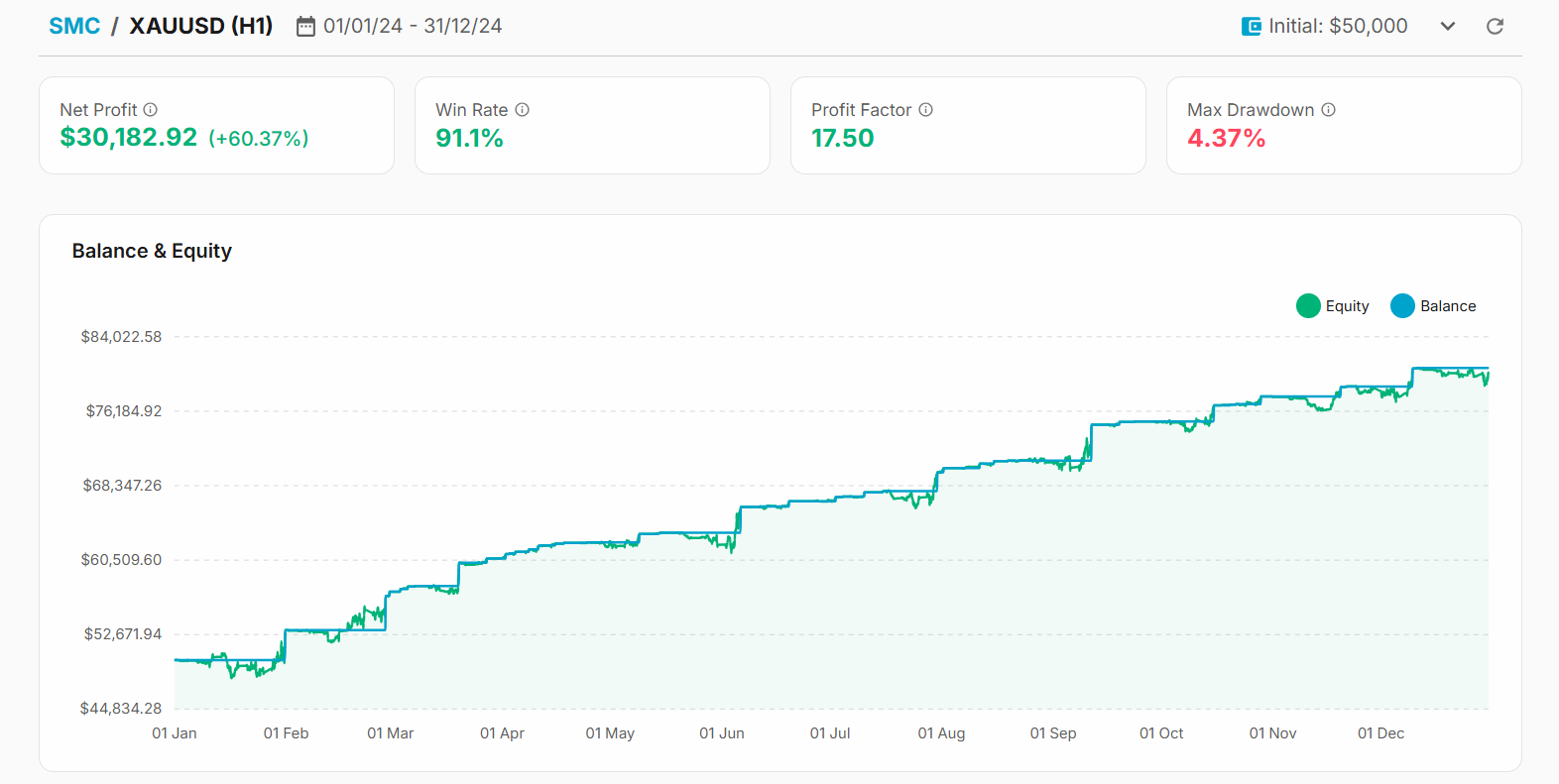
The dashboard provides powerful visualization tools to help you evaluate your strategy.
Key performance metrics:
- Profitability metrics (net profit, profit factor).
- Risk metrics (drawdown, Sharpe ratio).
- Trade statistics (win rate, average trade).
Visual analysis tools:
- Interactive equity and drawdown charts.
- Trade distribution and performance by period.
- Detailed trade-by-trade breakdown.
View Backtest Analytics
For the most effective strategy optimization, focus on risk-adjusted metrics like Sharpe ratio and drawdown alongside raw profitability. A truly robust strategy balances profitability with acceptable risk levels and shows consistent performance across different market conditions.
Best Practices and Tips
To get the most out of the TradeSgnl backtesting system, follow these best practices and tips.
Data quality:
- Use high-quality historical data. Ensure your broker provides accurate tick data for best results.
- Check CSV file format carefully. A single formatting error can affect the entire backtest.
- Verify time zones. Ensure your CSV file time stamps match your MT5 data time zone.
Testing strategy:
- Test across multiple time periods. Include bull, bear, and sideways markets.
- Test multiple instruments. Verify your strategy works on different currency pairs or assets.
- Use realistic settings. Avoid curve-fitting by using practical risk and money management settings.
Advanced optimization tips:
- Risk Management Optimization. Test different combinations of stop loss and take profit levels to find the optimal risk-reward ratio for your strategy. The EA's advanced risk management features can dramatically improve a strategy's performance.
- Trade Size Optimization. Experiment with different position sizing methods: fixed lot sizes vs. percentage-based risk. The latter often provides more consistent equity growth and better risk management.
- Advanced Feature Combinations. Try different combinations of trailing stops, pyramiding, and recovery systems. Sometimes, the interaction between these features creates synergies that significantly enhance performance.
Avoid Over-Optimization
While it's tempting to optimize every parameter until you have perfect historical results, this often leads to poor future performance. Focus on robust settings that work well across different market conditions rather than perfect settings for a specific period.
By combining TradingView's strategy building capabilities with the advanced trade management features of the TradeSgnl EA, you can create robust trading systems that would be impossible to implement in TradingView alone.
FAQ
No-Code Setup
Set up TradingView automation without any coding. Use the visual interface to create alerts and connect them to your trading account.
EA Setup
Complete setup guide for TradeSgnl. Install the Expert Advisor with the EA Manager, the standalone installer, or manually, then connect your account and start automated trading.