
Cloud VPS
Claim and manage a Cloud VPS with full Windows desktop via RDP. Run MetaTrader 5 and the TradeSgnl EA 24/7 with dedicated server resources.
Introduction
A Virtual Private Server (VPS) ensures your trading algorithms run 24/7 without interruption, even if your personal computer is turned off or loses internet connection. The TradeSgnl Cloud VPS comes pre-configured with MetaTrader 5 and the TradeSgnl EA, providing a turnkey solution for automated trading.
With a 99.9% uptime guarantee and optimized network connectivity, your Cloud VPS delivers the reliability and low latency required for professional algorithmic trading.
Why use a Cloud VPS?
Low Latency
Your VPS comes with MT5 and TradeSgnl EA pre-installed and configured for optimal performance.
Reliability
99.9% uptime guarantee ensures you never miss a trading signal, day or night.
VPS vs. CloudConnect
An included Cloud VPS replaces CloudConnect
If your plan includes a Cloud VPS, you run either that VPS or CloudConnect, not both. You may switch between them once every 30 days.
A Cloud VPS you buy as an add-on has no such restriction. It runs alongside your CloudConnect terminals.
CloudConnect
- Full MT5 desktop in your browser
- One-click deploy, ready in 30 seconds
- Access from any device through portal
- 24/7 uptime with automatic EA recovery
Cloud VPS
- Full Windows desktop via RDP
- Install any additional software you need
- Dedicated server resources
- Best for power users who need full OS control
Switching
You can switch between Cloud VPS and CloudConnect once every 30 days. When you switch, your current product is terminated and the new one is provisioned. Make sure to back up any important data before switching.
Cloud VPS Pricing
Cloud VPS is an add-on on every plan
No plan includes a Cloud VPS. It is a paid add-on, and Starter, Advanced and Professional get a subscriber discount on it. Current prices and the discount that applies to your plan are shown at tradesgnl.com/cloud#vps and at checkout.
Subscribed before August 1, 2026?
Advanced and Professional subscriptions that started before the cutoff keep a Cloud VPS free for as long as that subscription stays active. The free rate is locked in for the life of the subscription and does not expire on August 1.
- On both plans, the free VPS is the Core tier. A larger tier can be bought as an add-on.
- Starter has never included a free Cloud VPS, before or after the cutoff. It is a discounted add-on there.
- If your subscription lapses or is cancelled, re-subscribing means the Cloud VPS is charged at the standard add-on price shown at tradesgnl.com/cloud#vps.
- Prices are not duplicated here, so tradesgnl.com/cloud#vps stays the single source of truth.
Claim Your Cloud VPS
Head to the Cloud VPS page in your Portal. That page is where you buy one as an add-on. If you kept a free Cloud VPS from a subscription started before August 1, 2026, you claim it there yourself.
| Cloud VPS tier | vCPU | RAM | SSD |
|---|---|---|---|
| Core | 2 vCPU | 4 GB | 40 GB |
| Performance | 4 vCPU | 8 GB | 80 GB |
| High-End | 8 vCPU | 16 GB | 160 GB |
The table above shows the hardware of each Cloud VPS tier. No plan includes one. Only subscriptions started before August 1, 2026 keep a free Core VPS, see the pricing section above. Any tier can be bought as an add-on on any plan.
After claiming your VPS from the portal, you'll receive an email with your IP address, username, and password within 24 hours.
Connecting to Your VPS
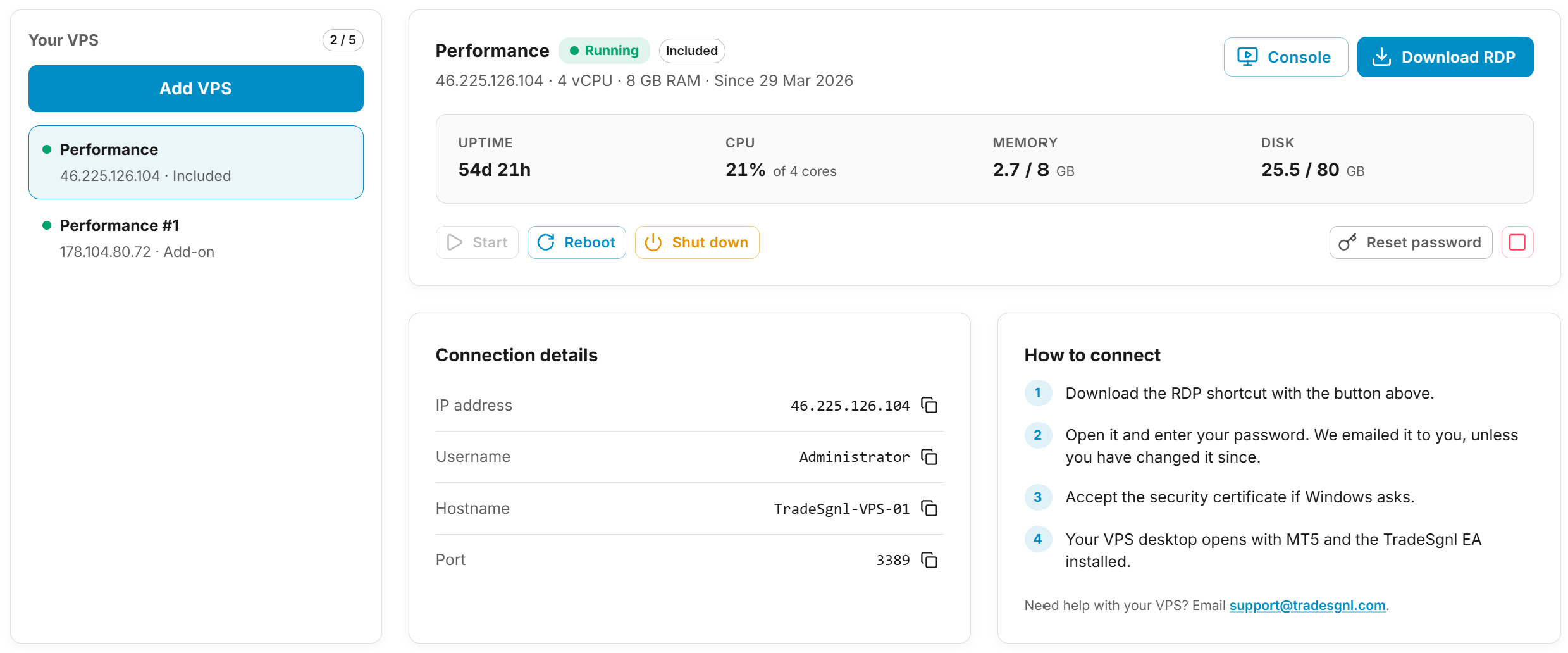
Your VPS is a full Windows desktop, reached over Remote Desktop Protocol (RDP). Everything you need to connect is on the Cloud VPS page: Connection details carries your IP address, username, hostname and port, each with a copy button, and How to connect walks through it alongside.
Quick tip
Download RDP gives you a pre-configured shortcut file. Open it, enter your password, and you're in. That's the one-click route, and it saves typing the IP by hand.
Your password is emailed to you when the VPS is provisioned. If you've changed it since, or never received it, use Reset password on the server's controls. Console opens a browser-based session that works even when RDP doesn't, which makes it the one to reach for if the machine stops answering.
If you'd rather set the connection up by hand:
From Windows
- Press Win+S and search for 'Remote Desktop Connection'.
- Input the IP address from Connection details.
- When prompted, enter the username (usually 'Administrator') and your password.
From macOS
Download the Microsoft Remote Desktop app from the Mac App Store, then:
- Click the + button and select Add PC.
- Enter the IP address in the PC name field.
- Add a user account with your provided credentials, or ask every time.
Managing Your VPS
You have complete control over your Cloud VPS directly from the Client Portal. Monitor real-time metrics and manage your server without ever needing to connect via RDP.

Server controls
Control your VPS state using the action buttons in your dashboard:
| Action | Effect |
|---|---|
Start | Power on a stopped VPS. |
Reboot | Restart gracefully. Available while it's running. |
Shut down | Power off gracefully. Start brings it back. |
Reset password | Set a new Administrator password. |
Delete | Permanently destroy the server (the red bin icon). |
Real-time monitoring
Monitor your server health at a glance with live metrics:
| Metric | Description |
|---|---|
Uptime | How long the server has been running since its last boot. |
CPU | Processor usage, against the core count of your tier. |
Memory | RAM in use, against your tier's total. |
Disk | Storage used, against your tier's total. |
The header above them names the server's tier, whether it's Included or an Add-on, its IP, its hardware, and the date you got it.
Use Reboot for a graceful restart if MetaTrader 5 becomes unresponsive. If the desktop itself stops answering, open the Console rather than shutting the server down, since it reaches the machine directly.
EA Settings
Learn how to configure TradeSgnl EA settings and trading parameters. Optimize risk management, position sizing, and trading behavior.
Trade Copier
Copy every trade from one of your MT5 accounts onto your other accounts. Pick a master and targets, choose how copies are sized, and opens, closes, partial closes and stop loss moves follow automatically.