Alerts
Configure and manage trading alerts with TradeSgnl. Set up custom notifications, alert filtering, and automated alert processing.
Introduction
The TradeSgnl Alerts Dashboard keeps you informed about critical trading events through multiple notification channels. Monitor your trading system's health with real-time alerts and comprehensive history tracking.
Open Alerts Dashboard
Key Benefits
Critical Event Monitoring
Stay informed about connection issues, signal failures, and other critical events that could affect your trading.
Instant Notifications
Receive alerts within seconds of events occurring, enabling quick response to trading issues.
Alert Types
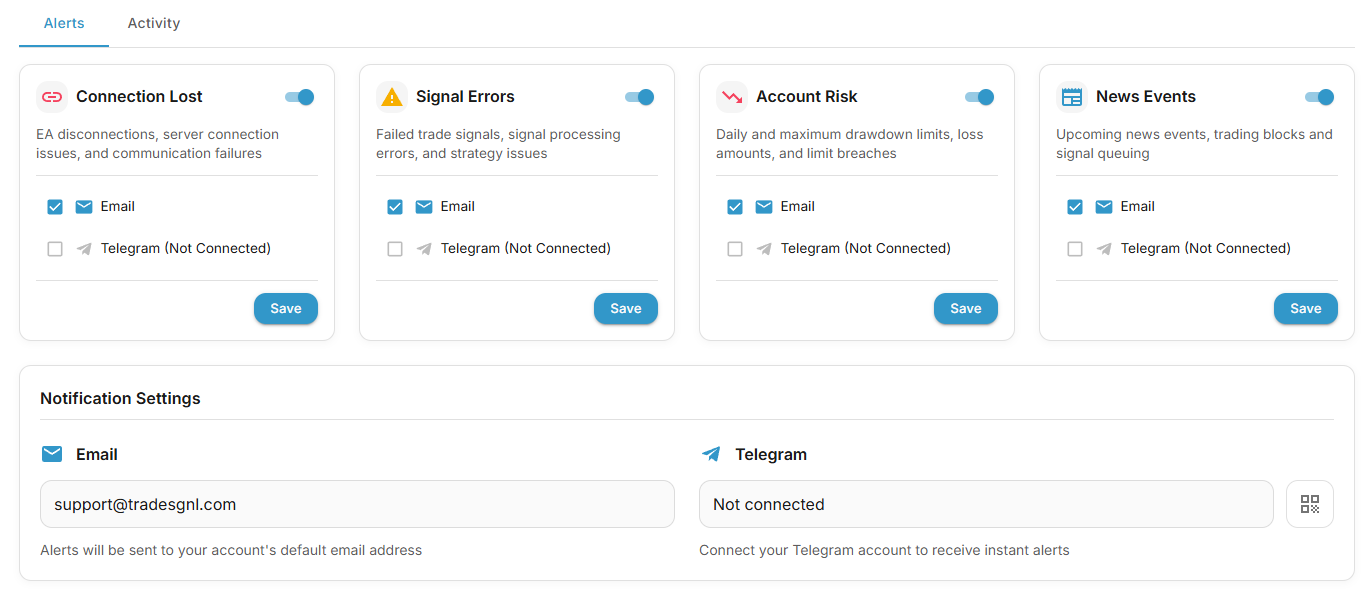
TradeSgnl monitors different aspects of your trading activities and provides targeted alerts for each type of event. Each alert type can be configured independently.
Connection Lost Alerts
Alerts when the TradeSgnl EA loses connection to the server.
- EA disconnection
- Server communication timeout
- Network connectivity issues
Signal Execution Errors
Failed trade signals and strategy execution problems.
- Insufficient margin for trade
- Invalid symbol or market closed
- Account sign-in no longer accepted by the platform (one alert until you reconnect)
- Signal processing failures
Account Risk Alerts
Daily and maximum drawdown limits, loss amounts, and limit breaches.
- Daily drawdown limit exceeded
- Maximum drawdown threshold reached
- Account loss limits breached
News Events Alerts
Upcoming news events, trading blocks, and signal queuing.
- Upcoming high-impact news events
- Trading temporarily blocked due to news
- Signals queued until news period ends
Quick Setup
Get your alerts configured in just a few simple steps.
- Access Dashboard. Navigate to the Alerts section in your TradeSgnl portal.
- Configure Alerts. Toggle alert types on/off and select notification channels.
- Save & Test. Save your settings and verify alerts are working.
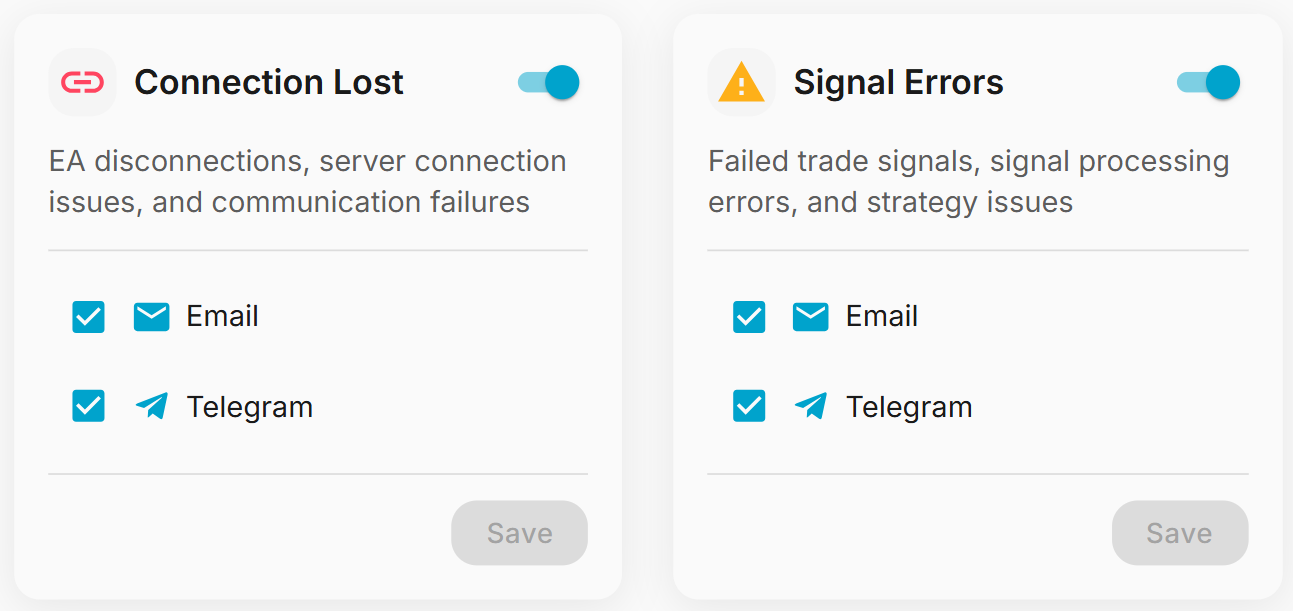
Connect your Telegram account first to enable instant mobile notifications. Setup Telegram Integration.
Notification Channels
Choose how you want to receive your alerts. You can enable multiple channels for important alerts to ensure you never miss critical notifications.
Email Notifications
Automatic delivery to your account email with detailed alert information and reliable delivery.
Telegram Notifications
Instant mobile push notifications via TradeSgnl bot for faster response times.

We automatically use your account email for email alerts, no configuration needed. For faster mobile notifications, connect Telegram as a secondary channel.
Alert History
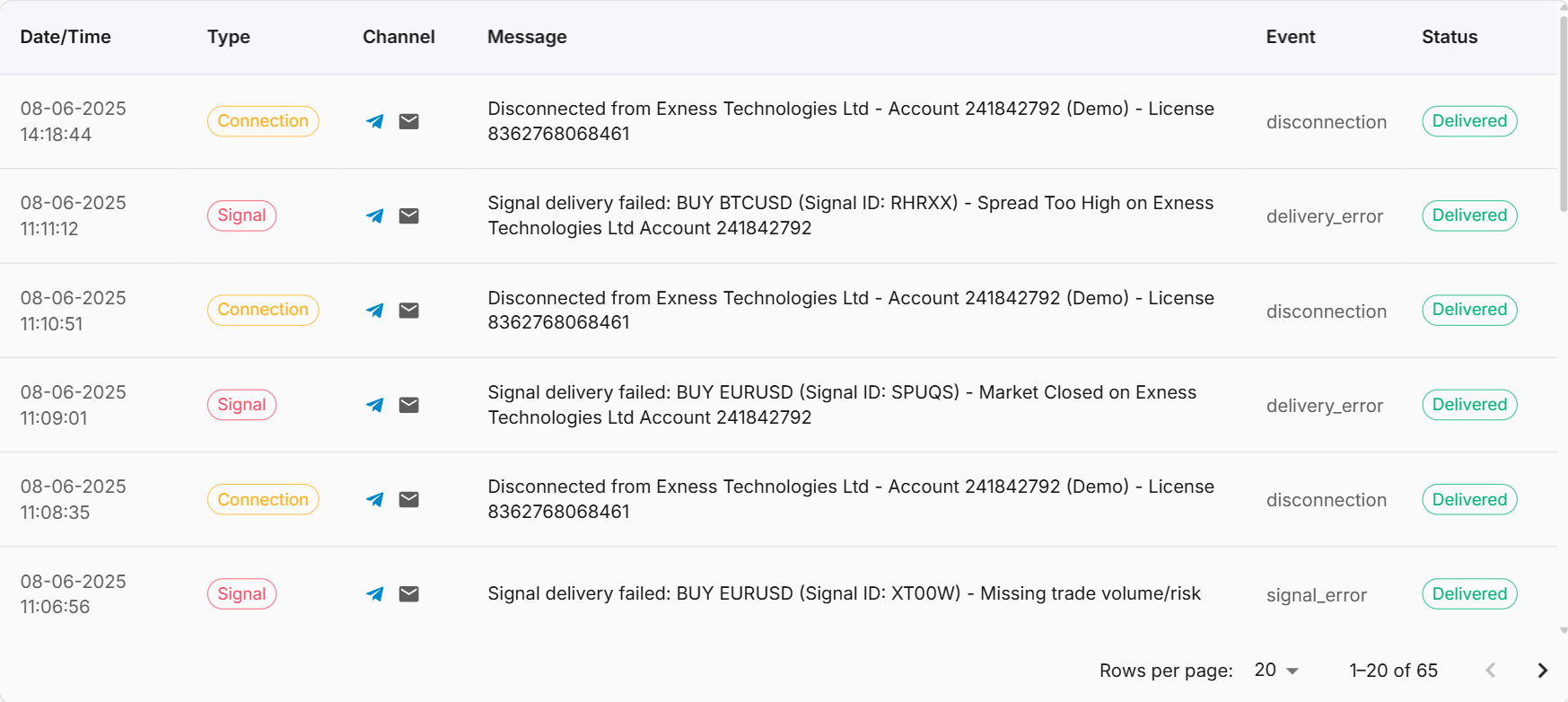
The Alert History tab provides detailed tracking of all alerts sent from your account, including delivery status and timestamps. This is valuable for:
- Verifying alert delivery. Confirm notifications were sent successfully.
- Troubleshooting issues. Identify patterns in failures or missed alerts.
- System monitoring. Track your trading system's health over time.
- Support requests. Provide detailed logs when contacting support.
Troubleshooting
Common issues and quick solutions.
Frequently Asked Questions
Market Analyst
A conviction-gated market analyst inside your portal. Pick any symbol and a trading style, and the AI reads live market structure, levels, momentum, and volatility, then either lays out a trade scenario with an invalidation level or tells you to stand aside.
Telegram Integration
Set up Telegram integration for trading notifications. Receive real-time alerts and manage your trades through Telegram.