
Install the App
Add TradeSgnl to your phone's home screen or your computer's apps, so it opens full screen with its own icon. Steps for Android, iPhone, iPad and desktop.
Introduction
TradeSgnl installs straight from the browser, with no app store. Once installed it has its own icon, opens full screen like any other app, and its push notifications show as TradeSgnl.
Open the Portal
Android
Open the portal in Chrome and sign in.
Tap Install at the top of the page, then Install again in the box that opens.
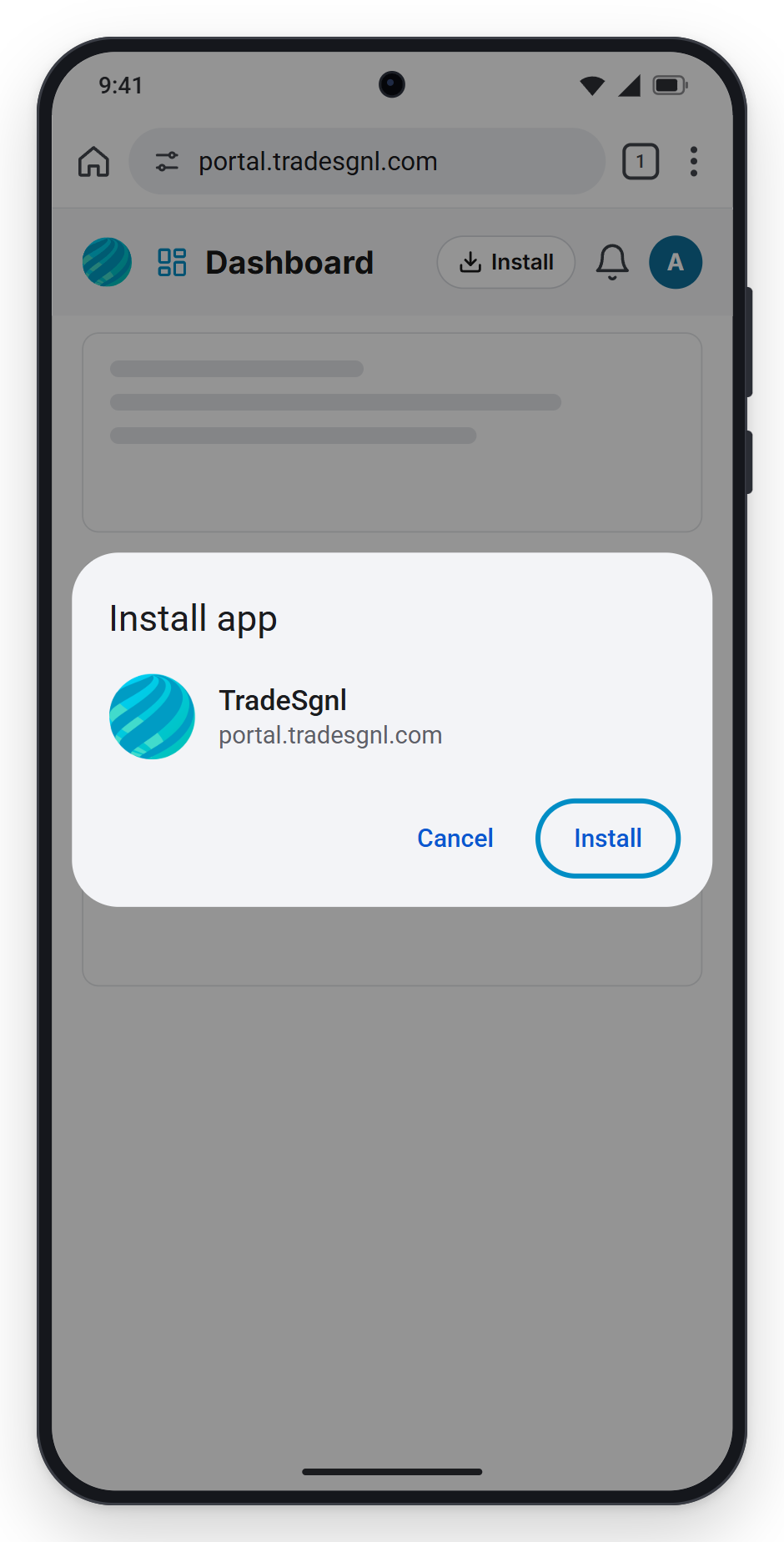
Open TradeSgnl from your home screen. You stay signed in.
No Install button at the top? Tap Chrome's ⋮ menu, then Install app or Add to Home screen. The button also hides once TradeSgnl is installed.
iPhone and iPad
Open the portal in Safari, tap the Share button, then Add to Home Screen.
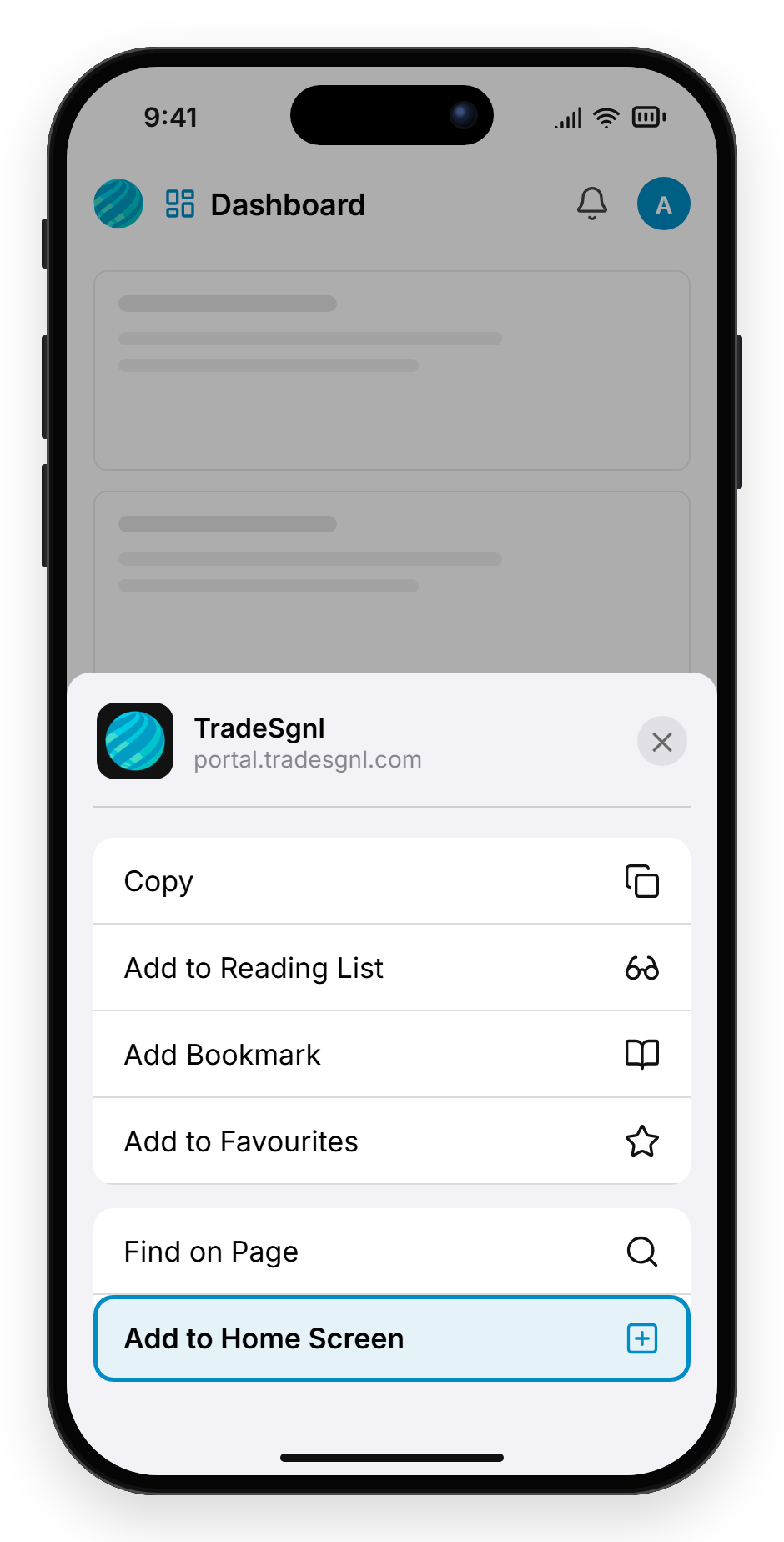
Tap Add, then open TradeSgnl from the new Home Screen icon and sign in.
Safari keeps the Home Screen app separate from the browser, so you may need to sign in again the first time you open it.
Computer
In Chrome or Edge, open your account menu at the top right of the portal and click Install app, then Install. You can also use the install icon at the right of the address bar.
TradeSgnl then opens in its own window and shows up with your other apps.
Next Step
With the app installed, turn on push so alerts reach your phone even when TradeSgnl is closed.
Quick Start
Get started with TradeSgnl quickly. This guide covers the essential steps to set up automated trading in just a few minutes.
Syntax Generator
Build TradeSgnl signals visually without typing alert syntax. Configure entries, exits, stops, multi-level take profits, trailing stop, breakeven and modify commands for trades already open through a guided form. Send a test straight to your account, save presets, and copy the right message for TradingView, with a wizard that picks the setup for you.