
Telegram Copier
Automatically copy trading signals from Telegram channels to your trading account. Configure signal parsing with AI or regex, set up templates, and execute trades in real-time.
The Telegram Copier monitors your Telegram channels for trading signals and automatically executes them on your trading account. Connect your Telegram, select the channels you want to monitor, configure how signals are parsed, and let the system handle execution in real-time.
Overview
The Telegram Copier bridges your Telegram signal channels and your trading accounts. When a trading signal is posted in a monitored channel, the copier detects it, extracts the trade parameters (symbol, action, entry, stop loss, take profits), and sends a formatted command to your accounts for instant execution.
Instant Execution
Signals are parsed and sent to your accounts within milliseconds. No manual intervention required.
Smart Parsing
Auto-detect with regex patterns or use AI-powered parsing for complex signal formats.
Full Control
Configure templates per channel, set default volumes, pause or resume monitoring at any time.
The Telegram Copier requires an active TradeSgnl license with at least one connected account.
Getting Started
Setting up the Telegram Copier takes just a few minutes. Here is the process.
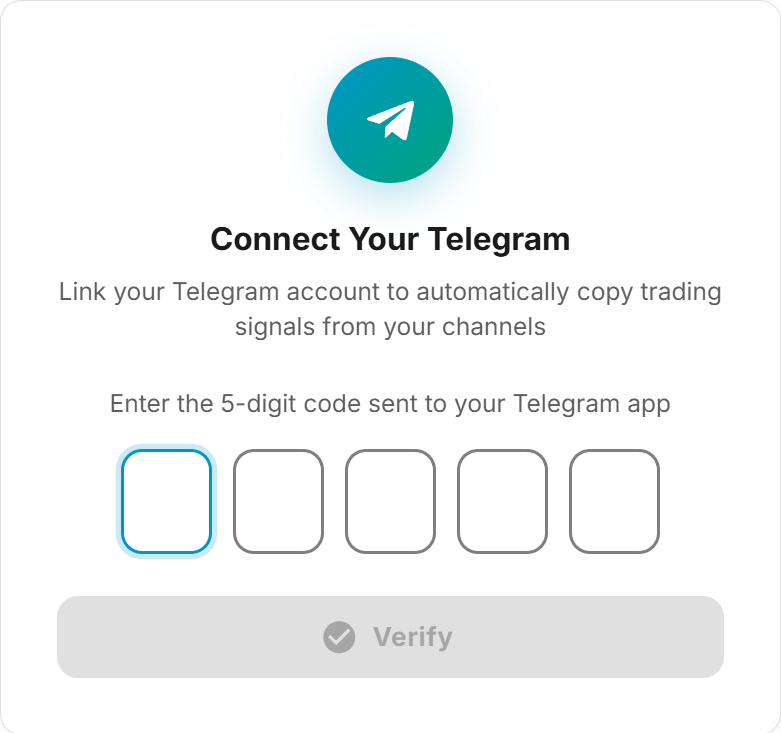
Connect Your Telegram Account. Navigate to the Telegram Copier page in your TradeSgnl portal. Enter your phone number and verify with the code sent to your Telegram app. If you have two-factor authentication enabled, you will also need to provide your 2FA password.
Your Telegram session is encrypted and stored securely. TradeSgnl only accesses the channels you explicitly choose to monitor.
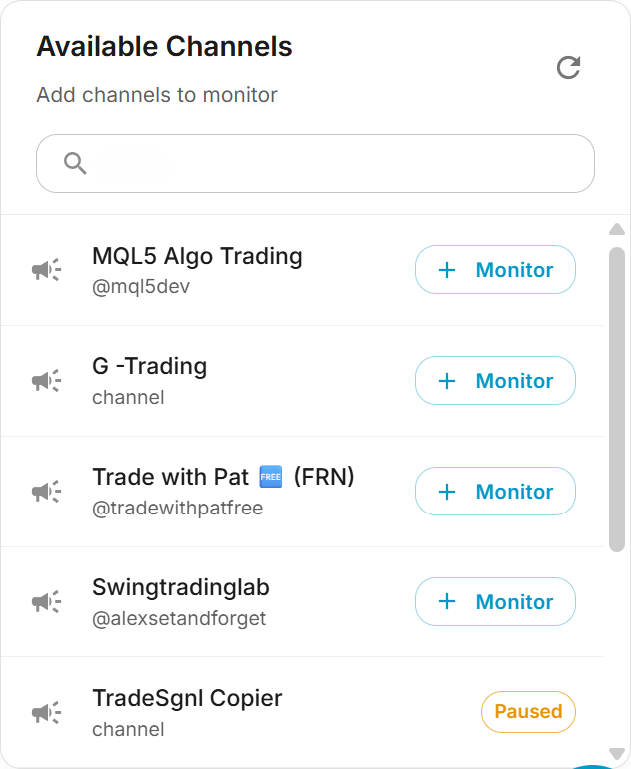
Select a Channel to Monitor. After connecting, click Monitor a channel. A dialog lists every channel, group and bot you're subscribed to on Telegram. Search by name, or narrow the list by type, then click Monitor on the one you want. Anything you already monitor is marked, so you won't add it twice.
Configure Signal Parsing and Save. A setup dialog opens where you configure how signals are parsed, set defaults, and choose which license receives the signals. See Setting Up a Channel below for a full walkthrough of this dialog.
Setting Up a Channel
When you click Monitor on a channel (or Channel template on one you already monitor), the channel setup dialog opens. This dialog has two panels.
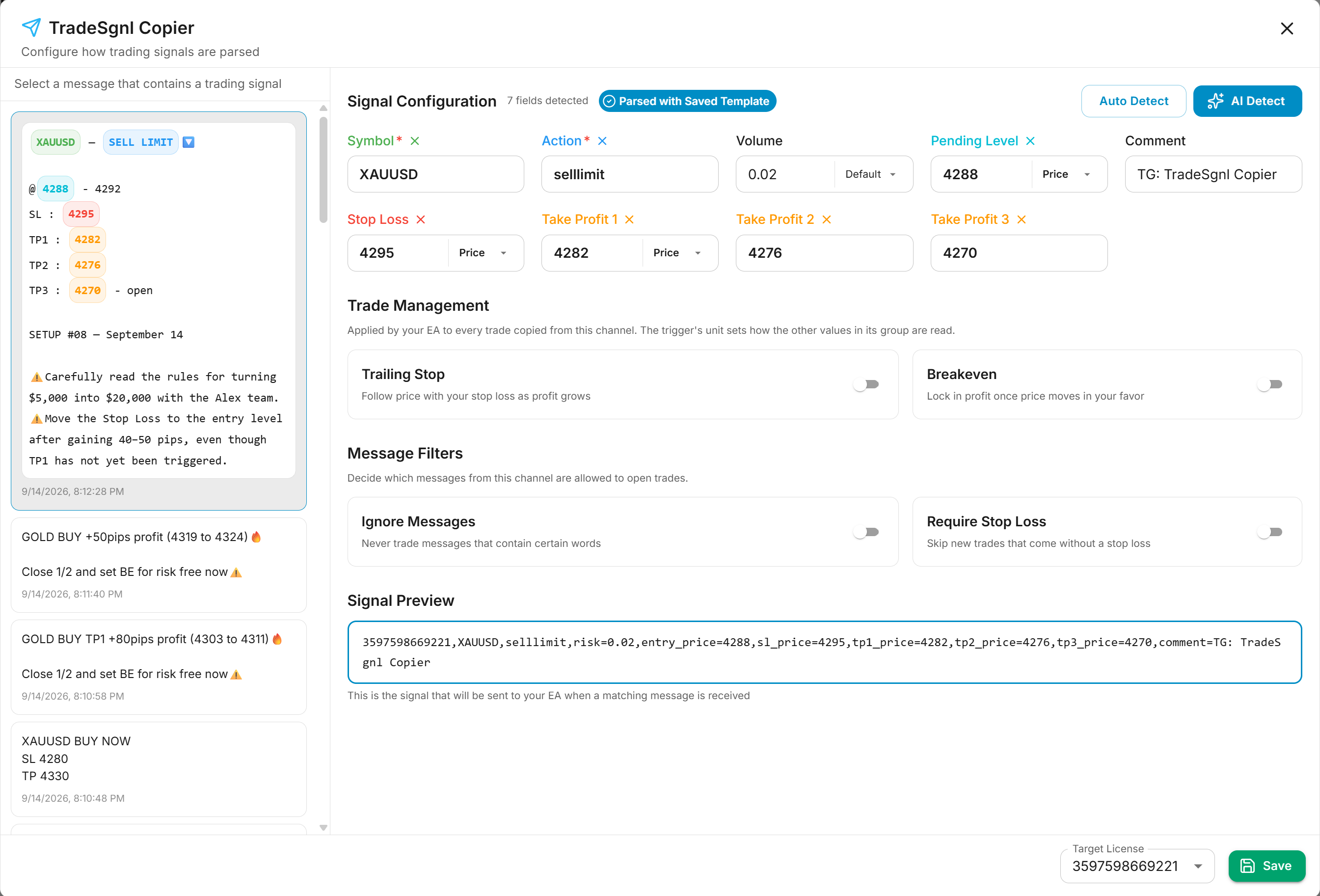
Message Panel (Left)
Displays the last 30 messages from the channel. Select a message that contains a representative trading signal. The selected message will be used to configure and test your parsing template.
Signal Configuration (Right)
This is where you configure how signals are extracted from messages. You can use three detection methods.
| Method | How it works |
|---|---|
| Auto Detect | Uses regex patterns to extract fields. Fast and works well for standard signal formats (e.g., 'BUY EURUSD @ 1.0850 SL 1.0820 TP 1.0900'). |
| AI Detect | Uses AI to understand the signal context. Handles complex, non-standard, or natural language signals. |
| Manual Mapping | Select text in the message preview and assign it to a field (symbol, action, entry, SL, TP). Use this to correct or supplement auto/AI detection. |
AI Credits
Using AI parsing consumes AI credits for each processed signal. If you run out of your monthly credits, you can purchase extra AI credits at any time on the Billing page in your portal.
Signal Preview
At the bottom of the configuration panel, the Signal Preview shows exactly what will be sent to your accounts when a matching message is received. This updates in real-time as you adjust settings, showing your actual license code and all detected parameters.
If the message contains more than one order, the preview shows one line per order along with a badge telling you how many will be sent.

Always check the Signal Preview before saving. It shows the exact command your accounts will receive, so you can verify symbols, prices, and order types are correct.
Multiple Orders in One Message
A single message often carries more than one order: a hedged buy stop and sell stop pair, an entry ladder at several price levels, or the same setup restated once per broker. The copier reads every order in the message and sends each one to your accounts as a separate trade. This works with Auto Detect, AI Detect, and saved templates.
In the message panel, the values belonging to each order are highlighted, so you can see exactly which numbers were picked up and which were ignored.
Repeated Orders Are Merged
Some channels post the same trade twice, once per broker or prop firm. When the repeats quote identical entry, stop loss and take profit levels, the copier recognizes them as the same order and sends it once. The repeat appears dimmed in the message panel, so you can tell it was detected rather than missed.
Orders that differ in any price level are kept separate. An entry ladder with three different entry prices still creates three orders.
A single message can create at most 10 orders.
Trading Only Part of the Message
If a channel restates the same orders per broker and each broker quotes slightly different prices, the copier cannot tell the repeats apart and will send all of them. Use the Trade only part of the message fields to pick the section you want.
| Field | Effect |
|---|---|
| Start reading at | Ignores everything above this text |
| Stop reading at | Ignores everything from this text onward |
Enter the text that marks the section boundary, such as the broker name or the divider the channel uses between sections. You can use one field or both together to select a section in the middle of a message.
The header above the first order is always kept, so an instrument declared once at the top of the message still applies to the section you selected.
These fields only appear once a message produces more than one order, or when you already have one set.
Parsed Fields
The copier extracts these fields from each signal message.
| Field | Required | Description |
|---|---|---|
| Symbol | Yes | The trading instrument (e.g., EURUSD, XAUUSD, US30). Common aliases are automatically normalized. |
| Action | Yes | The trade direction: BUY, SELL, BUYLIMIT, SELLLIMIT, BUYSTOP, SELLSTOP, or close commands. |
| Entry, Stop Loss, Take Profits | No | Price levels for the trade. Multiple take profit targets (TP1, TP2, TP3...) are supported. |
| Volume | No | Position size. If not detected in the message, the default volume from your template settings is used. |
Only Symbol and Action are required. All other fields fall back to your configured defaults if not detected in the message.
Default Settings
Each channel template includes default settings that are applied when fields are not detected in a signal message.
| Setting | Description |
|---|---|
| Default Volume | The position size to use when volume is not specified in the signal (e.g., 0.01). |
| Volume Type | How volume is calculated: Fixed Lots, % of Balance, % of Equity, Dollar Risk, or default risk mode. |
| Comment | A label attached to each trade for identification (defaults to TG: ChannelName). |
| Entry / SL / TP Type | Whether price values are interpreted as absolute prices, pips, or percentages. |
Trade Management
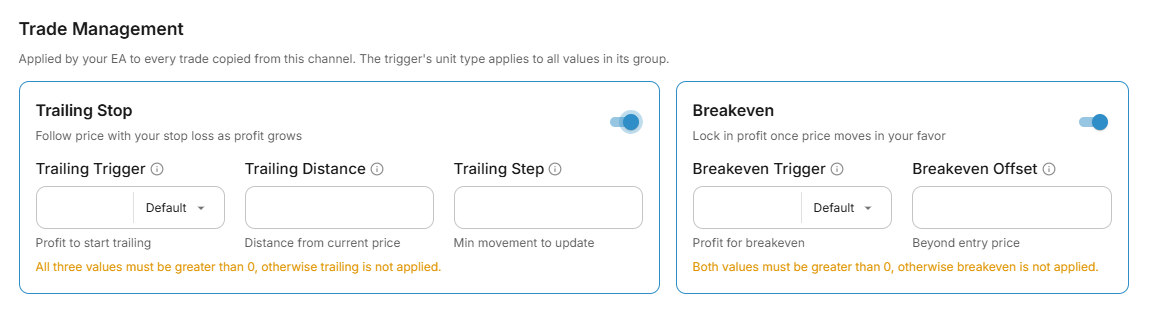
The Trade Management section lets you attach a trailing stop and breakeven to every trade copied from this channel, even when the original signal message does not mention them. Toggle on the feature you want and fill in the values. These settings are applied automatically to each trade the channel produces.
| Feature | Fields | What it does |
|---|---|---|
| Trailing Stop | Trigger, Distance, Step | Once price moves Trigger in your favor, the stop loss follows behind it at Distance, moving in Step increments. |
| Breakeven | Trigger, Offset | Once the Trigger is reached, the stop loss jumps to your entry plus Offset. Leave Offset empty to move it to your entry itself. |
Each feature has a unit type selector on its trigger field that sets how all values in that group are measured.
| Unit Type | Meaning |
|---|---|
| Default | Uses the unit configured in your EA settings. |
| Pips | Values are measured in pips. Best for forex pairs. |
| Currency | Values are the raw price distance (points). Best for indices, gold, and crypto where pips are ambiguous across brokers. |
| Price | The trigger is an exact price level rather than a distance. |
| Percent | Values are a percent of the price, so one setting suits every instrument. |
| TP Level | Breakeven only. The trigger follows one of the signal's own take profit levels. |
The unit type on the trigger is the master type. The distance and step fields automatically inherit it, so you only choose the unit once per feature. TP Level is the exception: the trigger's unit belongs to the channel's target, so the Offset gets a unit selector of its own.
Breakeven at a take profit level
Pick TP Level and choose a target, and the stop moves to breakeven when that target is reached, using whatever prices each signal actually carries. It suits channels where the distance to the targets changes from one signal to the next, so no fixed value fits them all.
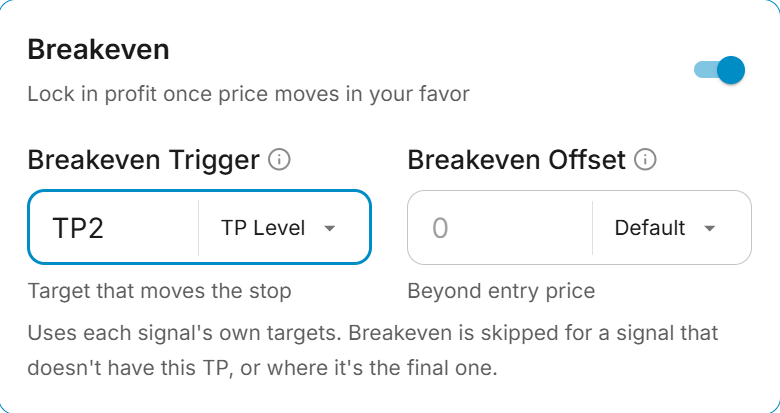
A typical setup on a three-target signal: the copier sends all three targets, the trade scales out at TP1 and TP2, and with breakeven set to TP2 the stop on the remaining position moves to your entry the moment TP2 is reached, leaving the rest to run to TP3.
If the channel's signals don't always have the same number of targets, choose Before last TP instead. It uses the target just before the final one, whatever the count: TP2 on a three-target signal, TP3 on a four-target one, TP1 on a two-target one. Your final runner is always protected.
Breakeven is skipped for a signal that does not carry the level you chose, or where your chosen level is the signal's final target (the position closes there, so a breakeven could never act). The trade still opens normally with its own stop loss and targets.
Enable Signal control in your EA
For the trailing stop values to take effect, your EA's Trailing Stop Management setting must be set to Signal. If the EA is configured to use its own inputs instead, the trailing values sent from the copier are ignored. Breakeven has no such setting and always comes from the signal. See Signal Syntax for the full parameter reference.
Needs EA 0.69 or newer
Breakeven with an empty Offset, the Percent unit, and TP Level need EA 0.69. Update the EA to use these features.
Trade management is captured when each trade is opened. Changing these settings affects new trades from the channel; trades already open keep the management they were opened with.
Message Filters
The Message Filters section decides which messages from the channel are allowed to open trades. Both filters run in the copier, before anything is sent to your accounts.
| Filter | What it does |
|---|---|
| Ignore Messages | A message containing any of your phrases is never traded. Separate phrases with |, for example BUY NOW|SELL NOW. Capital letters don't matter. |
| Require Stop Loss | A new trade that has no stop loss is not sent. Your default stop loss counts as a stop. Updates and closes for trades already open are still sent. |
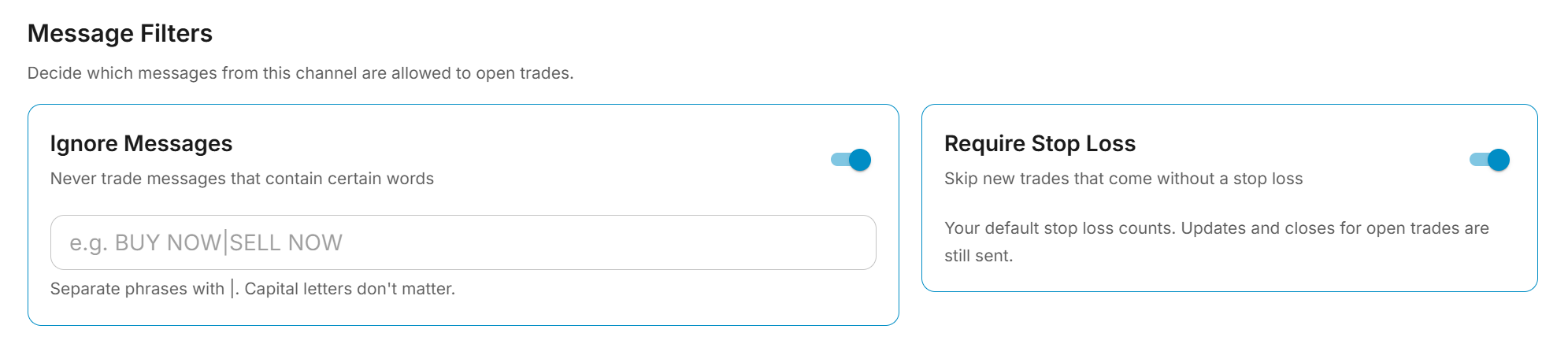
Use them for channels that post a quick call with no stop loss ahead of the full setup. With either filter on, the quick call is skipped and the full setup opens the trade with its stop loss and targets. A skipped message still appears in the Activity tab with the reason, so you can confirm the filter caught what you meant it to.
Ignore Messages accepts a regular expression, so advanced patterns work too. The template builder shows a warning on the preview when the selected message would be ignored or held back.
Managing Channels
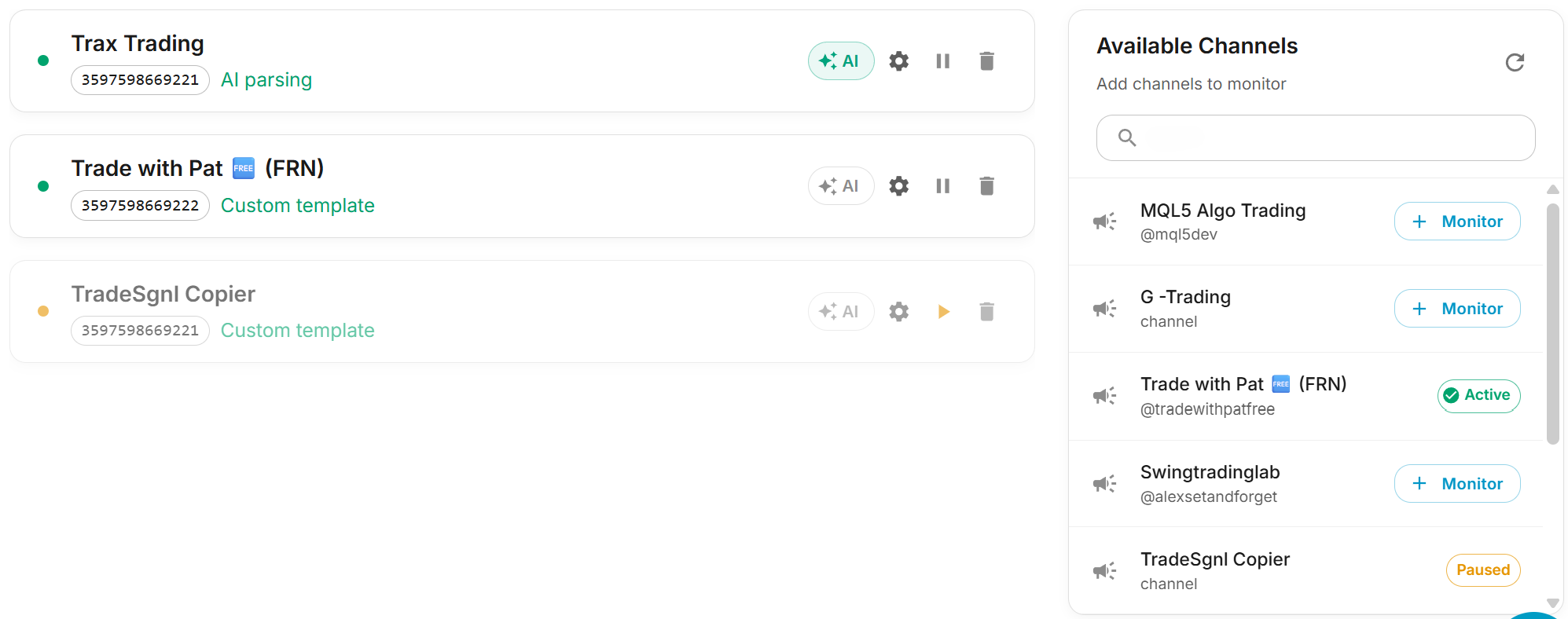
Your monitored channels are listed on the left of the Telegram Copier page. Select one and it fills the panel on the right: whether it's Active or Paused, whether it's a channel, group or bot, the license its signals run on, and how it reads messages.

Recent outcomes
The four figures across the top tell you whether the channel is working without opening anything:
- Sent — Messages that produced a trade, over the last 7 days.
- No signal — Messages checked but not traded, over the same window. A healthy number: most posts in a signal channel are commentary, not signals.
- Failed — Messages that should have traded but didn't, over the same window. Anything other than zero is worth opening the Activity tab for.
- Last message — How long ago the channel last posted anything the copier looked at. If this is older than you expect, the problem is the channel or your Telegram connection, not your template.
Controls
| Control | What it does |
|---|---|
| Channel template | Re-open the channel setup dialog to adjust parsing rules, defaults, trade management, filters, or reassign the license. |
| AI parsing | Switch between template-based parsing (fast, ~100ms) and AI parsing (smarter, ~1-5s) for this channel. |
| Merge repeats | On by default. When the channel restates a signal it already sent, apply the new stop loss and targets to the open trade instead of opening a second trade. See Restated Signals and Trade Updates. |
| Pause / Resume | Temporarily stop or resume signal processing without losing the configuration. |
| Remove | Stop monitoring the channel and delete its setup (the red bin icon). |
A channel with no template yet says so, and needs one before you can resume it. Until then nothing from that channel is traded.
Activity and Messages
Below the controls, two tabs show you what actually happened, updating live.
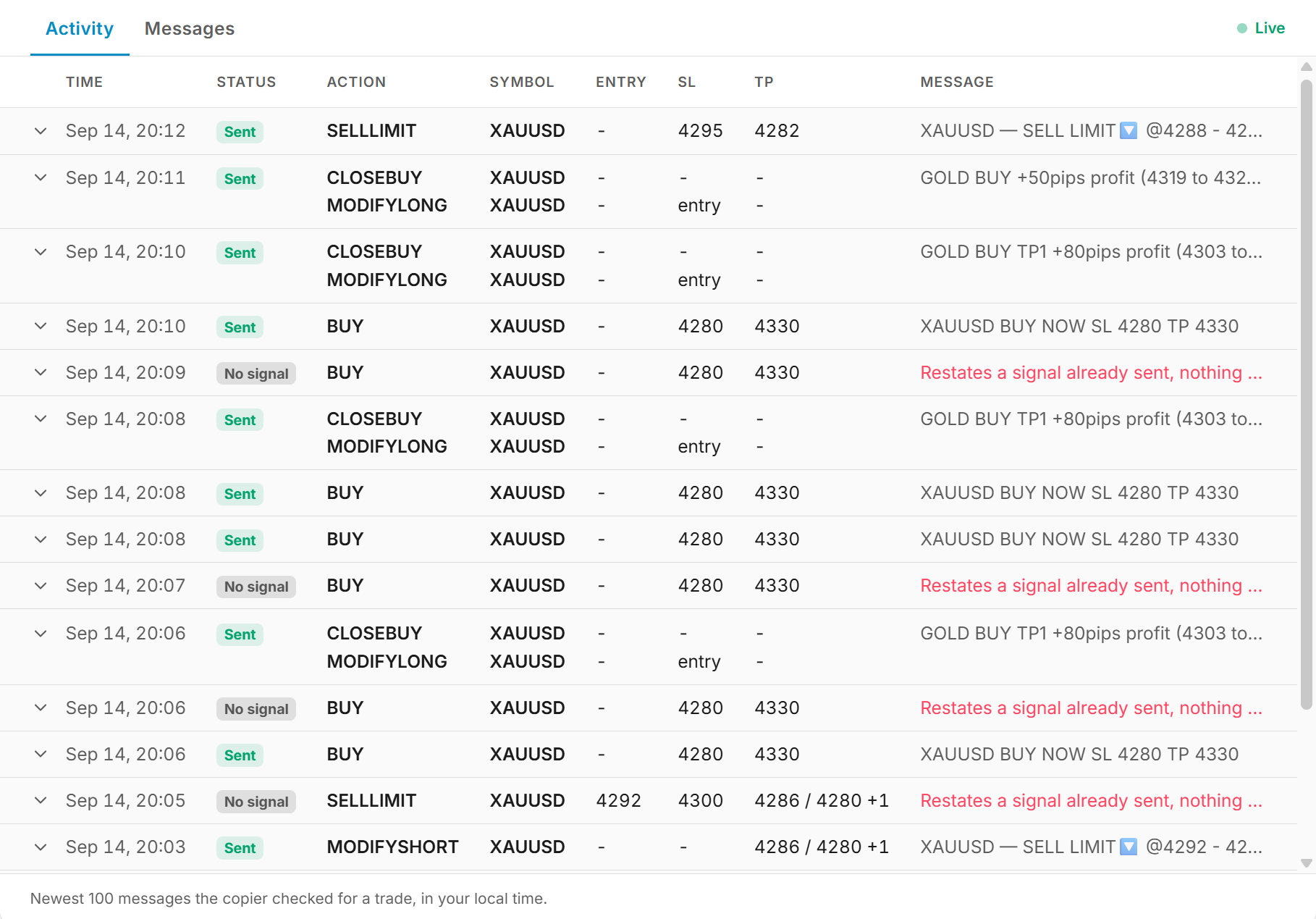
Activity is the copier's own record: one row per message it checked for a trade, newest first. Each row shows the time, what it decided, and the trade it parsed.
| Column | What it shows |
|---|---|
| Status | Sent, Partial, Failed, or No signal |
| Action | The command sent, such as BUY, SELLLIMIT or CLOSEBUY. A message carrying several trades stacks one line per trade. |
| Symbol, Entry, SL, TP | The values parsed from the message, exactly as they went to your accounts |
| Message | The start of the original post, or the reason it wasn't traded |
Click any row to expand it. You get the full message text, and for anything that failed or was skipped, the reason above it. This is the fastest way to answer "why didn't that one trade?", because you can compare what the channel wrote against what the copier read from it.
Messages is the raw feed: the channel's latest posts as Telegram delivered them, whether or not the copier acted. Use it to confirm a post arrived at all when nothing shows in Activity.
Activity holds the newest 100 messages the copier checked, Messages the latest 50 from Telegram, both in your local time.
Restated Signals and Trade Updates
Many channels post a quick call ("SELL GOLD NOW, SL 4300") and then, a minute later, the full setup for the same trade with its targets. With Merge on, the copier recognizes the second post as the same trade: same symbol and direction, the same stop loss or entry, within a few minutes. It sends a modify command that adds the new stop loss and targets to the trade already open, instead of opening a second one. A repeat that adds nothing new is skipped.
If the quick call carries no stop loss, the trade stays unprotected until the full setup arrives, and the quick call may have already hit its target by then. To trade only the full setup, turn on a Message Filter.
The copier also acts on management messages about the channel's open trade:
| Message | What the copier sends |
|---|---|
| "Set BE", "move SL to entry", "SL to breakeven" | Moves the stop loss of the channel's open trades to their entry price |
| "Close half", "close 1/2", "close 50%" | Closes that share of the channel's open trades |
These use the symbol and direction named in the message, or the channel's last trade when the message names none. They only apply to trades carrying the channel's comment, so trades from your other strategies are never touched. Instructions inside a new setup, such as "move SL to entry after 40 pips", are not acted on.
Needs EA 0.68 or newer
Merging and moving a stop to entry use modify commands. On an older EA the signal is rejected with error 7021 and the first trade keeps its original levels. Update the EA to use these features.
Supported Symbols
The copier automatically normalizes common symbol aliases to their standard broker format. Here are some examples.
| Category | Aliases |
|---|---|
| Metals | GOLD → XAUUSD, SILVER → XAGUSD |
| Currencies | CABLE → GBPUSD, FIBER → EURUSD, AUSSIE → AUDUSD, KIWI → NZDUSD, LOONIE → USDCAD |
| Indices | NASDAQ / NAS100 → USTEC, DOW / DJ30 → US30, DAX → DE40, NIKKEI → JP225, FTSE → UK100 |
| Crypto | BTC → BTCUSD, ETH → ETHUSD, SOL → SOLUSD, XRP → XRPUSD, DOGE → DOGEUSD |
| Commodities | OIL / WTI → USOIL, BRENT → UKOIL, NATGAS → NATGAS |
If your broker uses a different symbol name (e.g., GOLD instead of XAUUSD), you can use the Symbol Mapping feature in the portal to create custom mappings.
Troubleshooting
FAQ
TradingView AI
TradingView AI in your browser side panel. The TradeSgnl Chrome extension reads your chart in real time, runs indicators, draws levels, creates alerts, and guides automation setup in plain English.
MT5 Cloud
Connect your MT5 broker directly from the portal. Each account gets a managed terminal with the TradeSgnl EA pre-installed, live balance and equity in your dashboard, and 24/7 uptime.