
MCP server
Give Claude, ChatGPT, Cursor, Antigravity or any MCP-capable agent access to your TradeSgnl data, the Market Analyst and your signal webhook. One URL, sign in, allow.
Introduction
TradeSgnl runs an MCP (Model Context Protocol) server. Connect it to your AI agent and it can read your signals, deliveries, connected accounts and performance metrics, query live market prices, run the Market Analyst, and, if you allow it, send trade signals directly to your broker accounts.
The MCP server is part of TradeSgnl Cloud, included on the Advanced and Professional plans.
The server address is:
https://portal.tradesgnl.com/api/mcpThe server operates over Streamable HTTP and supports two authentication methods:
- OAuth 2.1 (Recommended): Sign in through your browser and select permissions on a consent screen. No API keys to copy or manage.
- Personal API Keys: Standard Bearer token authentication for headless servers, scripts, and clients that support custom headers.
Chart control stays in the browser. An agent connected via MCP cannot draw on your TradingView chart, add indicators or manage TradingView alerts. For chart automation, use the TradingView AI extension.
Connect with OAuth
Connecting with OAuth is the simplest method: you provide the server address, your agent opens a TradeSgnl authorization tab in your browser, and you approve the connection.
Add the server to your agent
Choose your agent below and follow the configuration steps:
Claude (Web, Desktop, Mobile)
 Claude (Web, Desktop, Mobile)
Click the button. Claude opens with TradeSgnl filled in. Click Continue.
Add to ClaudeTo add it by hand instead:
- Go to Customize > Connectors.
- Click Add custom connector.
- Set the name to TradeSgnl and enter the server URL:
https://portal.tradesgnl.com/api/mcp- Click Continue.
Claude Code (CLI)
 Claude Code (CLI)
Run the following command in your terminal:
claude mcp add --transport http tradesgnl https://portal.tradesgnl.com/api/mcpChatGPT
 ChatGPT
- Go to Settings > Plugins > Developer mode and enable Developer mode.
- From Plugins, go to Browse Plugins > New plugin.
- In the modal:
- Name: Enter
TradeSgnl. - Connection: Leave on Server URL and enter the server URL:
- Name: Enter
https://portal.tradesgnl.com/api/mcp- Authentication: Select OAuth (ChatGPT automatically discovers the authorization endpoints; leave Client ID and Client Secret blank).
- Check I understand and want to continue.
- Click Create.
Codex
 Codex
CodexAdd the TradeSgnl MCP server to your Codex CLI or configuration:
codex mcp add tradesgnl --url https://portal.tradesgnl.com/api/mcpCursor
 Cursor
Click the button. Cursor opens and asks to install tradesgnl. Click Install. If Cursor then shows Needs login next to tradesgnl, click it.
Add to CursorTo add it by hand instead, open your project's .cursor/mcp.json (or your global Cursor MCP settings) and add:
{
  "mcpServers": {
    "tradesgnl": {
      "url": "https://portal.tradesgnl.com/api/mcp"
    }
  }
}
Google Antigravity
 Google Antigravity
Add the server entry to your configuration file (~/.gemini/antigravity/mcp_config.json or ~/.gemini/config/mcp_config.json):
{
  "mcpServers": {
    "tradesgnl": {
      "command": "npx",
      "args": [
        "-y",
        "mcp-remote",
        "https://portal.tradesgnl.com/api/mcp"
      ]
    }
  }
}
VS Code
 VS Code
Click the button. VS Code opens the tradesgnl server. Click Install, then Allow when VS Code asks to sign in to tradesgnl.
Add to VS CodeTo add it by hand instead, run MCP: Add Server from the Command Palette, choose HTTP and enter the server URL.
Windsurf
 Windsurf
Add a new MCP server in your editor settings with transport type stdio using npx -y mcp-remote https://portal.tradesgnl.com/api/mcp, or select remote HTTP and enter the portal endpoint.
Sign in and authorize
When your agent first connects, a browser tab opens to the TradeSgnl consent page. If you are not signed in, log in to your account.
The consent screen shows:
- The name of the client app connecting.
- The permissions requested (all connections include read access to your portal data).
- An Execute trades toggle (disabled by default), which allows the agent to place real orders on your accounts.
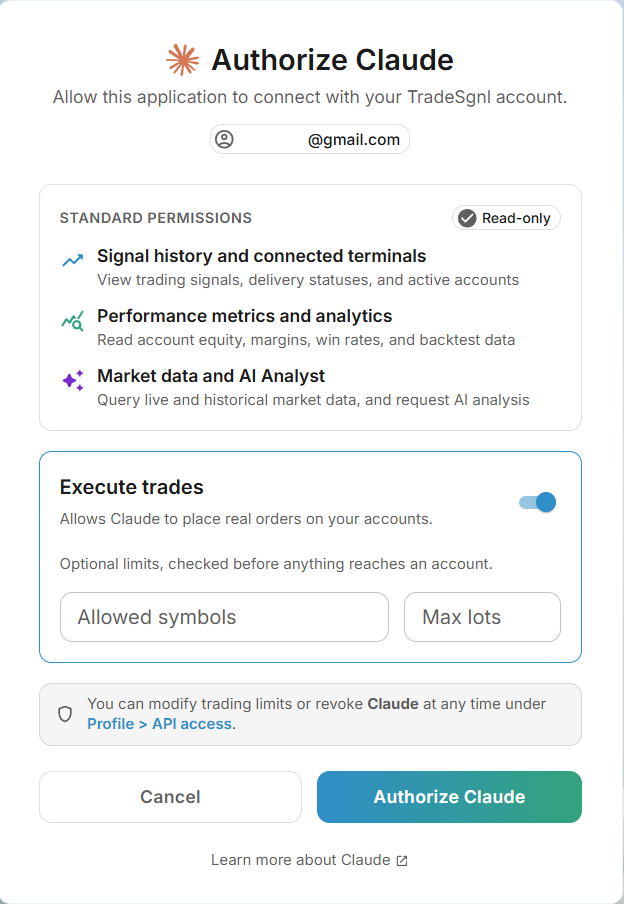
If you enable Execute trades, you can also configure safety guardrails:
- Max lots: Caps the maximum position size the agent can dispatch in a single trade.
- Allowed symbols: Restricts the agent to specific symbols (for example,
EURUSD, BTCUSDm).
Complete connection
Click Authorize. The browser tab closes automatically, the token exchange completes on your local machine, and your agent immediately gains access to your TradeSgnl tools.
Connect with an API Key
If you are running in a headless environment (such as a remote Linux server, Docker container, or CI/CD script) where a browser cannot open, or if your client natively supports HTTP headers, you can use a personal API key instead of OAuth.
1. Create a key
- In the portal, open API & MCP Server > API Keys.
- Click New API key.
- Give your key a name, select whether it may trade, and configure any lot or symbol restrictions.
- Copy the secret key (it begins with
tsk_). It is displayed only once.
2. Configure your client
Cursor (Direct HTTP with Headers)
Cursor supports sending headers directly over Streamable HTTP:
{
  "mcpServers": {
    "tradesgnl": {
      "url": "https://portal.tradesgnl.com/api/mcp",
      "headers": {
        "Authorization": "Bearer tsk_YOUR_KEY"
      }
    }
  }
}
Antigravity & Stdio Clients
Pass the --header flag to mcp-remote:
{
  "mcpServers": {
    "tradesgnl": {
      "command": "npx",
      "args": [
        "-y",
        "mcp-remote",
        "https://portal.tradesgnl.com/api/mcp",
        "--header",
        "Authorization: Bearer tsk_YOUR_KEY"
      ]
    }
  }
}
Claude Code (CLI)
claude mcp add --transport http tradesgnl https://portal.tradesgnl.com/api/mcp --header "Authorization: Bearer tsk_YOUR_KEY"Custom Scripts & REST API
The same tsk_ key authenticates requests to both the MCP server and the REST API (https://portal.tradesgnl.com/api/v1/):
curl https://portal.tradesgnl.com/api/v1/signals \
  -H "Authorization: Bearer tsk_YOUR_KEY"
Manage Connected Apps and Keys
Go to API & MCP Server in the portal to manage all active integrations: connected apps under MCP Server, personal keys under API Keys.
Open API & MCP Server
- View Status: See every connected application and personal key, its permissions, and when it was last used.
- Edit Limits: Update trade permissions, lot size limits, or allowed symbols at any time. Changes apply immediately to the agent's next call.
- Revoke: Disconnect an app or revoke a key with one click. Access is terminated instantly.
- Reconnecting: Re-authorizing an application with OAuth replaces any existing grant for that client, updating its permissions.
Available Tools
Your agent receives access to the following tools upon connection:
| Group | Tool | What it does |
|---|---|---|
| Signals | get_signals | Signal history: what arrived, its parameters, and whether it executed |
get_signal_deliveries | What each account did with a signal: executed, rejected or failed, with the reason and the broker ticket | |
list_signal_presets | Your saved signal presets | |
| Accounts | get_clients | Your accounts: broker, connection status, and Cloud Terminal status |
get_ea_settings | The EA input values of one account: risk, lot size, drawdown limits, sessions | |
get_analytics | Balance, equity and account summary per account, as of the EA's last report | |
get_live_account | Live balance, equity, margin, open positions, pending orders and trading permissions, read from the account's Cloud Terminal right now | |
get_live_history | Closed trades with why each closed, realized P&L, and orders that were canceled or expired | |
calc_order | The margin an order needs and what it makes or loses at a price, computed by your broker's terminal | |
get_terminal_logs | The MT5 journal and EA log, for when an account drops or a signal did not execute | |
get_subscription | Plan tier, connection limit, connections in use, and licences issued | |
list_licenses | Your licences, each with the accounts that run under it: MT5 terminals and cTrader, TradeLocker and crypto connections, as last known | |
| Analytics | get_trade_details | Open positions and closed trades with their P&L |
get_performance_metrics | Win rate, profit factor, drawdown, and return metrics | |
get_performance_breakdowns | Performance by symbol, direction, strategy, or day | |
get_backtests | Saved backtest results | |
refresh_analytics | Make a connected account upload a fresh report and wait for it, so the figures above are current | |
| Trade Copier | get_trade_copiers | Your Trade Copiers, their sizing and symbols, and whether each is copying right now or what stops it |
get_copier_activity | What a copier did with each master trade: copied, closed, missed or skipped, and why | |
| Alerts | get_alert_history | Alerts you were sent: connection drops, signal errors, drawdown warnings |
get_alert_preferences | Which channels each alert type goes to (in-app, push, email, Telegram) | |
| Market data | get_symbols | The symbols your broker offers, named as your broker names them |
get_symbol_spec | Contract size, tick value, lot step, swaps and margin for a symbol | |
get_candles | Candles from 1 minute to monthly, paging back through history | |
get_quote | Live bid, ask, spread and tick time for a symbol | |
get_quotes | Live quotes for up to 50 symbols in one call | |
get_ticks | Tick-by-tick bid and ask history for a symbol | |
| Market Analyst | analyze_symbol | Run the Market Analyst on a symbol and get the full report (spends AI credits) |
| Trading | send_signal | Send a trade signal to every account under a licence (needs trade permission). With dry_run it asks the signal server who would receive it, including the accounts it would skip and why, and sends nothing. The receipt lists the accounts it went to |
| Help | search_docs | Search the TradeSgnl documentation |
Trading Safety
Trading is off until you switch it on. A newly connected app can read your data but cannot send signals; you enable trading per app under API & MCP Server > MCP Server, and can cap the lot size and limit the symbols it may trade at the same time.
Preview before sending
Ask your agent to preview a trade first. It shows you the exact signal and the accounts it would reach, and nothing is placed until you say so. For an order sized in lots, the preview also prices it on each Cloud Terminal account: the entry, stop loss and take profit prices, the margin it needs against your free margin, and how much you would lose at the stop or make at the target. You can make this a standing rule:
Before sending any trade, preview it first and ask for my confirmation.
No accidental double orders
If the connection drops while a trade is being sent and the agent tries again, the same order is never placed twice. The first attempt counts and the repeat is ignored.
Every trade is tracked
After sending, your agent can tell you which accounts executed the signal, the broker ticket of the position it opened, and the reason if an account rejected it. Signals sent by an agent carry an "AI agent" badge on your Signals page, so you always know which trades came from your assistant.
Limits and Entitlements
- Rate Limits: 60 calls per minute across all tools. Within that, sending signals is limited to 10 per minute and 200 per day.
- Plan Requirement: The MCP server is part of TradeSgnl Cloud, included on the Advanced and Professional plans.
Troubleshooting
Common issues and quick solutions when connecting and using the MCP server.
Frequently Asked Questions
Install the App
Add TradeSgnl to your phone's home screen or your computer's apps, so it opens full screen with its own icon. Steps for Android, iPhone, iPad and desktop.
REST API
Read your TradeSgnl signals, deliveries, accounts and performance, or send a signal, from any tool that can make an HTTP request.