
MT5 Cloud
Connect your MT5 broker directly from the portal. Each account gets a managed terminal with the TradeSgnl EA pre-installed, live balance and equity in your dashboard, and 24/7 uptime.
Introduction
MT5 Cloud lets you connect your MT5 broker accounts directly from your TradeSgnl dashboard. Enter your broker credentials, and we provision a dedicated cloud terminal for each account, with MetaTrader 5 and the TradeSgnl EA pre-installed and signed in to your broker automatically.
Each terminal runs 24/7 in the cloud, even when your computer is off. You can see your live balance, equity, and profit right from your dashboard. No need to open the terminal itself to check how your accounts are doing.
Why use MT5 Cloud?
Connect in Minutes
Enter your broker credentials in the portal and your terminal is provisioned automatically. No downloads, no VNC sessions, no manual MT5 setup. Just connect and trade.
Live Account Info
See your balance, equity, and profit for each broker account directly in your dashboard. Monitor all your accounts at a glance without opening any terminals.
One Terminal Per Account
Each trading account gets its own dedicated terminal. Connect multiple accounts up to your plan's connection limit, each managed independently from your dashboard.
24/7 Always On
Your terminals keep running even when you close the browser. Trades execute around the clock. Never miss a signal because your PC went to sleep.
Trade From Any Device
Access your full MT5 desktop from any browser, laptop, tablet, or phone. Open your terminal to adjust positions, check charts, or troubleshoot connections.
Low-Latency Execution
Direct connection to broker servers with optimized network routing. Execute trades with minimal delay, the same low-latency performance as a dedicated VPS.
Plans and Connections
TradeSgnl uses a license-based system. Each plan includes licenses equal to the maximum number of MT5 terminals you can have connected at the same time. Each connected trading account uses one license.
| Plan | Licenses | Max Connections |
|---|---|---|
| Bridge | 1 | 1 |
| Starter | 1 | 1 |
| Advanced | 3 | 3 |
| Professional | 10 | 10 |
MT5 Cloud is included on every paid plan, Bridge upwards. If you need more accounts than your plan covers, you can buy extra connections as an add-on from Starter upwards, and each one raises your limit by one account.
Part of TradeSgnl Cloud
MT5 Cloud is one part of TradeSgnl Cloud: the services we run for you on our servers around the clock.
- MT5 Cloud: a managed terminal for each MT5 account, on every paid plan.
- Cloud Connections: your cTrader, TradeLocker and crypto exchange accounts, each using one Cloud Connection.
- Cloud VPS: a private server with MT5 and the TradeSgnl EA pre-installed.
- MCP server and REST API: access for your AI agents and your own code, on the Advanced and Professional plans.
One EA per account
You only need one connection per trading account. A single EA instance handles all symbols on that account, no matter what chart it's attached to. With 3 connections you can trade 3 accounts at once, each handling unlimited symbols.
Connection lifecycle
A connection is counted when the EA connects and released the moment you disconnect a terminal or remove the EA, freeing it for use elsewhere.
Connect Your Account
Connecting an account takes a few steps. Click Connect Account on your Connections page, choose a license, enter your broker credentials, and your terminal is provisioned for you.
Open the connect dialog. On your Connections page, click Connect Account. The chip under Licenses shows how many of your connections are in use.
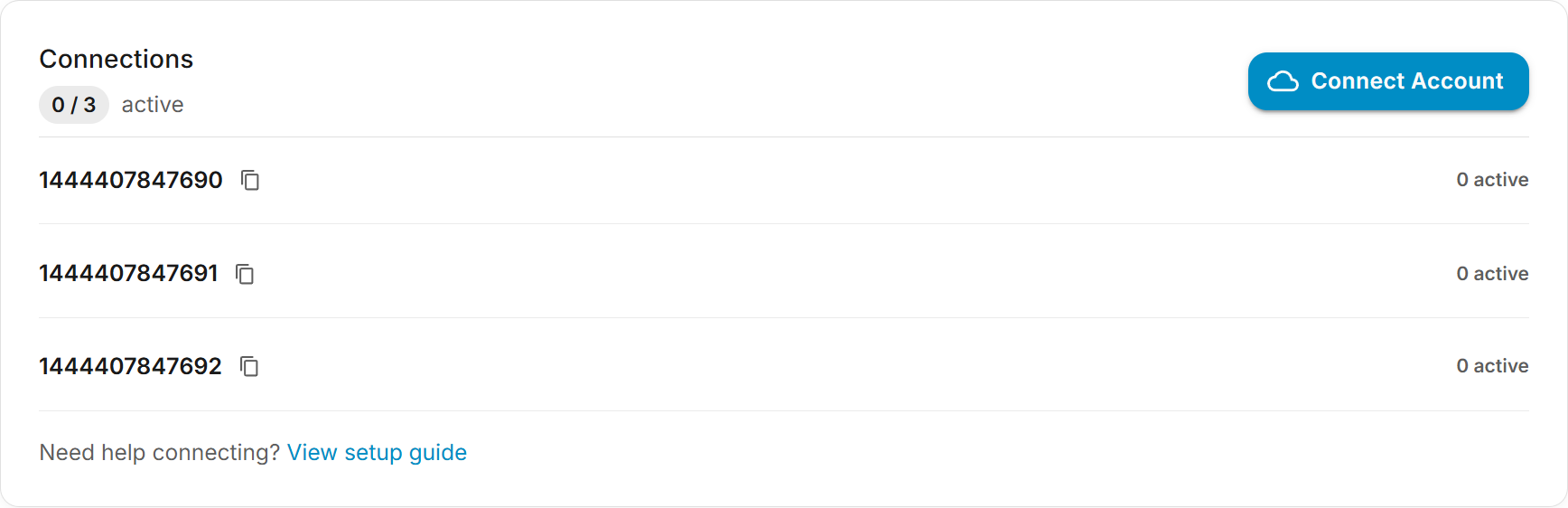
Select a license. Pick the license this account will run on. Licenses already running an account are marked, so you can see at a glance which ones are free. Click Next step.
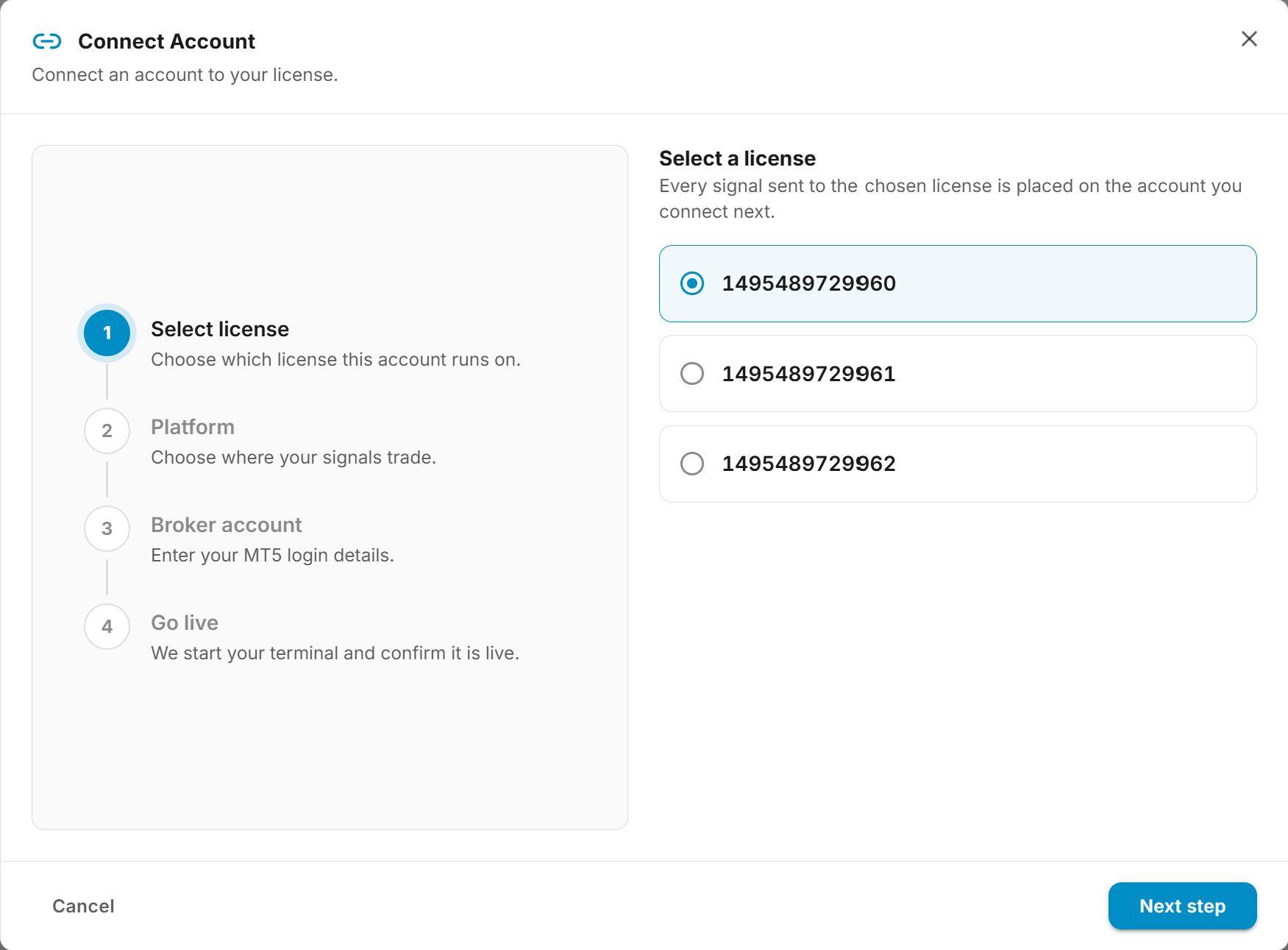
Choose MetaTrader 5. Select MetaTrader 5 and click Next step.
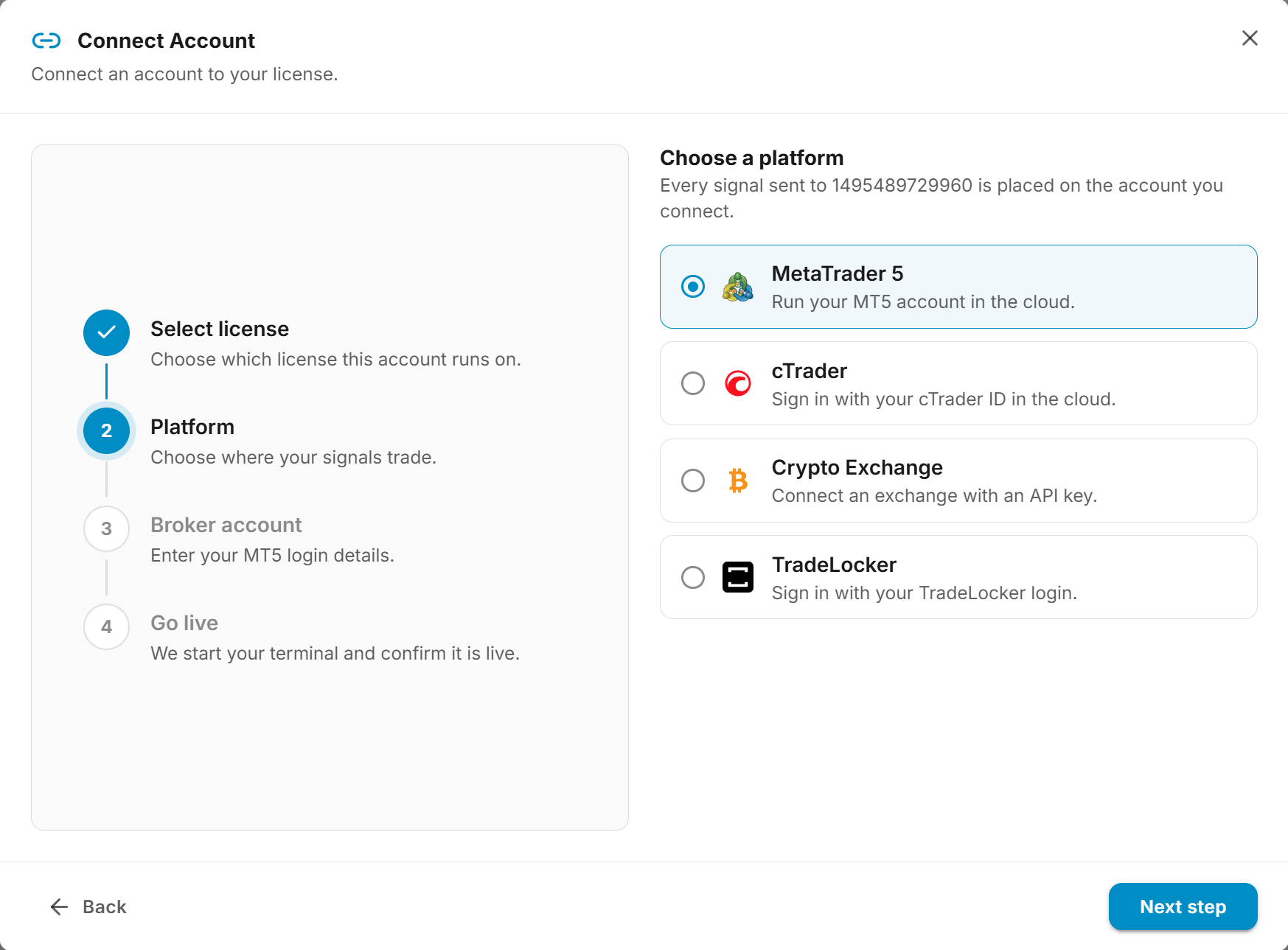
Enter your broker account. Fill in your Trading Account Number, Trading Account Password, and Broker Server Name, using the same details you sign in with in MetaTrader 5. The server field searches as you type, so start typing your broker's name and pick your server from the list.
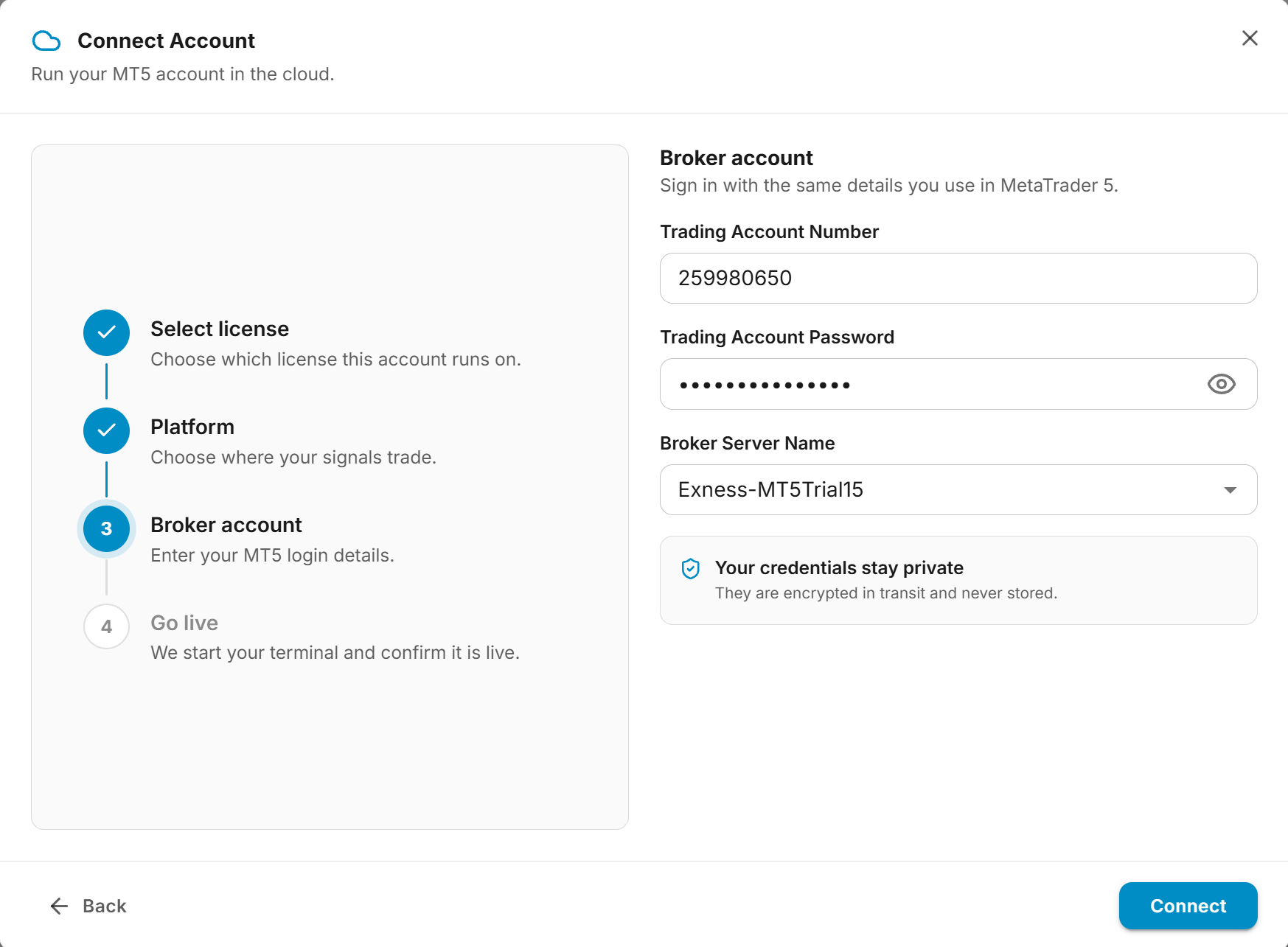
Broker not on the list?
Choose Can't find it? Add your broker at the bottom of the server list, type your broker or server name, and click Search & add broker. We look it up with MetaQuotes and add its servers to the list so you can pick yours.
Go live. Click Connect and watch it happen: we prepare your cloud terminal, sign in to your broker, attach the TradeSgnl EA, and confirm the connection. This usually finishes in under two minutes, so keep the window open until it does.
When it's done you'll see Your account is live with your broker, account number, and account type, plus your terminal password. Use Open Terminal to look inside straight away, or Done to go back to your Connections page.
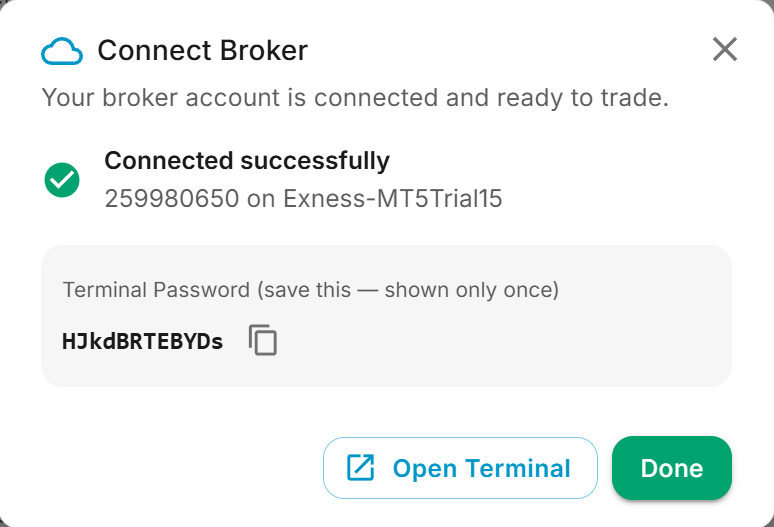
Shown only once
The terminal password is not stored and cannot be retrieved later. Copy it now. If you lose it, you can set a new one with Reset Password on the connection card.
Multiple accounts
You can connect several accounts up to your plan's connection limit. Each one gets its own dedicated terminal. Click Connect Account again to add another.
If it doesn't connect
The dialog tells you which stage it stopped at and why. The most common cause is a wrong account number, password, or server name, so use Edit details to correct them and Try again.
Your cloud terminal is already running at that point, so you can also open it and sign in to your broker by hand. A terminal that never gets a broker connection is removed after 1 hour.
How Your Credentials Are Handled
Since MetaTrader doesn't support a login method like "Sign in with Google," connecting an account means entering your broker login. We treat those details as something to pass through, never to keep.
Your credentials are never stored on our servers
Your login is encrypted in transit and used only to connect your account. We keep no copy in our database, files, or logs.
- Encrypted in transit. Everything you enter travels over an encrypted (HTTPS) connection. Your credentials are never sent in plain text.
- Never stored on our servers. We don't save your broker login to any database, file, or log. It's used to sign your terminal into your broker, and nothing more.
- Only your terminal uses it. Each account runs in its own isolated terminal. No staff member can view your credentials, and they're never shared with any third party. The only system that ever receives them is your own broker.
- You stay in control. Disconnecting or deleting a terminal removes the connection entirely, anytime from your dashboard.
Your Connections Page
Your Connections page lists your licenses, with the account running on each one nested underneath. The card header shows your broker name, account number, account type, live balance, equity, and profit, an MT5 Cloud chip, and the EA version it's running. Click the card to expand it.
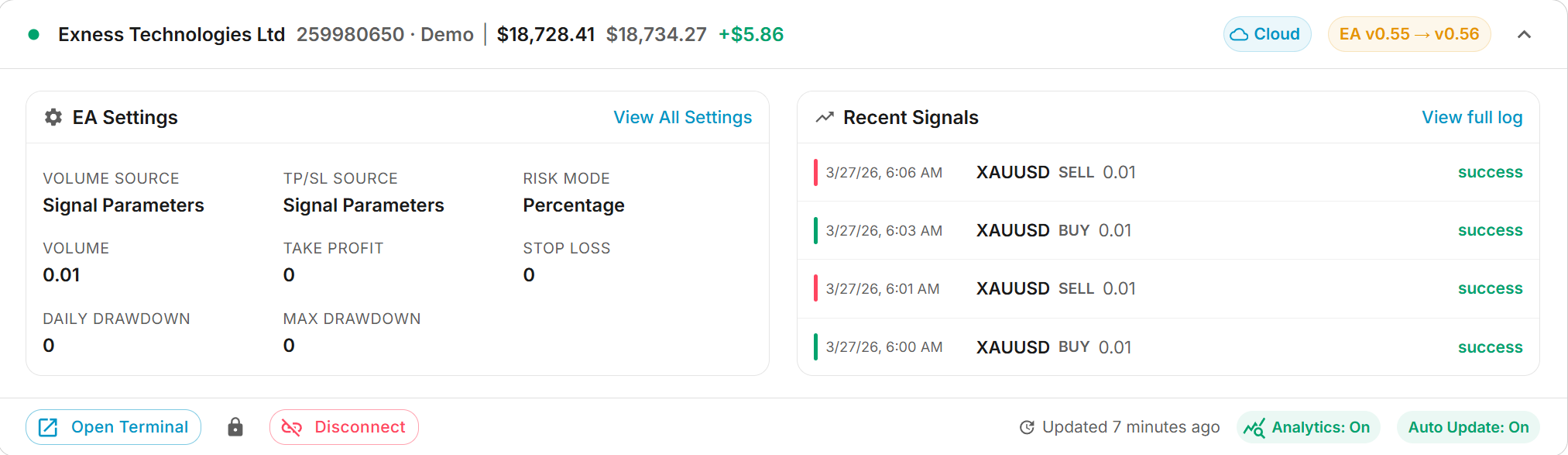
Live account info
The card header displays live trading data right next to your broker name:
- Balance. Your current account balance.
- Equity. Your balance adjusted for open positions (shown when you have active trades).
- Profit. Your unrealized P&L from open positions, green for profit and red for loss.
EA settings panel
The left panel summarises the settings you use most: volume source, TP/SL source, risk mode, default values, and drawdown limits. Edit Settings opens the full editor, covered in EA settings below.
Recent signals
The right panel shows your most recent signals: time, symbol, direction, volume, and delivery status. Click View Signals to open the full signal history for that account.
Status and controls
The bottom bar of the expanded card carries two status chips and the controls for that connection:
- Analytics. Whether the EA is reporting trade analytics, which is what fills your Analytics page.
- Auto Update. Whether the EA downloads new versions into the terminal by itself. See EA version and updates for what that does and doesn't do.
- Updated. When the EA last reported in. On a disconnected account this reads Last seen instead.
| Action | Description |
|---|---|
Open Terminal | Launch the full MT5 desktop in your browser |
Reset Password | Set a new terminal access password |
Disconnect | Terminate the cloud terminal and stop signals reaching it |
EA Settings
MT5 Cloud accounts give you full control over your EA configuration directly from the portal. No need to open the terminal.
Full settings editor
Click Edit Settings on any connection card to open the EA settings dialog. From here you can configure every EA parameter: volume type, risk management, SL/TP modes, trailing stops, breakeven, drawdown limits, and more. Use the search box at the top to jump to a setting by name.
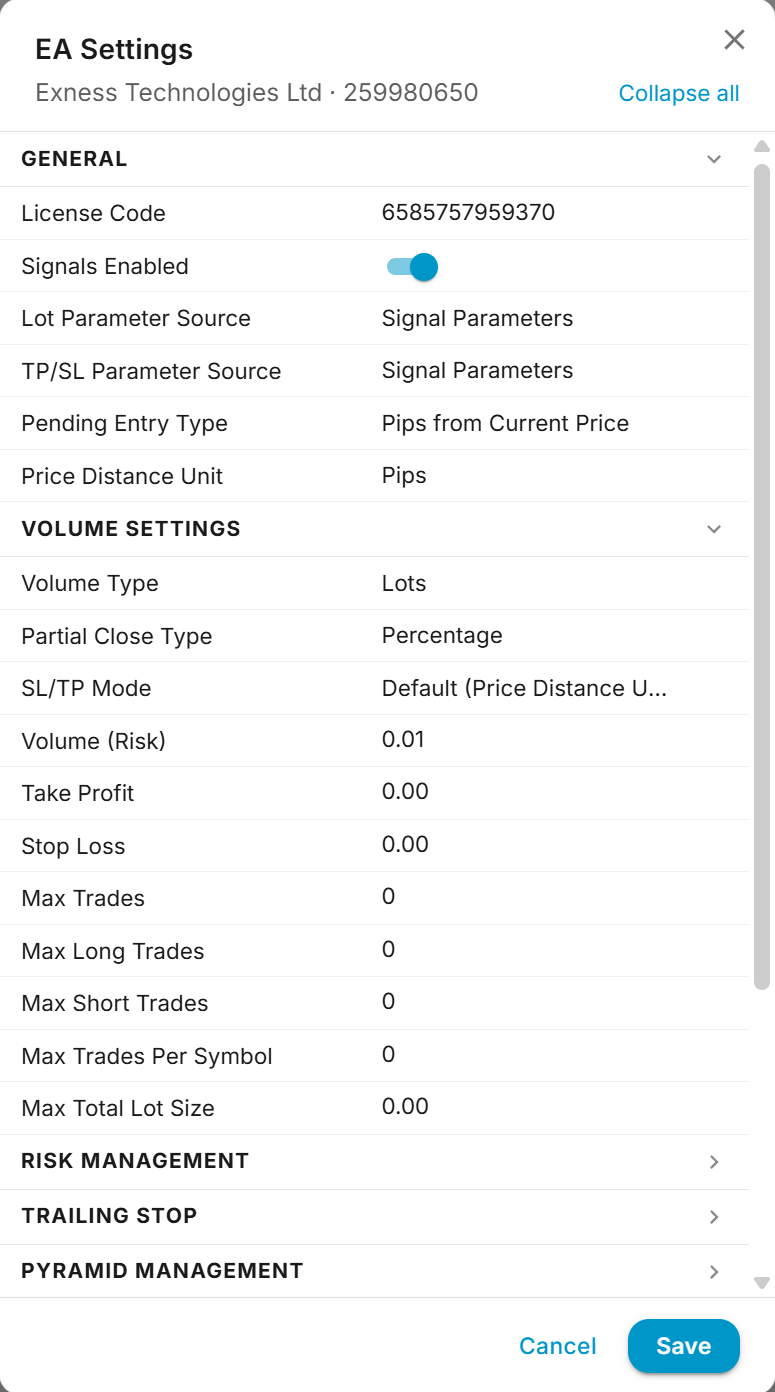
Pinning settings to the card
Click the star next to any setting to pin it to the connection card, up to nine at a time. That's how you decide what the card's EA Settings panel shows, so the numbers you check daily are there without opening anything.
Applying changes
When you save, we push the new settings to the running EA and it reinitializes with them. MetaTrader is not restarted and your open trades are not affected. The EA drops off the signal server for a few seconds while it reloads, then reconnects on its own, which is the whole wait.
EA Version and Updates
The EA version chip in the card header shows which version your EA is running. When a newer version exists, the chip turns yellow and shows the jump (for example, EA v0.69 → v0.70). Click it to update. The new version is installed and re-attached with your current settings while MetaTrader keeps running, so open trades are not affected. The EA disconnects for a few seconds while it reloads, then your broker connection resumes automatically.
Auto Update downloads, it doesn't switch
With Auto Update: On, the EA pulls new versions into the terminal as they're released, but it keeps running the version it started with. Restarting the terminal doesn't change that either. Use the version chip whenever it turns yellow: that's what actually moves your account onto the new version.
Managing Your Terminals
The connection card covers the day-to-day. For the terminal itself, open the MT5 Cloud page. Your terminals are listed on the left, and the one you select fills the panel on the right: its broker, account number, server and leverage, whether it's running, and a live read of your balance, equity, open P&L, margin and free margin.
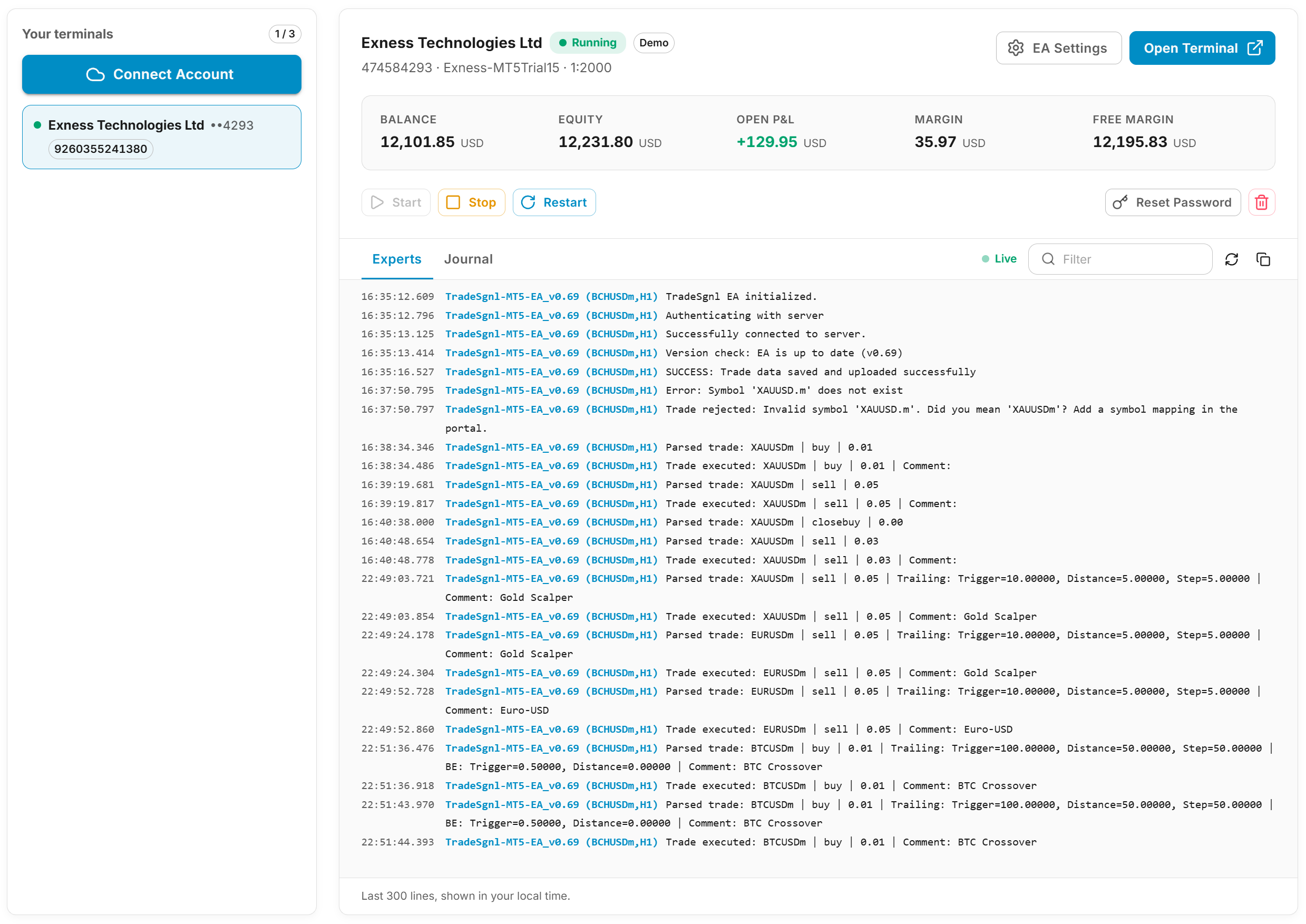
Terminal controls
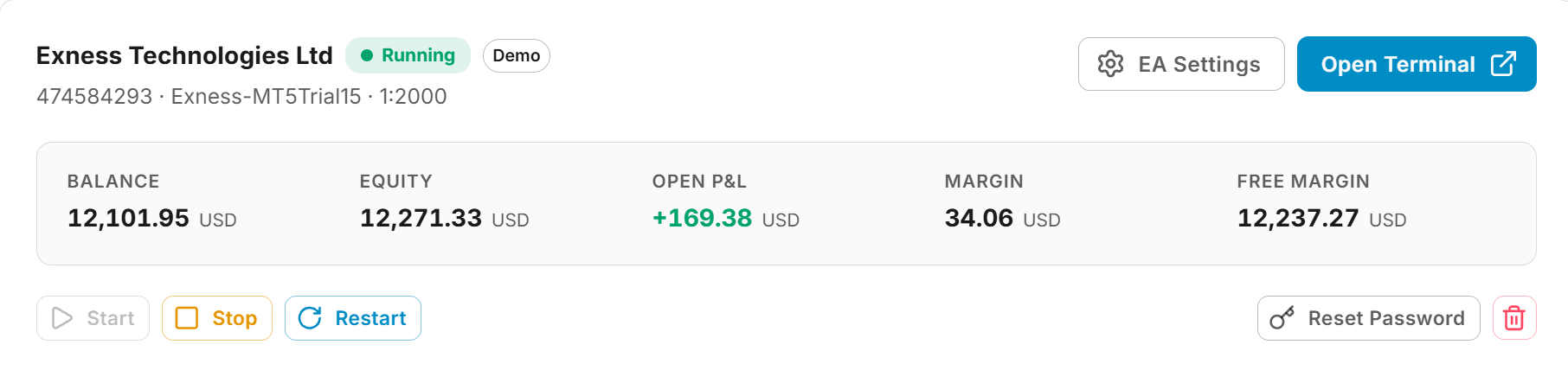
| Action | Description |
|---|---|
Open Terminal | Launch MT5 desktop in your browser |
EA Settings | Open the EA settings editor for this terminal |
Start | Power on a stopped terminal |
Stop | Shut down the terminal |
Restart | Reboot the terminal |
Reset Password | Set a new terminal access password |
Delete | Permanently remove the terminal (the red bin icon) |
Most of these need the terminal to be running. On a stopped terminal only Start and Delete are available.
Terminal logs
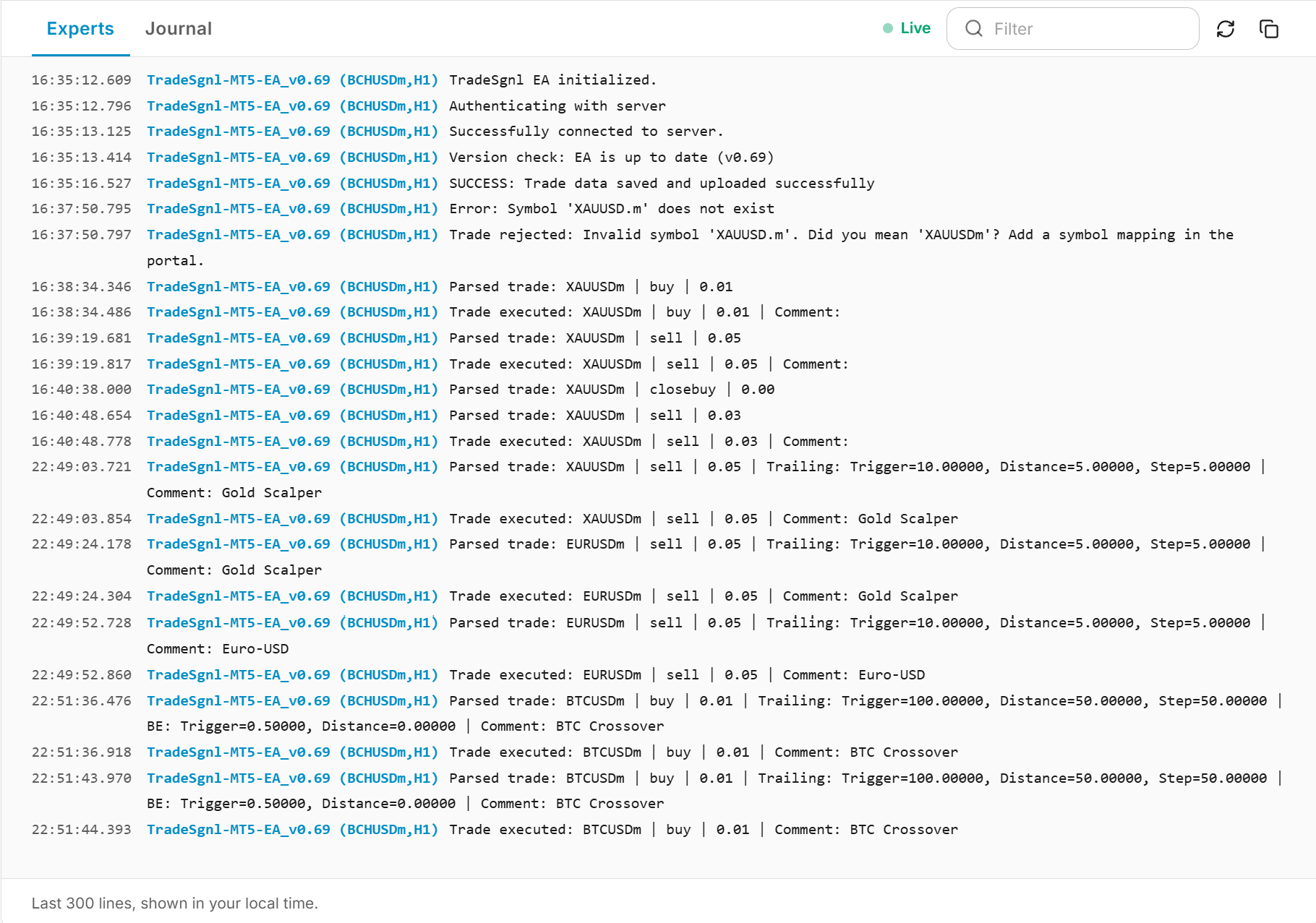
Below the controls, the panel streams your terminal's own MT5 logs, so you can see what your EA and MetaTrader are doing without opening the terminal at all. There are two tabs.
Experts is your EA's own output: what it parsed from each signal, what it executed, and why it rejected anything. This is the first place to look when a signal didn't do what you expected.
Journal is MetaTrader's own log: broker sign-ins, terminal synchronisation, and the exchange behind every order, including fill prices, deal and order numbers, and how many milliseconds your broker took to accept each one.
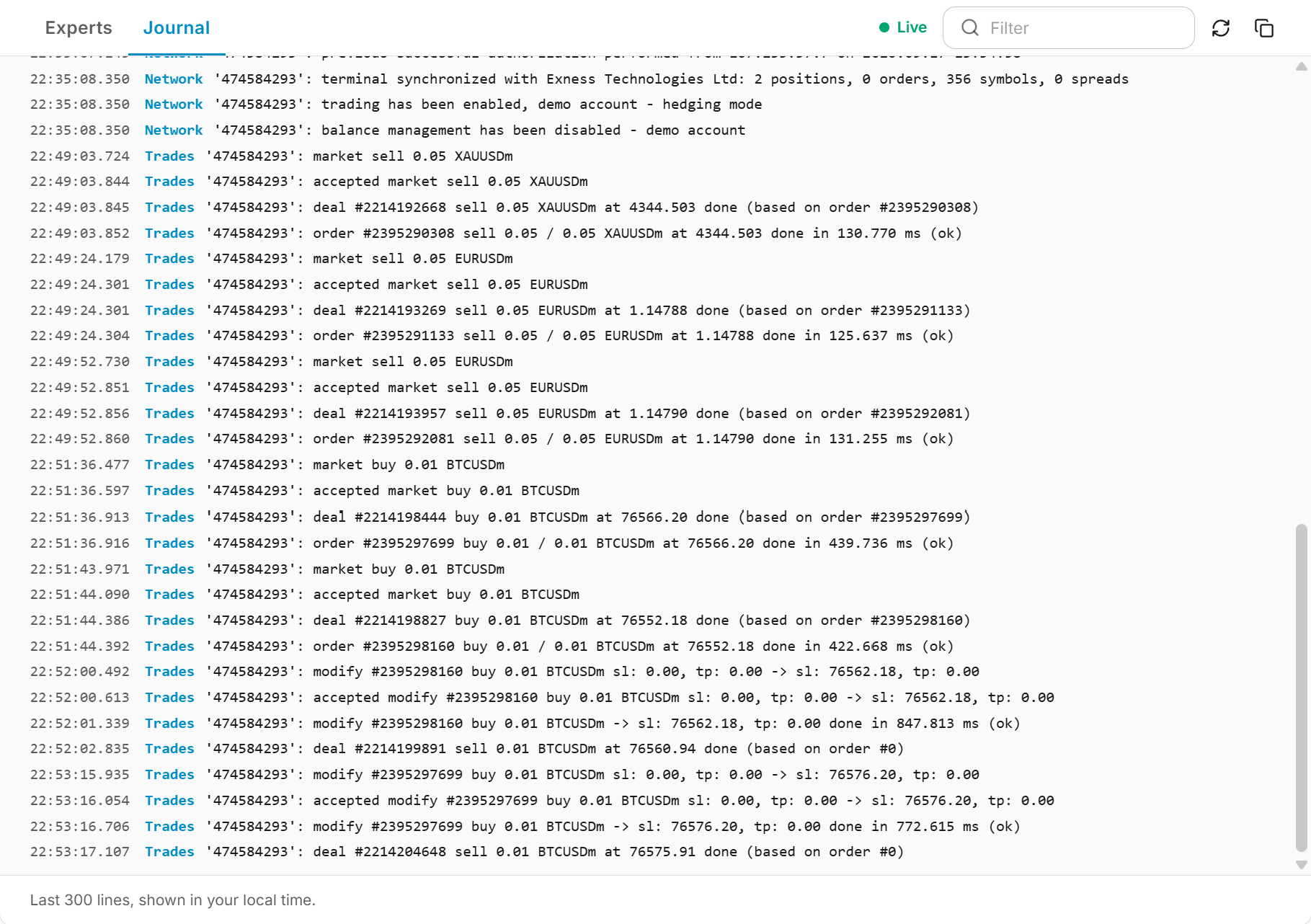
Both tabs behave the same way:
- Live. New lines arrive every few seconds. The view follows the newest line unless you scroll up, which holds your place.
- Filter. Type in the filter box to show only lines containing that text, such as a symbol or an order number.
- Refresh and copy. The refresh icon re-reads the logs and the account figures. The copy icon puts every line on screen on your clipboard, which is what to send us if you open a support ticket.
- The last 300 lines are shown, from today and yesterday, in your local time.
Logs are read from the terminal's own files, so the terminal only needs to be running. It doesn't need to be signed in to your broker, which is what makes this useful when a broker connection is the thing that's failing.
Opening your terminal
Click Open Terminal and your terminal opens in a new browser window. Enter your terminal password to get in.
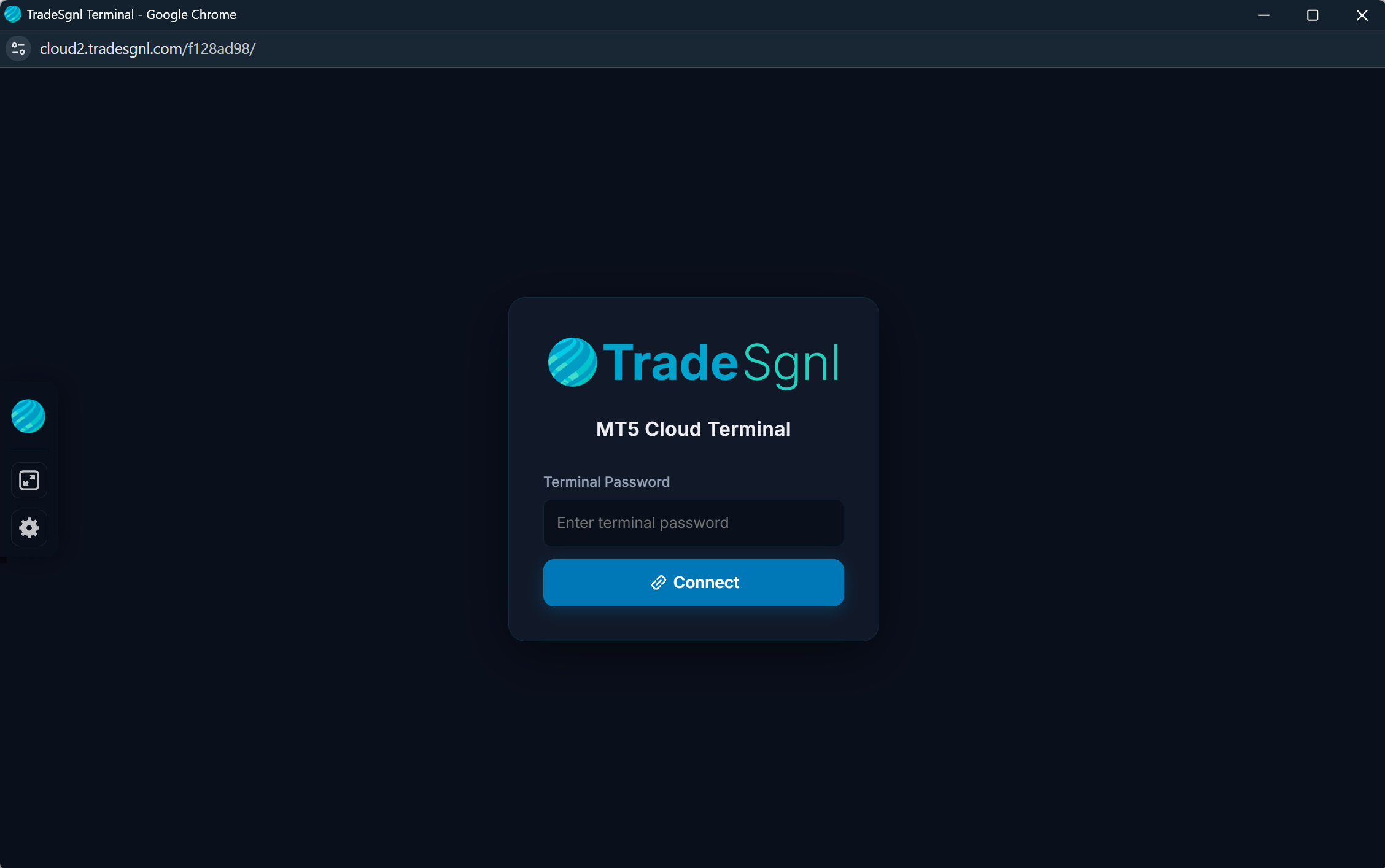
Behind it is a full MetaTrader 5 desktop, the real thing, running in your browser. Charts, Market Watch, the Navigator, the Toolbox and your open positions all work as they do on your own machine, and the TradeSgnl EA is already attached to a chart with its dashboard showing status, license, and live performance stats.
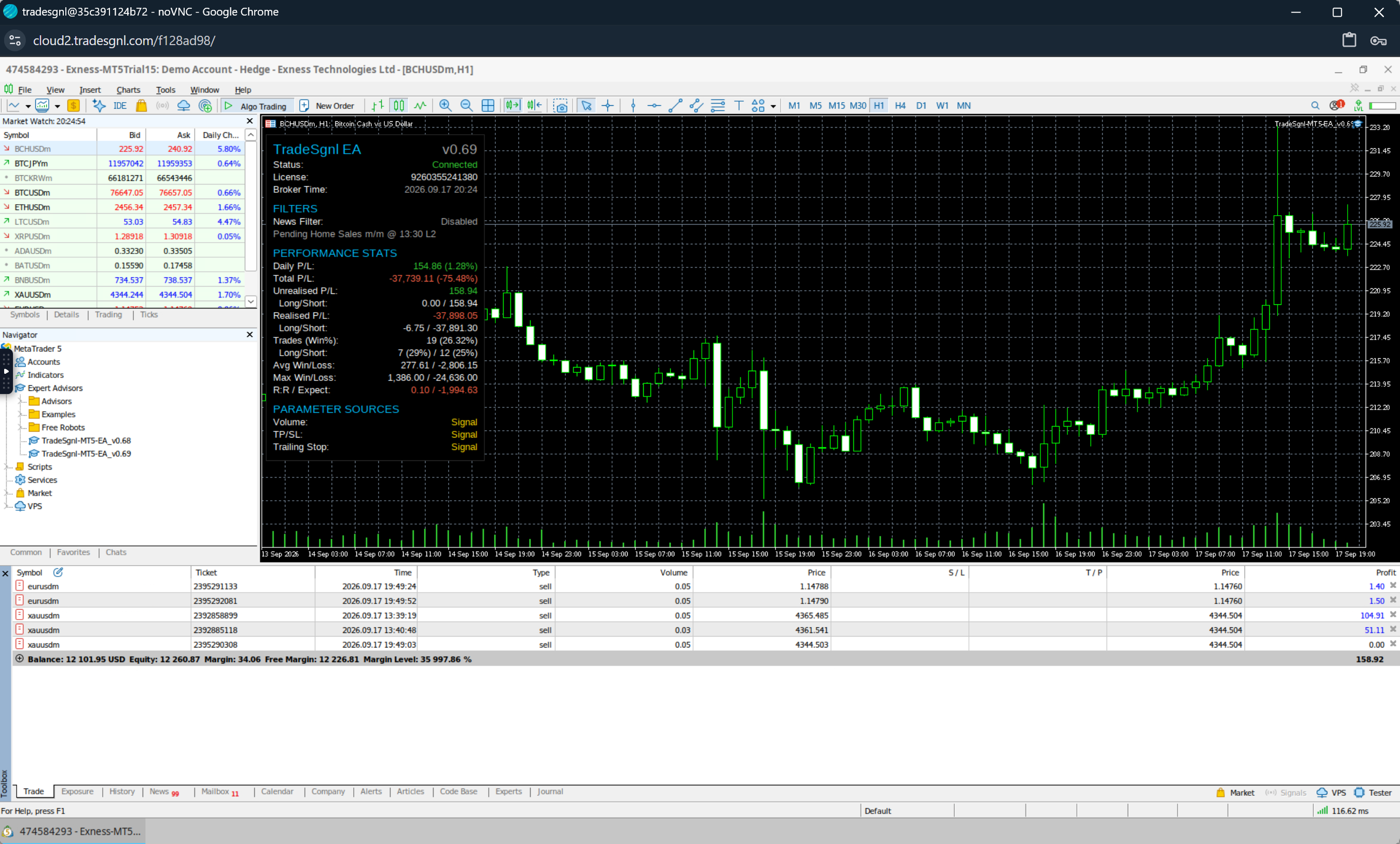
Now that settings and logs are in the portal, opening the terminal is mainly for:
- Viewing charts and placing manual trades
- Troubleshooting a broker connection from inside MetaTrader
- Adjusting MT5 settings that aren't available through the portal
Password management
Each terminal has its own access password for when you open it in the browser:
- Initial password. Generated when the terminal is first created. Shown only once, at the end of the connect flow. Save it immediately.
- Reset password. Click Reset Password to set a new one. Type your own (at least 6 characters) or click Generate for a random one, then confirm it.
- Instant effect. Password changes take effect immediately. No restart required.
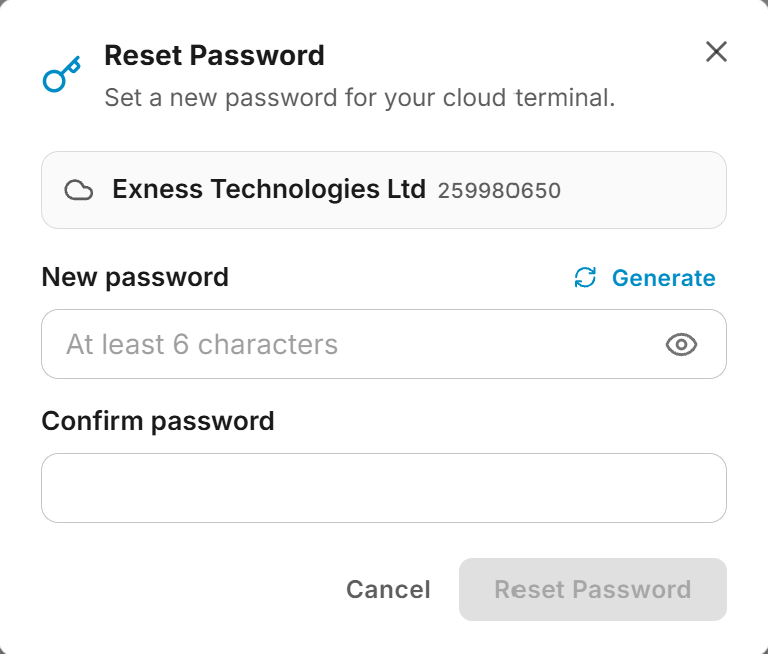
This password only controls access to the terminal itself. It is not your broker password, and changing it does not touch your trading account.
Disconnecting and deleting
Both end the cloud terminal, from different places:
- Disconnect, on the account's card, terminates its cloud terminal and stops signals reaching it. Open trades stay open on your broker account but are no longer managed.
- Delete, on the MT5 Cloud page, destroys a terminal and frees its connection so you can connect a different account.
Deleting a terminal permanently destroys the container and all its data, including your MetaTrader 5 configuration. You can connect the same account again afterward, and a new terminal will be created.
Automatic cleanup
A terminal with no active broker connection is terminated automatically to free up resources after 1 hour. Reconnect with Connect Account to get a new one.
Telegram Copier
Automatically copy trading signals from Telegram channels to your trading account. Configure signal parsing with AI or regex, set up templates, and execute trades in real-time.
cTrader
Trade your TradingView alerts and Telegram signals on your cTrader accounts. Sign in with your cTrader ID, pick your accounts, and TradeSgnl places the trades. Nothing to install.