
Trade Management
Attach trailing stops, breakeven, order execution overrides, TP/SL offsets, and target limits to trades copied from Telegram channels.
When configuring a channel in the Telegram Copier, you can attach automated protections, execution rules, and filters to every trade copied from that channel—even when the original message does not mention them.
Settings are organized into three dedicated sections in the template builder:
- Trade Management: Position management rules (Trailing Stop and Breakeven) applied by the EA once trades are open on your trading platform.
- Signal & Order Rules: Order translation rules (Execution Overrides, Cancel at TP1, Target Limits, and Price Offsets) evaluated by the copier when converting channel signals into broker commands.
- Message Filters: Gating rules (Ignore Messages and Require Stop Loss) evaluated by the copier before any message is parsed into an order.
Toggle on any feature and fill in its values. These settings apply automatically to every trade produced by the channel, across both template-based and AI parsing modes.
Features Overview
| Feature | Section | What it does |
|---|---|---|
| Trailing Stop | Trade Management | Stop loss trails behind market price as profit increases. Managed by the EA. |
| Breakeven | Trade Management | Stop loss jumps to entry (plus optional offset) once a profit target or trigger distance is hit. Managed by the EA. |
| Override Order Execution | Signal & Order Rules | Force trades to open immediately at market (Force Market) or wait as pending orders (Force Pending). |
| Cancel at TP1 | Signal & Order Rules | Automatically cancel a pending limit or stop order if market price touches TP1 before filling. |
| Limit Take Profits | Signal & Order Rules | Send only the first targets from the signal and omit the rest. |
| Take Profit & Stop Loss Offset | Signal & Order Rules | Shift all take profit targets and/or the stop loss level by a fixed distance (pips or currency). |
| Ignore Messages | Message Filters | Skip trading any message containing specified keywords or matching a regex pattern. |
| Require Stop Loss | Message Filters | Discard new trade signals that lack a stop loss. |
Trade Management
The Trade Management section controls automated position management rules that are attached to each signal and executed locally by the TradeSgnl EA on MetaTrader.
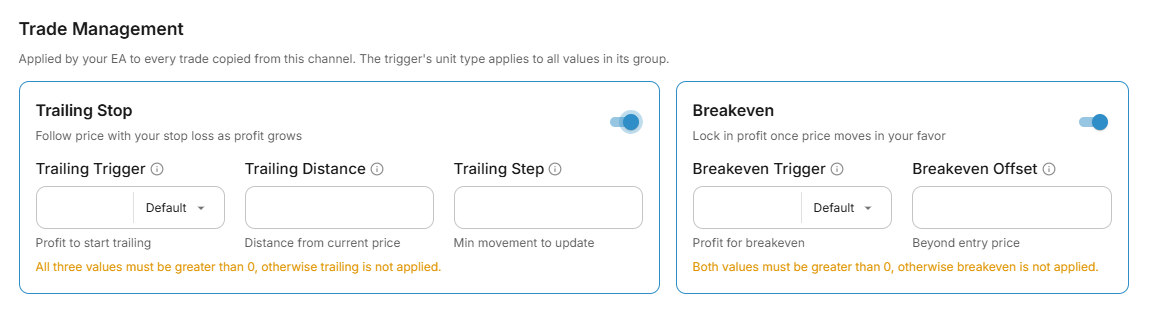
Trailing Stop
Attach an automatic trailing stop that follows behind profitable trades at a set distance:
- Trigger: The profit distance required before the trailing stop activates and begins tracking price.
- Distance: How far behind current market price the stop loss trails.
- Step: The minimum increment price must move before the stop loss updates.
Enable Signal control in your EA
For trailing stop values from the copier to take effect, your EA's Trailing Stop Management setting must be set to Signal. If the EA is configured to use EA Defaults or Disabled, trailing parameters sent from the copier are ignored. Breakeven has no such restriction and always takes effect. See Signal Syntax for the full parameter reference.
Breakeven
Protect profitable positions by automatically moving the stop loss to breakeven once price reaches your trigger:
- Trigger: The profit distance or target level that activates the breakeven rule.
- Offset: An optional distance added beyond entry to lock in extra profit or cover commissions/spread. Leave Offset empty to move the stop loss exactly to your entry price.
Breakeven at a Take Profit Level
In addition to fixed distances, you can select TP Level as the unit type on the Breakeven trigger. The stop moves to breakeven when the signal's own take profit target is reached, adapting dynamically to whatever prices each signal carries.
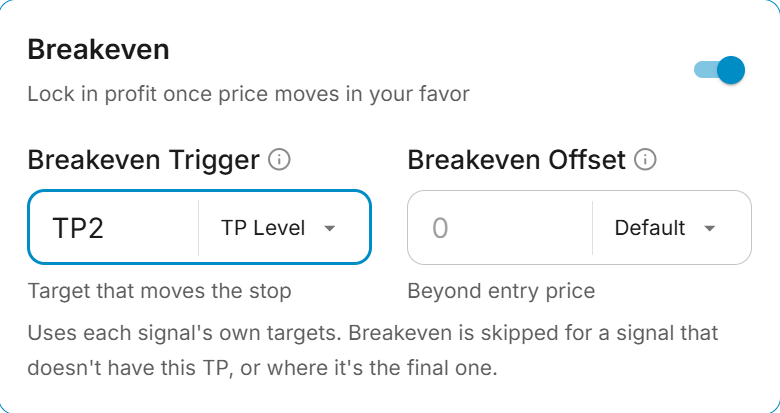
A typical setup on a three-target signal: the copier sends all three targets, the trade scales out at TP1 and TP2, and with breakeven set to TP2, the stop on the remaining position moves to entry the moment TP2 is reached, allowing the final runner to target TP3 risk-free.
If the channel posts signals with varying numbers of targets, select Before last TP instead. It automatically binds to the target preceding the final one regardless of count: TP2 on a 3-target signal, TP3 on a 4-target signal, or TP1 on a 2-target signal.
Breakeven is skipped if a signal does not contain your selected target level, or if your chosen level is the signal's final target (since the position closes entirely at that point). The trade opens normally with its parsed stop loss and targets.
Needs EA 0.69 or newer
Breakeven with an empty Offset, the Percent unit, and TP Level require EA 0.69 or newer on MetaTrader.
Unit Types
Trailing stop and breakeven each feature a unit type selector on the trigger field that defines how values in that card are calculated:
| Unit Type | Meaning |
|---|---|
| Default | Uses the default unit configured in your EA settings. |
| Pips | Values are measured in pips. Ideal for forex currency pairs. |
| Currency | Values represent raw price distance (points). Best for gold, indices, and crypto where pip definitions differ across brokers. |
| Price | The trigger is an exact price level rather than a relative distance. |
| Percent | Values represent a percentage of the asset price, providing scale across any instrument. |
| TP Level | Breakeven only. The trigger tracks one of the signal's own take profit levels. |
The unit type selected on the trigger acts as the master type; the distance and step fields automatically inherit it. TP Level is the exception: because the trigger references the channel's target price, the Offset receives its own independent unit selector.
Signal & Order Rules
The Signal & Order Rules section defines how parsed messages are translated into trade commands before dispatching to your connected broker accounts.
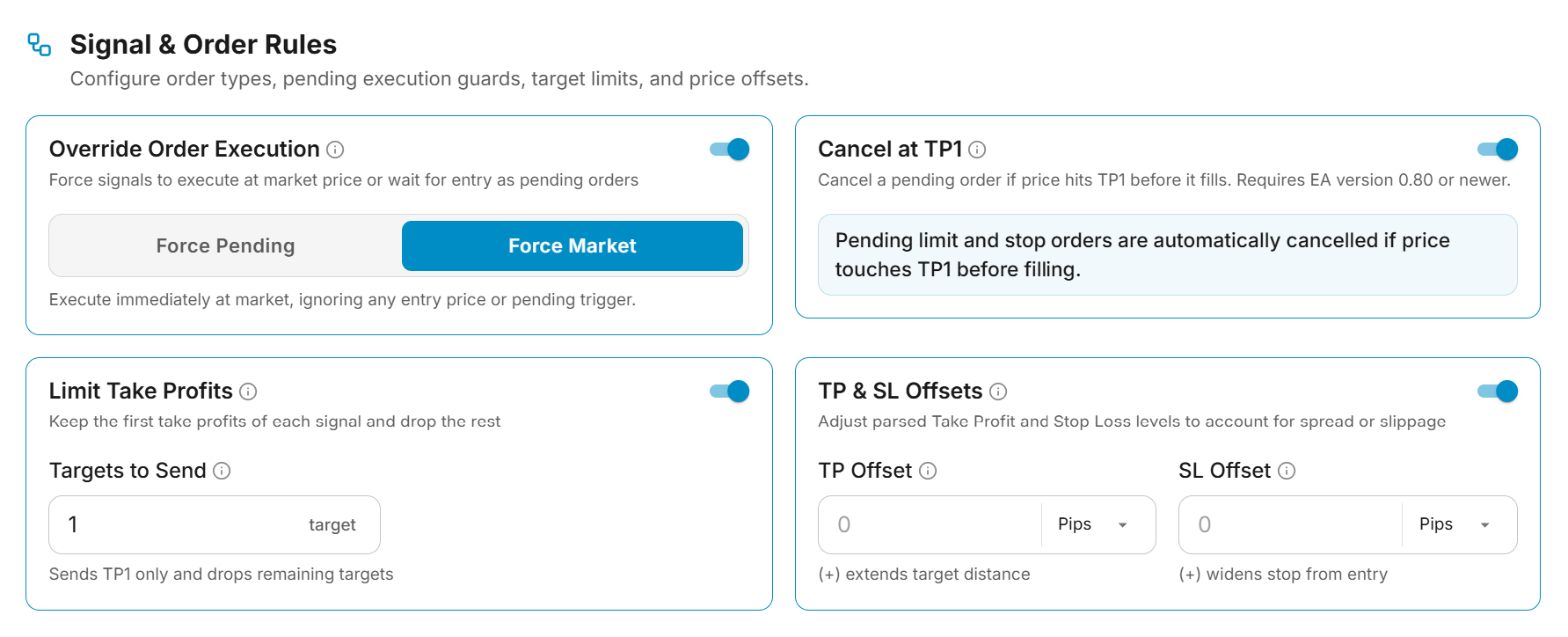
Override Order Execution
Signal providers format trade instructions differently. Some write SELL 4196 meaning "sell now, current market price is near 4196". Others post pending limit or stop orders with entry prices when you would rather enter immediately at market. Switch on Override Order Execution to dictate exact order execution behavior:
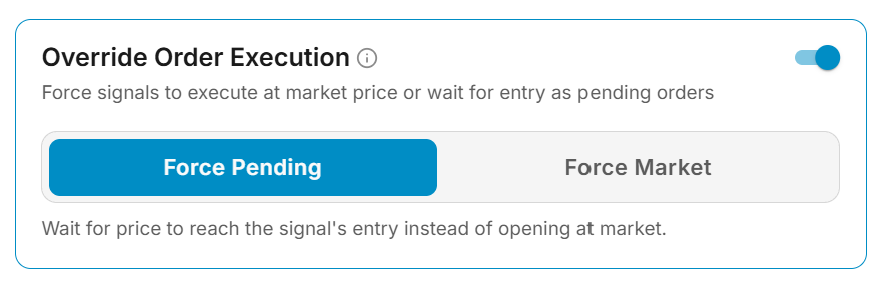
| Mode | What it does |
|---|---|
| Force Market | Strips any entry price and converts limit or stop orders into immediate market orders (BUY or SELL). Perfect for channels that post pending orders or entry quotes when you prefer to enter immediately without waiting. |
| Force Pending | Any Buy or Sell that includes an entry price is converted into a pending order (BUYLIMIT, SELLLIMIT, etc.) waiting at that price, opening only when market price reaches the entry level. |
Comparison of Execution Modes
| Signal | Default (Off) | Force Market | Force Pending |
|---|---|---|---|
SELL 4196, stop loss and targets | Sent as parsed (market Sell) | Market Sell | Sell Limit / Stop at 4196 |
BUY LIMIT 1.0850, SL and TP | Buy Limit at 1.0850 | Market Buy | Buy Limit at 1.0850 |
BUY NOW, no entry price | Market Buy | Market Buy | Market Buy |
On MetaTrader, when Force Pending is enabled, the EA automatically places the order as a limit or stop depending on where current market price sits relative to the signal's entry price.
When using Force Pending, a pending order fills only if price reaches its level. If the market moves away without filling, the order remains active on your account until cancelled or filled. The Signal Preview reflects the exact order type that will be sent.
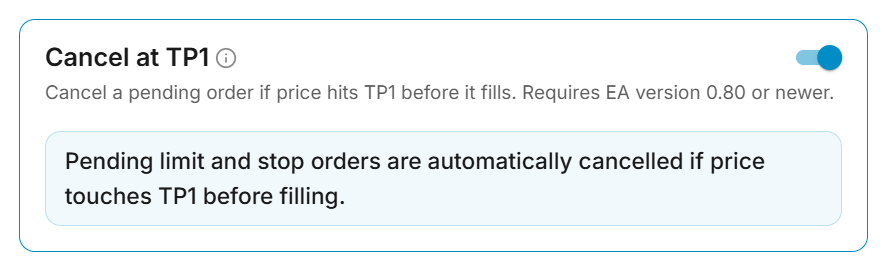
Cancel at TP1
A pending order waits for price to pull back to its entry level. Occasionally, price moves directly to the first take profit target without filling the order. If the order filled later, you would enter an exhausted move after the target was already hit.
Switch on Cancel at TP1 to automatically cancel pending orders from the channel as soon as market price touches TP1 without filling the entry. This monitoring is handled in real-time by the EA on your account.
| Situation | What happens |
|---|---|
| Price reaches entry first | The order fills and the trade runs with its defined stop loss and targets. |
| Price reaches TP1 first | The order is immediately cancelled, and the activity log records the cancellation with market prices. |
| The signal opens at market | The trade fills immediately, so Cancel at TP1 does not apply. |
| The order has no take profit | No target exists to monitor. Monitoring begins automatically if a follow-up message adds targets. |
| Price is past TP1 when placed | The order is preserved. It cancels only if price returns at least halfway toward entry and then touches TP1 again. |
Cancel at TP1 pairs naturally with Override Order Execution in Force Pending mode: one holds the order at your desired entry price, while the other removes the order once the setup has played out.
Needs EA 0.80 or newer on MetaTrader
Cancel at TP1 requires MetaTrader running EA 0.80 or newer. When enabled, accounts on older EA versions, cTrader, or TradeLocker reject or do not place the pending order so that an order is never left unmonitored. See Cancel at TP1 for the full parameter reference.
Limit Take Profits
Channels frequently broadcast 3 to 5 profit targets when your strategy calls for exiting entirely at earlier levels. Switch on Limit Take Profits and configure Targets to Send to cap the number of targets dispatched to your accounts.
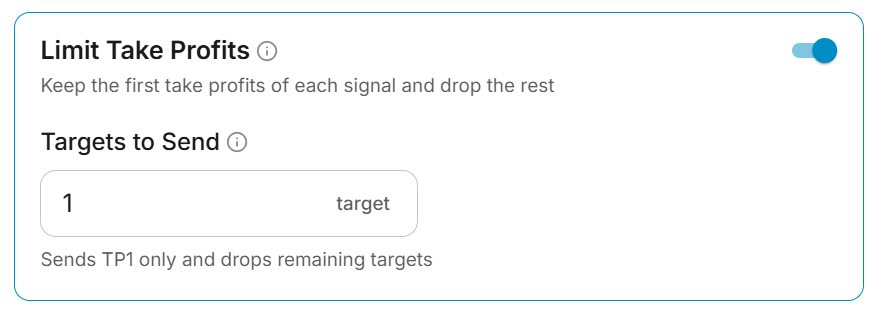
- Setting Targets to Send to
1sends only TP1; the full trade volume closes upon hitting the first target. - Setting Targets to Send to
2sends TP1 and TP2, splitting volume across those two targets.
The limit applies to every signal from the channel regardless of how many targets the message specifies, as well as to subsequent messages that modify targets. In the template builder, excluded targets remain highlighted in the parsed message but are dimmed, and the Signal Preview shows only the targets that will be transmitted.
Take Profit & Stop Loss Offset
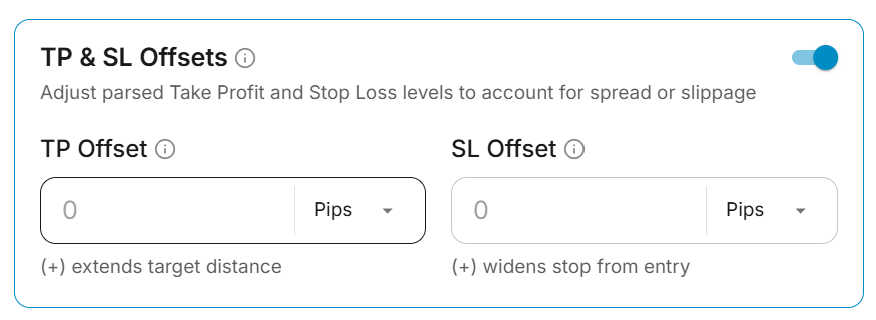
Broker spreads, platform slippage, or stop hunts around obvious psychological levels can trigger premature stop-outs or cause missed take profit fills by fractions of a pip. Switch on Take Profit & Stop Loss Offset to shift profit targets and stop losses by a specified distance:
| Setting | Unit Options | How it adjusts |
|---|---|---|
| Target Offset | Pips, Currency | Positive values extend profit targets further away from entry; negative values bring targets closer to entry for earlier fills. Applied across all targets (TP1, TP2, TP3...) uniformly. |
| Stop Loss Offset | Pips, Currency | Positive values widen the stop loss further from entry (extra breathing room); negative values tighten the stop loss closer to entry. |
Offset Units
- Pips: Calculated based on the instrument's pip size (e.g.
0.0001for EURUSD,0.01for JPY pairs). Best for Forex currency pairs. - Currency: Uses the raw price/point distance. Best for Gold (XAUUSD), Indices (US30, NAS100), and Crypto where pip definitions vary across brokers.
Offset calculations automatically adjust for trade direction: for a Buy order, a positive TP offset adds price distance while a positive SL offset subtracts price distance to widen the stop. For a Sell order, the reverse applies.
Message Filters
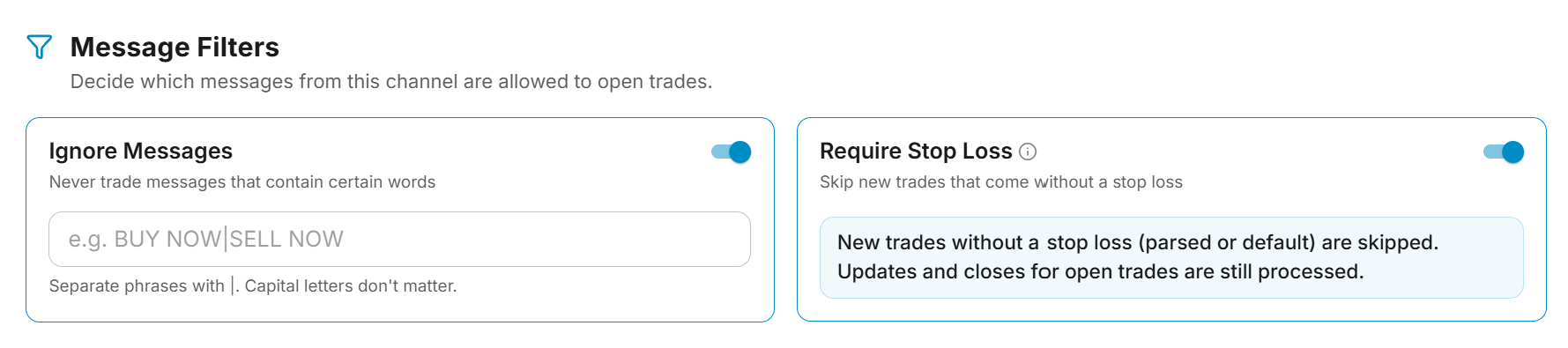
The Message Filters section screens incoming channel messages before any trade orders are parsed or dispatched. Both filters run within the copier service before signals reach your broker.
| Filter | What it does |
|---|---|
| Ignore Messages | Discards any message containing specified words or matching a regular expression pattern. |
| Require Stop Loss | Prevents opening new positions if no stop loss is defined in the signal or channel template. |
Use filters for channels that post commentary, marketing, or preliminary heads-up alerts lacking stop losses. Skipped messages appear in the Activity tab with the skip reason logged for transparency.
Ignore Messages
Block messages containing specific words or phrases from triggering trades. Separate multiple phrases with a pipe character (|), for example BUY NOW|SELL NOW. Phrase matching is case-insensitive.
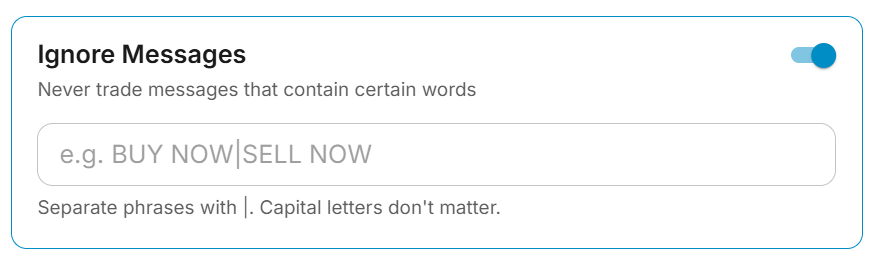
Ignore Messages supports full regular expressions. The template builder alerts you in the Signal Preview whenever a selected sample message matches the ignore pattern.
Require Stop Loss
Ensure every open order has risk protection. When enabled, new trade signals that do not specify a stop loss are dropped.
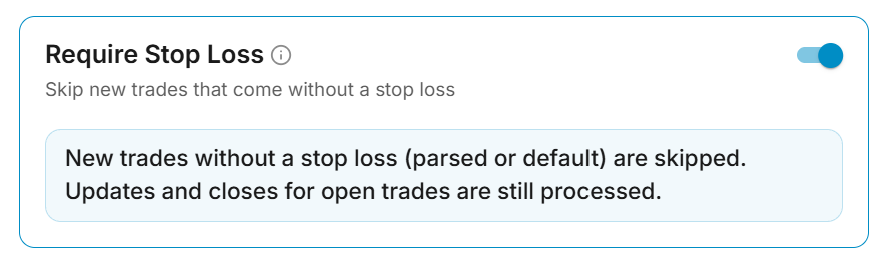
If you have configured a default stop loss in your channel template, it counts as a valid stop loss and the trade is permitted. Modification and close signals for existing open positions are never blocked by this filter.
Troubleshooting
FAQ
Signal Parsing & Templates
Learn how the Telegram Copier extracts trade parameters from Telegram messages using Auto Detect, AI Parsing, or manual field mappings.
MT5 Cloud
Connect your MT5 broker directly from the portal. Each account gets a managed terminal with the TradeSgnl EA pre-installed, live balance and equity in your dashboard, and 24/7 uptime.