
Signal Parsing & Templates
Learn how the Telegram Copier extracts trade parameters from Telegram messages using Auto Detect, AI Parsing, or manual field mappings.
When you click Monitor on a channel (or Channel template on one you already monitor), the channel setup dialog opens. This dialog allows you to configure how signals are read, test against historical messages, and set defaults.
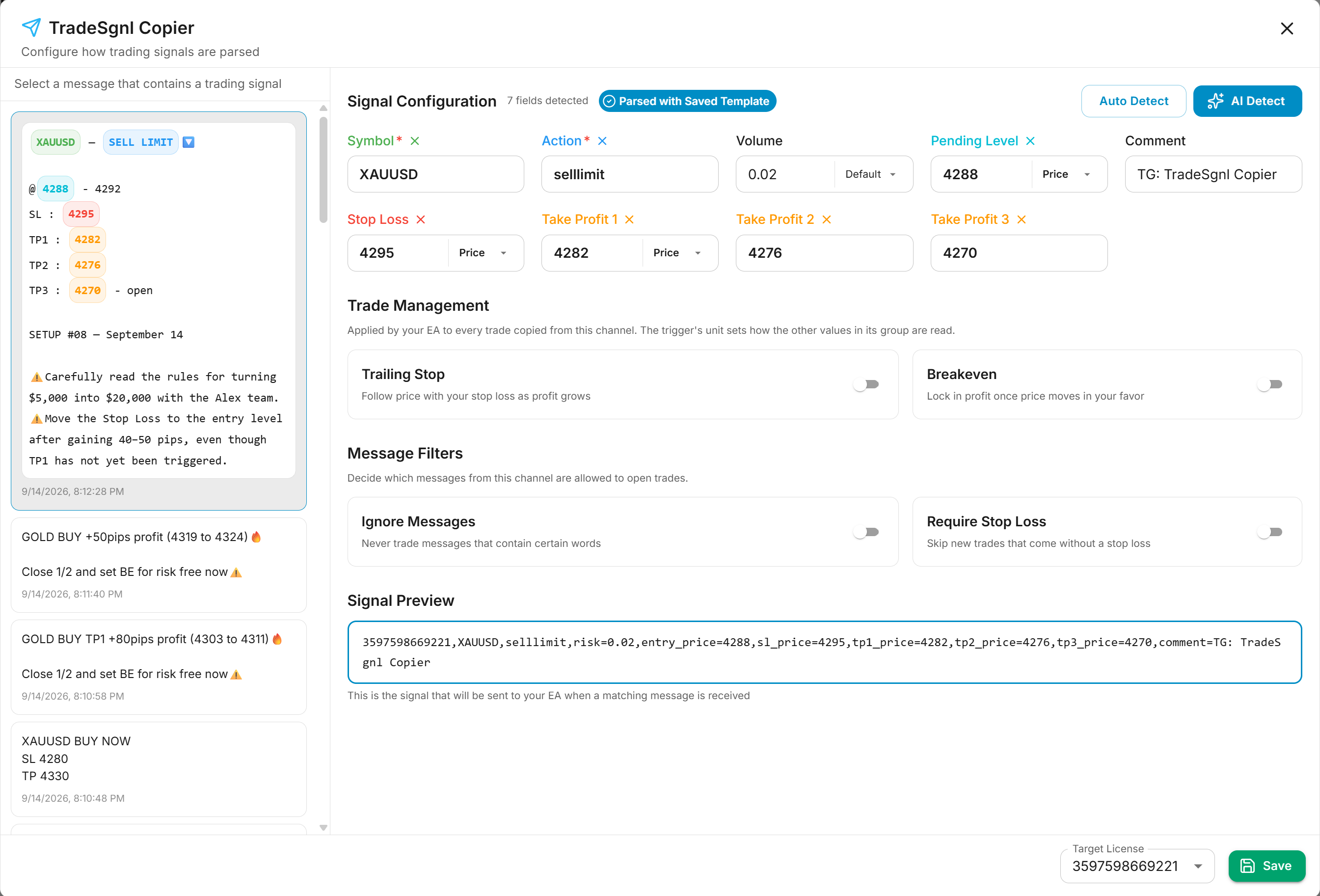
Template Layout
The setup dialog is divided into two main panels:
Message Panel (Left)
Displays the last 30 messages received from the channel. Select a message that contains a representative trading signal to configure and test your parsing template.
Signal Configuration (Right)
This is where you configure how signals are extracted from messages. There are three ways to read them:
| Method | How it works |
|---|---|
| Auto Detect | Uses regex patterns to extract fields. Fast (~100ms) and works well for standard signal formats (e.g., BUY EURUSD @ 1.0850 SL 1.0820 TP 1.0900). |
| AI Parsing | A toggle switch at the top of the panel. When on, AI reads every message from the channel, handling complex, non-standard, or natural language formats. The panel shows each message as the AI interprets it. |
| Manual Mapping | Select text in the message preview and assign it directly to a field (symbol, action, entry, SL, TP), or remove a field you don't want sent. Use this to customize or correct what Auto Detect read. |
Editing Fields by Hand
After running Auto Detect, or on a saved template, you can customize what the template reads:
| To | Do this |
|---|---|
| Leave a field out | Click the ✕ beside its name, or click its highlight in the message. The field is no longer sent, for this and every subsequent signal from the channel. Remove the stop loss or TP1 and your default value is used instead, if configured. |
| Map a field yourself | Select the value in the message, then click the field it belongs to. Pick a number that follows a label, such as the price after SL:. The label is used to identify the same field in the channel's future messages. |
The Signal Preview updates after each change, so it always shows what the edited template sends. Fields you removed are listed under the field boxes.
With AI Parsing on, the AI reads every message itself, so individual field mappings are not edited by hand. To send fewer targets on an AI Parsing channel, use Limit Take Profits. All trade management features—including Override Order Execution, Cancel at TP1, and Take Profit & Stop Loss Offset—apply to AI-parsed signals automatically. Turn the switch off to go back to the template and map fields yourself.
Signal Preview
At the bottom of the configuration panel, the Signal Preview shows exactly what will be sent to your accounts when a matching message is received. This updates in real-time as you adjust settings, displaying your actual license code and all detected parameters.
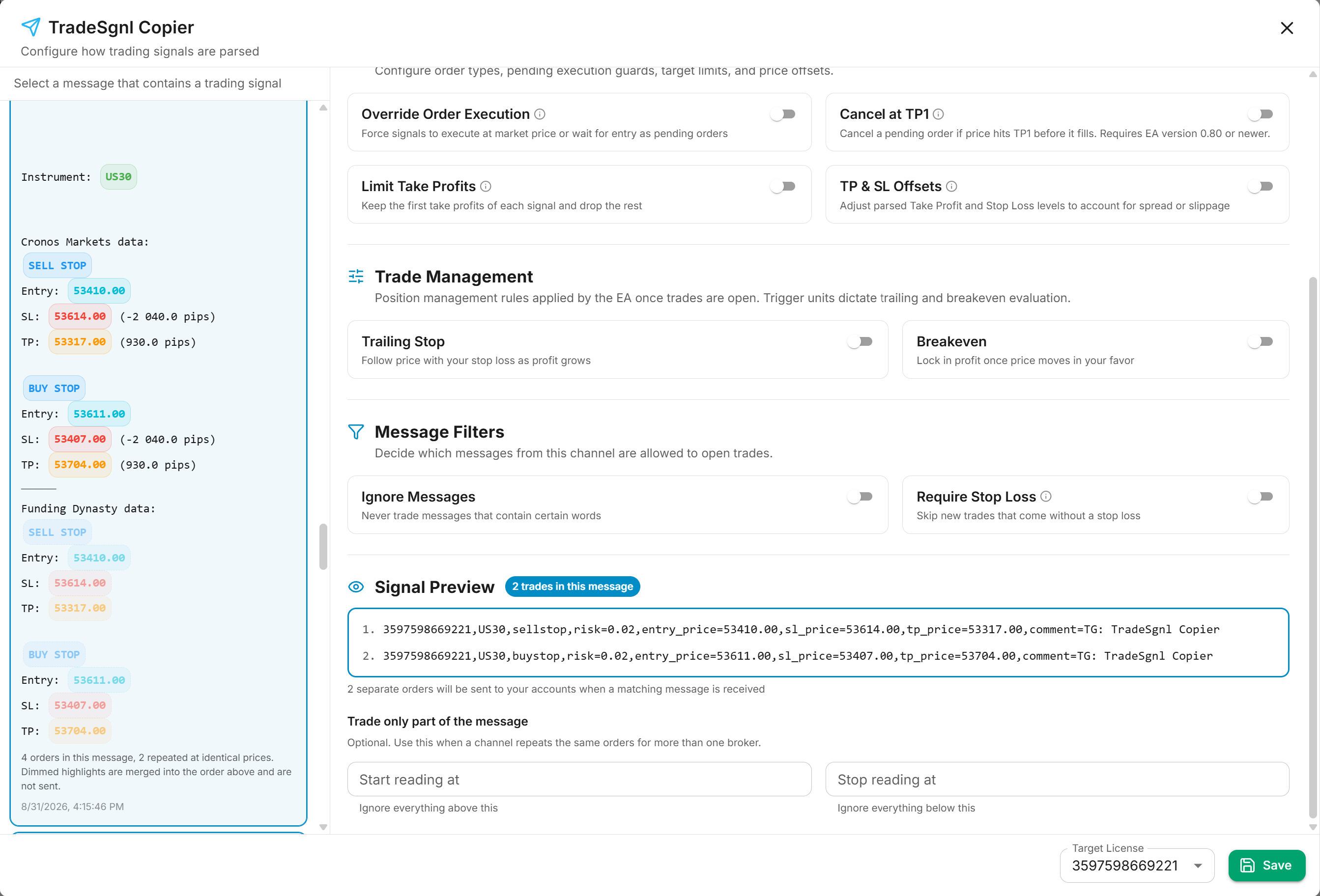
If the message contains more than one order, the preview shows one line per order along with a badge telling you how many will be sent.

Always check the Signal Preview before saving. It shows the exact command your accounts will receive, so you can verify symbols, prices, and order types are correct.
Multiple Orders in One Message
A single message often carries more than one order: a hedged buy stop and sell stop pair, an entry ladder at several price levels, or the same setup restated once per broker. The copier reads every order in the message and sends each one to your accounts as a separate trade. This works with Auto Detect, AI Parsing, and saved templates.
In the message panel, the values belonging to each order are highlighted, so you can see exactly which numbers were picked up and which were ignored.
Repeated Orders Are Merged
Some channels post the same trade twice, once per broker or prop firm. When the repeats quote identical entry, stop loss and take profit levels, the copier recognizes them as the same order and sends it once. The repeat appears dimmed in the message panel, so you can tell it was detected rather than missed.
Orders that differ in any price level are kept separate. An entry ladder with three different entry prices still creates three distinct orders.
A single message can create at most 10 orders.
Trading Only Part of the Message
If a channel restates the same orders per broker and each broker quotes slightly different prices, the copier cannot tell the repeats apart and will send all of them. Use the Trade only part of the message fields to pick the section you want:
| Field | Effect |
|---|---|
| Start reading at | Ignores everything above this text |
| Stop reading at | Ignores everything from this text onward |
Enter the text that marks the section boundary, such as the broker name or the divider line the channel uses between sections. You can use one field or both together to select a section in the middle of a message.
The header above the first order is always kept, so an instrument declared once at the top of the message still applies to the section you selected.
These fields appear once a message produces more than one order, or when you already have one configured.
Parsed Fields & Defaults
The copier extracts these fields from each signal message:
| Field | Required | Unit Options | Description |
|---|---|---|---|
| Symbol* | Yes | — | The trading instrument (e.g., EURUSD, XAUUSD, US30). Common aliases are automatically normalized. |
| Action* | Yes | — | The trade direction: BUY, SELL, BUYLIMIT, SELLLIMIT, BUYSTOP, SELLSTOP, or close commands. |
| Volume | No | Default, Fixed Lots, % of Balance, % of Equity, Dollar Risk | Position sizing. If not detected in the message, the default volume configured in the template is used. |
| Pending Level | No | Price, Pips, Percent | The quoted entry price for limit or stop orders. |
| Stop Loss | No | Price, Pips, Percent | Protective stop level. If missing from the message, falls back to the default stop loss if configured. |
| Take Profit 1..N | No | Price, Pips, Percent | Multiple profit targets (TP1, TP2, TP3...). Left-out targets can be excluded via Limit Take Profits. |
| Comment | No | — | Identification label attached to the order ticket (defaults to TG: ChannelName). |
Only Symbol and Action are required. All other fields fall back to your configured defaults if not detected in the message.
Default Settings
Each channel template includes default settings that are applied when fields are not detected in a signal message:
| Setting | Options / Units | Description |
|---|---|---|
| Default Volume | Number (e.g. 0.01 or 1) | Position size used when volume is omitted in the signal message. |
| Volume Type | Default, Fixed Lots, % of Balance, % of Equity, Dollar Risk | How volume is calculated for your broker account. |
| Comment | String | A custom label attached to each trade ticket (defaults to TG: ChannelName). |
| Pending / SL / TP Type | Price, Pips, Percent | How numeric values in the signal are evaluated (absolute price level, distance in pips, or percentage distance). |
Supported Symbols
The copier automatically normalizes common symbol aliases to their standard broker format:
| Category | Aliases |
|---|---|
| Metals | GOLD → XAUUSD, SILVER → XAGUSD |
| Currencies | CABLE → GBPUSD, FIBER → EURUSD, AUSSIE → AUDUSD, KIWI → NZDUSD, LOONIE → USDCAD |
| Indices | NASDAQ / NAS100 → USTEC, DOW / DJ30 → US30, DAX → DE40, NIKKEI → JP225, FTSE → UK100 |
| Crypto | BTC → BTCUSD, ETH → ETHUSD, SOL → SOLUSD, XRP → XRPUSD, DOGE → DOGEUSD |
| Commodities | OIL / WTI → USOIL, BRENT → UKOIL, NATGAS → NATGAS |
If your broker uses a different symbol name (e.g., GOLD instead of XAUUSD), you can use the Symbol Mapping feature in the portal to create custom mappings.
Troubleshooting
FAQ
Telegram Copier
Automatically copy trading signals from Telegram channels to your trading account. Connect via QR code or phone, monitor channels, and execute trades in real-time.
Trade Management
Attach trailing stops, breakeven, order execution overrides, TP/SL offsets, and target limits to trades copied from Telegram channels.