
Strategy Lab
Generate or adapt TradingView Pine Script strategies by chatting with the TradeSgnl AI. Copy the result into TradingView, set up the alert, and trade automatically on your broker account. No coding required.
Introduction
AI Credits
Strategy Lab consumes AI credits. If you run out of your monthly credits, you can purchase extra AI credits at any time on the Billing page in your portal.
Strategy Lab is a Pine Script workspace in the TradeSgnl Portal. It includes a code canvas and an AI developer that edits whatever script is open in the canvas. The AI's edits appear as a diff that you accept or reject before saving.
You can use Strategy Lab to:
Adapt any strategy
Convert an indicator into a strategy, or add TradeSgnl alerts to an existing strategy.
Enhance & edit
Modify a saved strategy: change entries, add risk management, swap indicators, fix bugs.
Create from scratch
Generate a new strategy from a description in plain English.
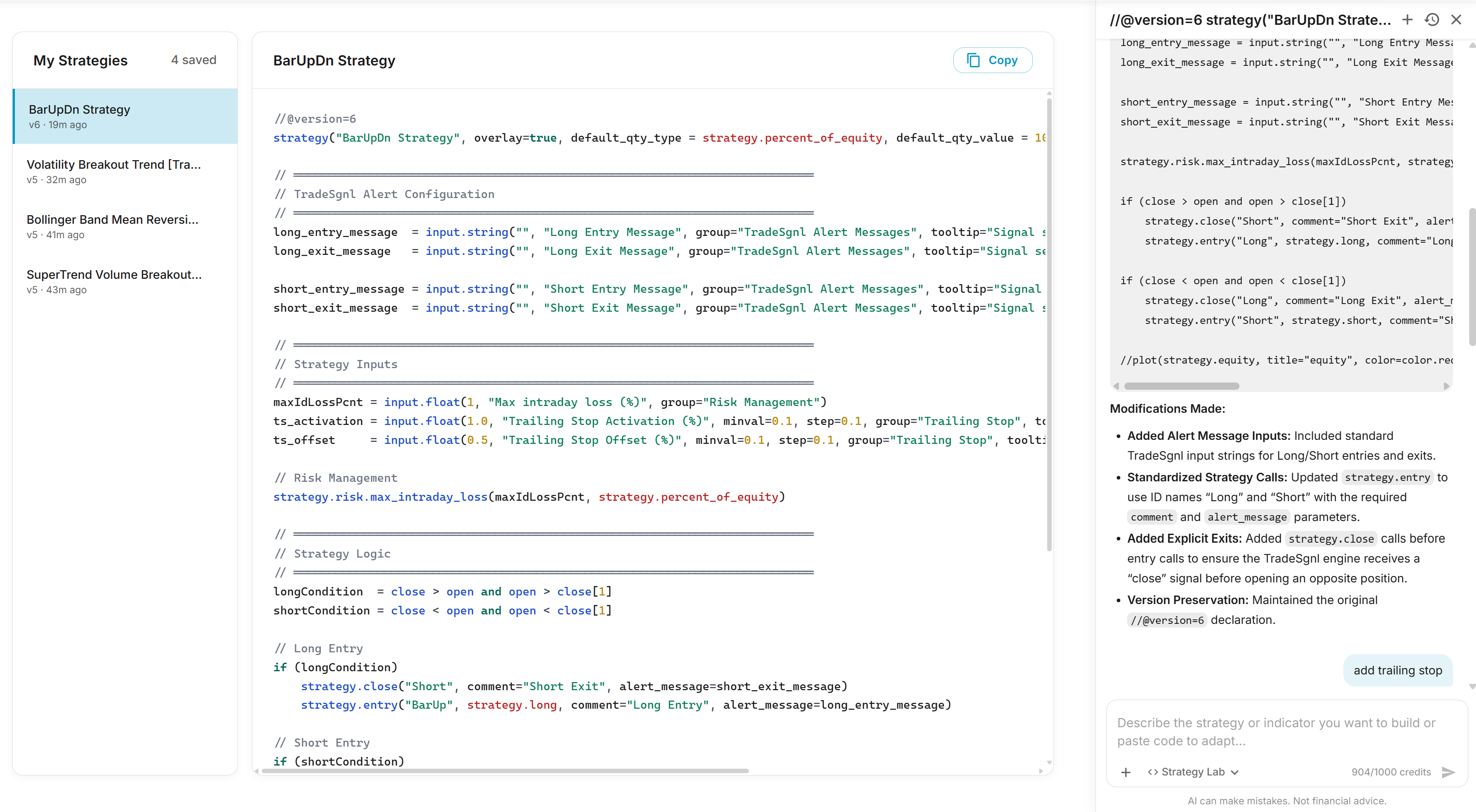
Adapt any strategy
The AI can convert an indicator into a strategy, or add TradeSgnl alerts to an existing strategy. The script can be your own, a friend's, or a public one from TradingView.
- Paste your script into the canvas. The AI works on whatever strategy is currently open in the canvas, so the script needs to be there before you start chatting.
- In the chat, type one of these prompts:
"adapt this indicator"
"adapt this strategy"
The AI reads the canvas and applies the right changes. An indicator is converted into a tradeable strategy, with its buy/sell signals turned into entries and exits. An existing strategy gets the four alert message inputs (Long Entry, Long Exit, Short Entry, Short Exit) connected to every entry and exit. Your original logic, calculations, and plots are preserved.
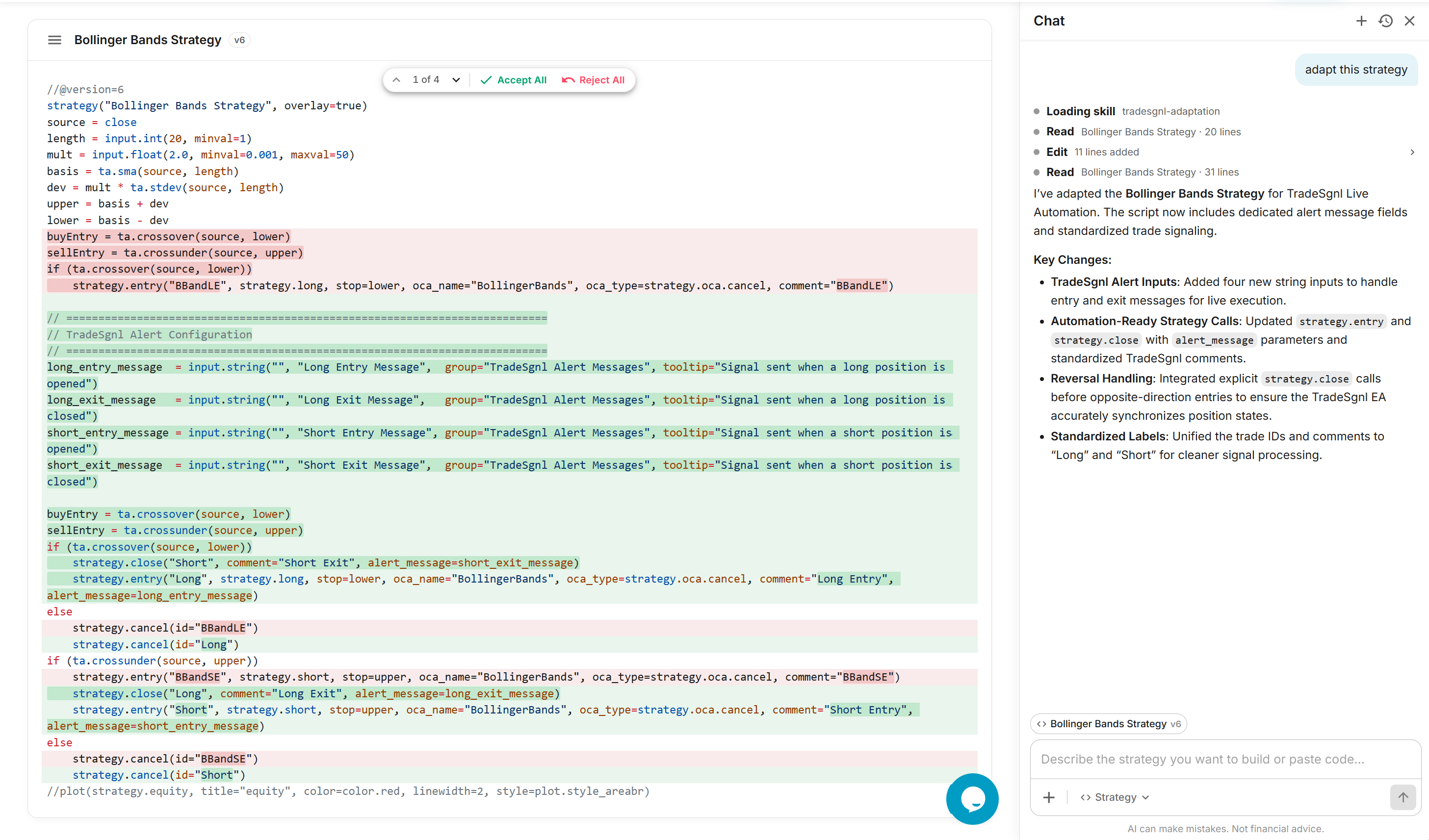
The AI can only convert indicators with clear buy/sell logic (crossovers, threshold breaks, signal flips). For indicators that only plot values, you'll need to define entry conditions before the AI can build a strategy.
Enhance & edit
Saved strategies stay in the sidebar across visits. Open one and ask the AI to modify it. The AI changes only the parts of the script you mention; the rest is preserved.
Examples of what to ask:
- Add risk management. "Add an ATR-based stop loss and a 2:1 take-profit target."
- Tweak entry conditions. "Only enter long when the 200 EMA is sloping up."
- Swap indicators. "Replace the SMA with an EMA, and use RSI(14) instead of stochastic."
- Add session filters. "Block entries outside the London/New York overlap."
- Fix bugs. "The short exit isn't closing the position. Find and fix it."
Reviewing the AI's edits
Each AI edit appears as a diff chunk in the canvas. Every chunk has inline Accept and Reject buttons. A floating toolbar above the canvas lets you step through chunks with arrow keys, or use Accept All / Reject All to handle them in bulk. Click Save in the canvas header to commit the changes.
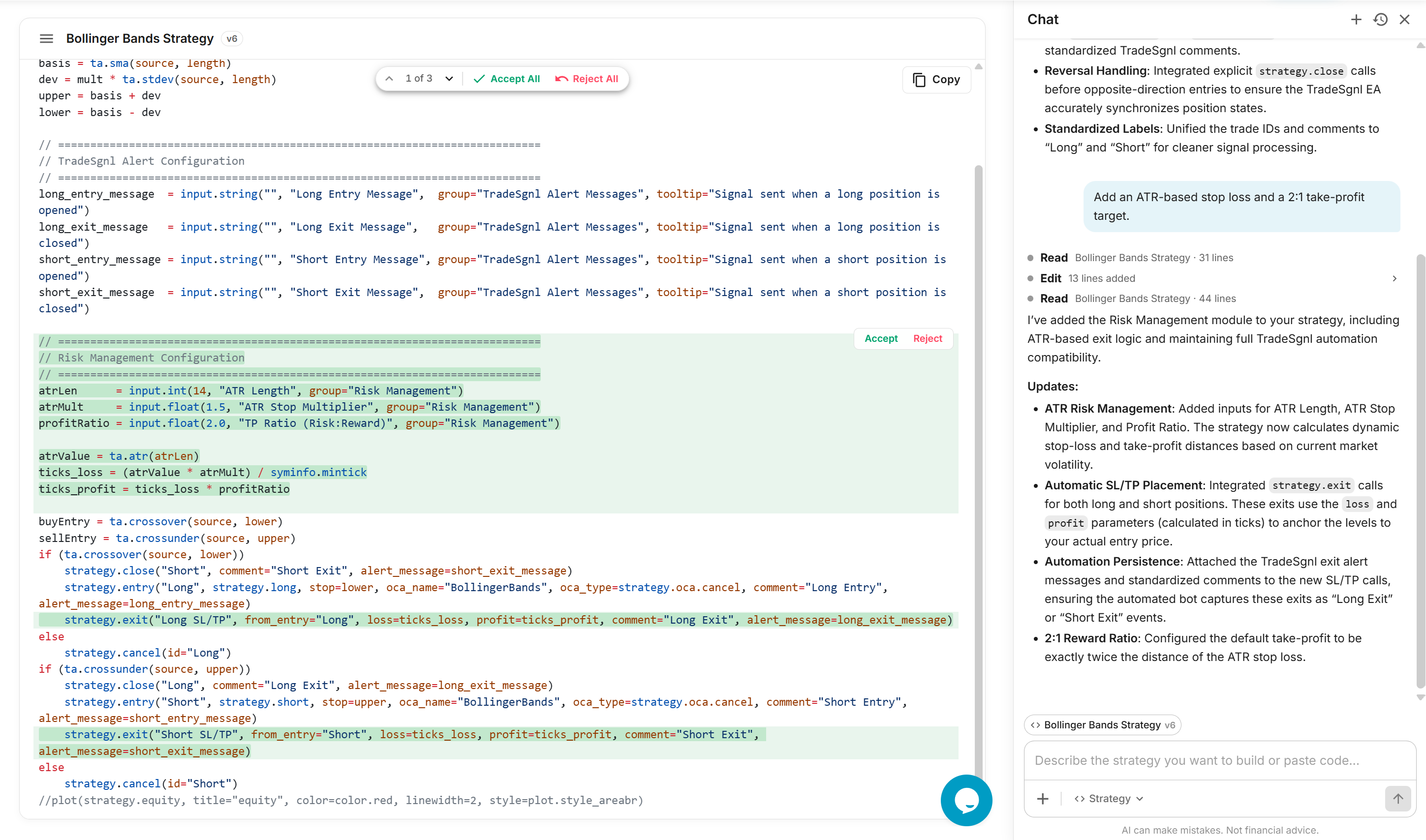
You can also edit Pine Script directly in the canvas. Manual edits and AI edits both go through the same Save button.
Create from scratch
To start a new strategy, click + in the sidebar to open an empty canvas. Describe the strategy you want in chat. The AI generates the script as a new saved strategy and opens it in the canvas with TradeSgnl alerts wired in. The AI will ask follow-up questions if your description is missing details.
Example prompts:
Specific
"Build me a moving average crossover strategy. Use a 20 EMA and a 50 SMA on the 1-hour chart. Long when the fast crosses above the slow, exit on the opposite cross. Wire TradeSgnl alerts."With risk rules
"I want a momentum strategy that buys breakouts of the 20-day high and exits when price closes back below the 10-day moving average. Add a 1.5x ATR stop loss."Minimal
"Build a mean-reversion strategy on RSI(14): buy when RSI crosses above 30, sell when it crosses below 70. Long-only."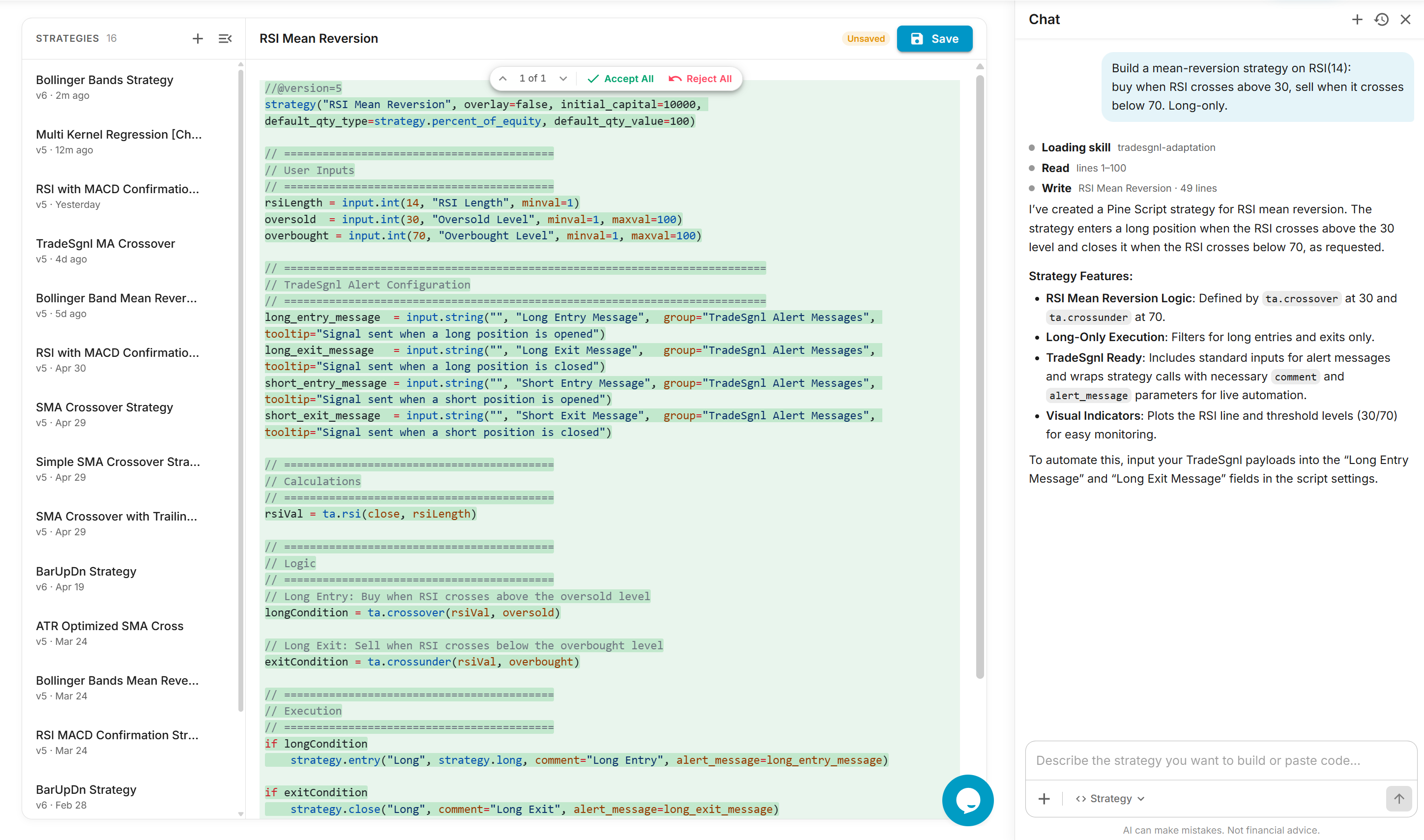
New strategies are saved automatically with a version number and last-updated time. To modify them later, see the Enhance & edit section.
Connect to TradingView
Your finished strategy is a Pine Script, so it runs on TradingView like any other. Copy it from the Strategy Lab canvas, open the Pine Editor at the bottom of any TradingView chart, paste it in, click Save under a name you'll recognise, then Add to chart.
Strategy Lab writes the TradeSgnl wiring into the script for you. Open the strategy's settings on the chart and you'll find a TradeSgnl Alert Messages group with four fields: Long Entry, Long Exit, Short Entry, and Short Exit. Each takes one complete signal string.
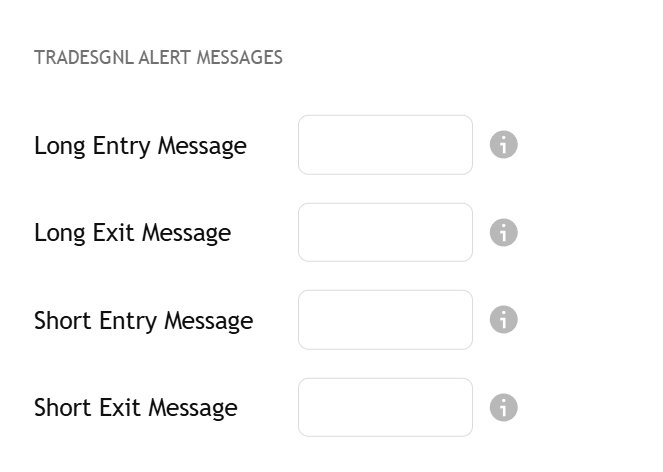
Build those four strings with the Syntax Generator, which assembles them from your license, symbol and risk, and see Signal Syntax for every parameter you can add.
Create the alert
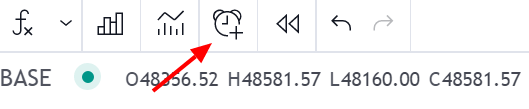
One alert covers all four directions. With your strategy on the chart, press Alt+A (Option+A on Mac), or click the Alerts button in TradingView's top toolbar.
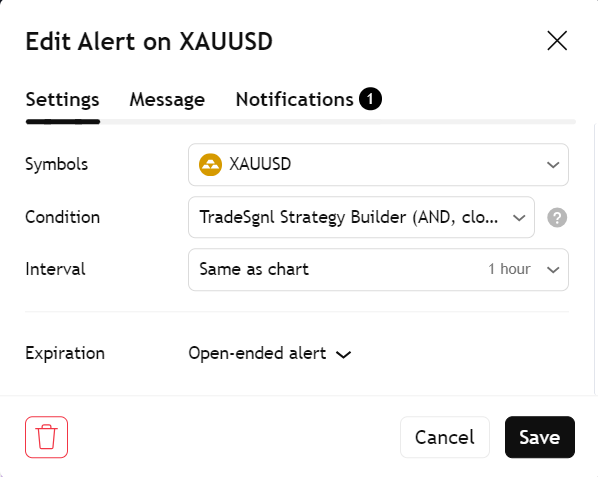
Set the condition. In the Settings tab, open the Condition dropdown and pick the strategy you just saved.
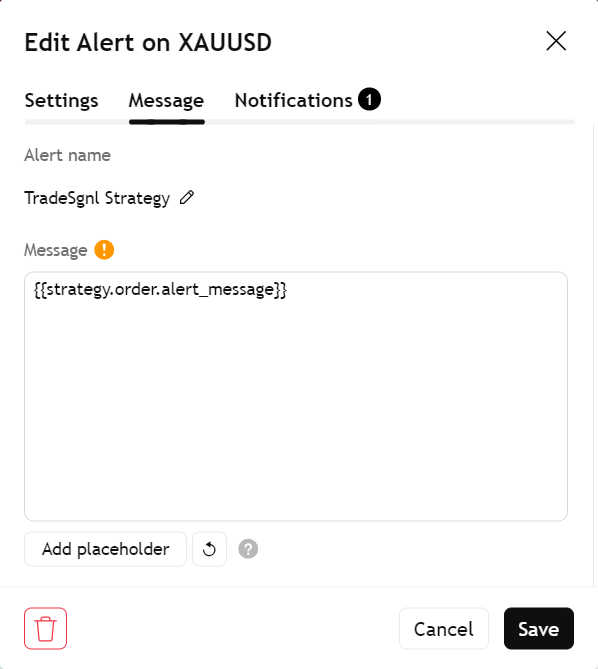
Set the message. In the Message tab, replace everything in the field with this placeholder, and nothing else:
{{strategy.order.alert_message}}TradingView swaps it for whichever of your four strings fired. It works because the signal lives in the script's inputs, which is what Strategy Lab wired in for you.
Add the webhook. In the Notifications tab, tick Webhook URL and paste:
https://webhook.tradesgnl.com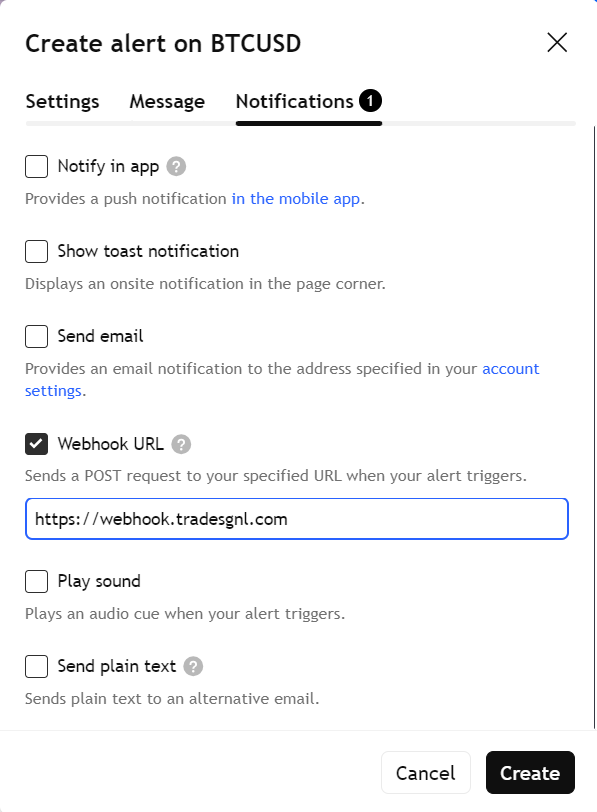
Click Create. The alert is live. Every entry and exit the strategy takes now reaches your account.
TradingView plan
On a paid TradingView plan, alerts reach TradeSgnl by webhook. On a free plan, install the TradeSgnl Chrome extension, turn on Forward alerts to TradeSgnl in its menu, and keep TradingView open: the extension sends your alerts to TradeSgnl the moment they fire.
Test before going live
Verify the alert end-to-end before connecting it to a live account.
Use a demo account first
Connect the alert to a demo account and confirm trades execute as expected before pointing it at a live account.
Check the Signals page
Every signal TradeSgnl receives is listed on the Signals page in the portal. If TradingView fires the alert but nothing shows there, the alert configuration is wrong, not the script.
Reduce risk on live
When switching to a live account, lower the risk parameter for the first several trades until the strategy behaves as expected.
Signal Authentication
Learn how to configure secure signal authentication for TradeSgnl. Protect your trading signals with authentication tokens and webhook security.
Strategy Builder
Build TradingView strategies and connect them to your trading account with one-click alert setup. Configure entry, exit, and risk signals visually. No code required.