
No-Code Setup
Set up TradingView automation without any coding. Use the visual interface to create alerts and connect them to your trading account.
Introduction
This guide shows you how to automate TradingView strategies without accessing their source code. Make sure your script is a strategy (not an indicator). If it's an indicator, use our TradeSgnl Strategy Builder instead.
One alert covers every signal
A single alert with this format handles entries, exits, and reversals for any strategy. The transition pair (e.g. flat>long, long>flat, long>short, short>flat) tells TradeSgnl which action to take, so you don't need separate alerts or extra parameters for each signal type.
Setup Instructions
Follow these steps to wire your TradingView strategy up to your trading account.
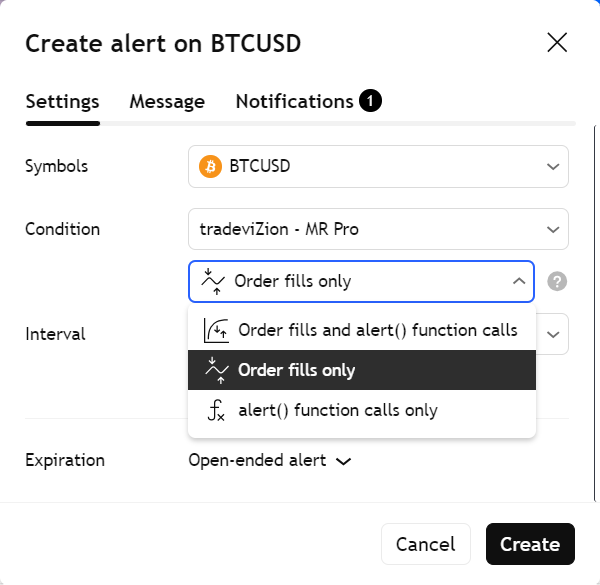
Create an Alert on Your Strategy. Apply your strategy to the desired chart and create an alert (Alt+A on Windows / Option+A on Mac). Select your strategy under Condition.
If you see an "Order fills only" dropdown option, select it. The other option, order fills and alert() function calls, also sends the strategy's own alert text, which TradeSgnl cannot read. If you don't see this dropdown below the strategy name, skip this step and proceed to the alert message.
Configure the Alert Message. The fastest way to build this message is the Syntax Generator — configure your risk, SL, TP, and any advanced features in the form, then click Custom Strategy Message to copy the single-alert version below. It uses the same transition pair ({{strategy.prev_market_position}}>{{strategy.market_position}}) that one alert needs to handle entries, exits, and reversals.
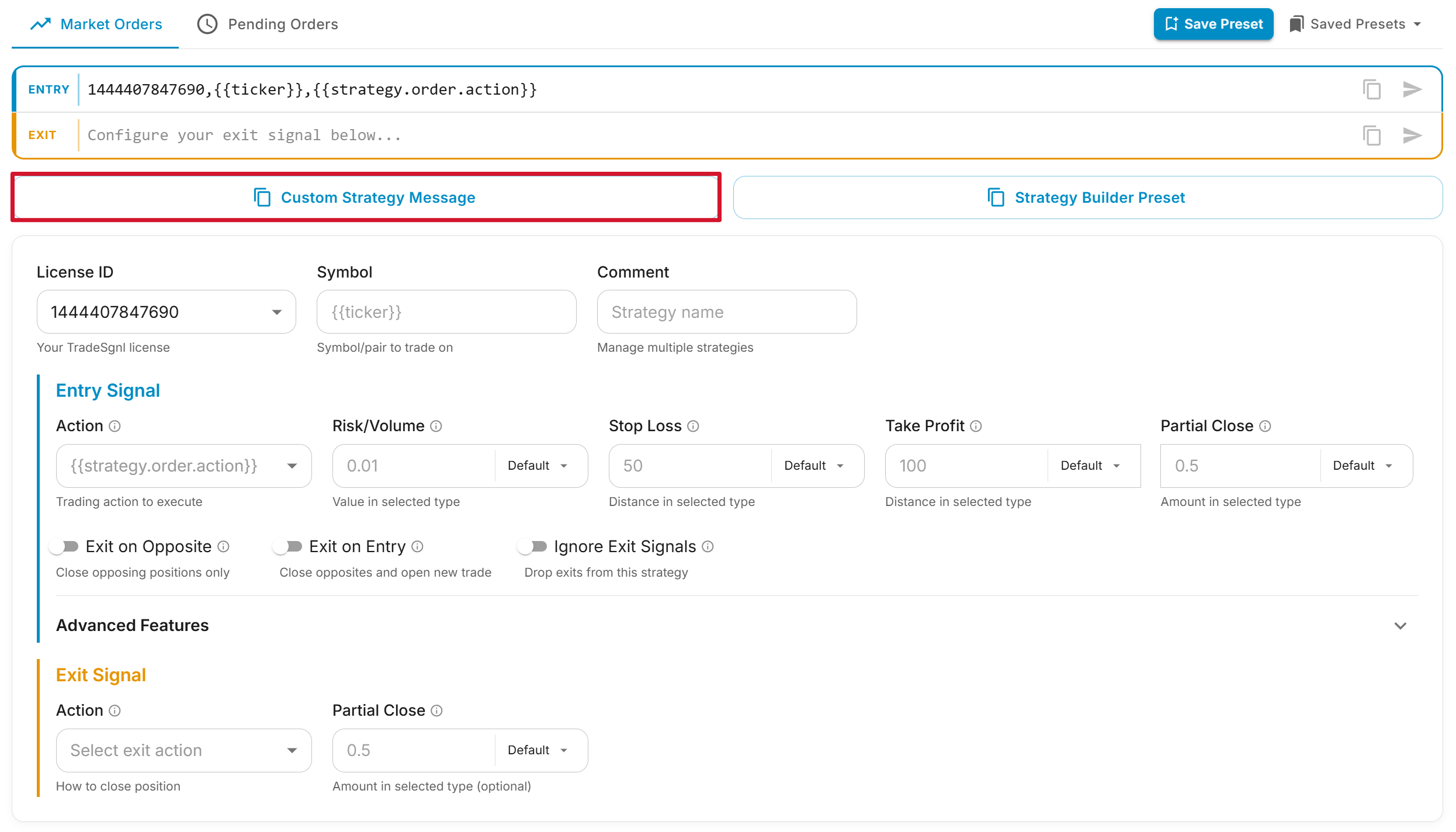
Paste what you copied into the alert's Message field. The format looks like this:
LicenseID,{{ticker}},{{strategy.prev_market_position}}>{{strategy.market_position}},risk=0.01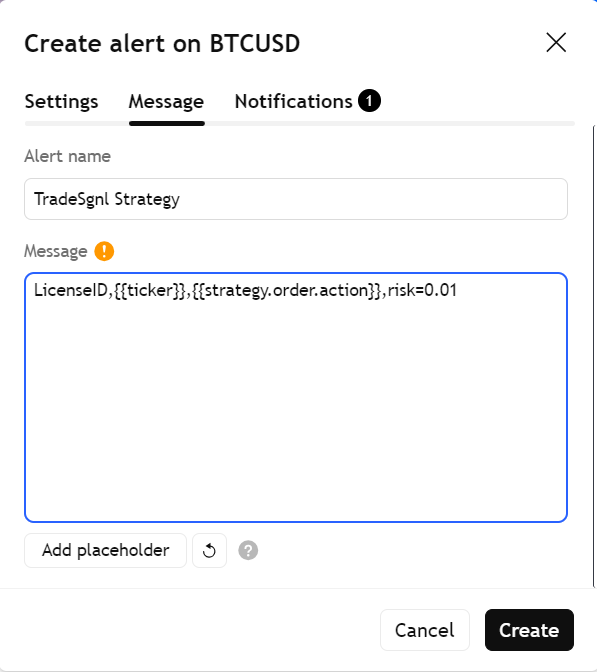
If you build it by hand
- Replace
LicenseIDwith your actual TradeSgnl license ID. - Use a fixed risk value (
risk=0.01). TradingView placeholders cannot be used for risk. {{ticker}}returns the symbol (EURUSD, BTCUSD, etc.).- The transition pair (e.g.
flat>long,long>flat,long>short) lets one alert handle entries, exits, and reversals — the server translates it into the right action verb.
Add the Webhook URL. In the Notifications tab, check Webhook URL and paste the following URL:
https://webhook.tradesgnl.com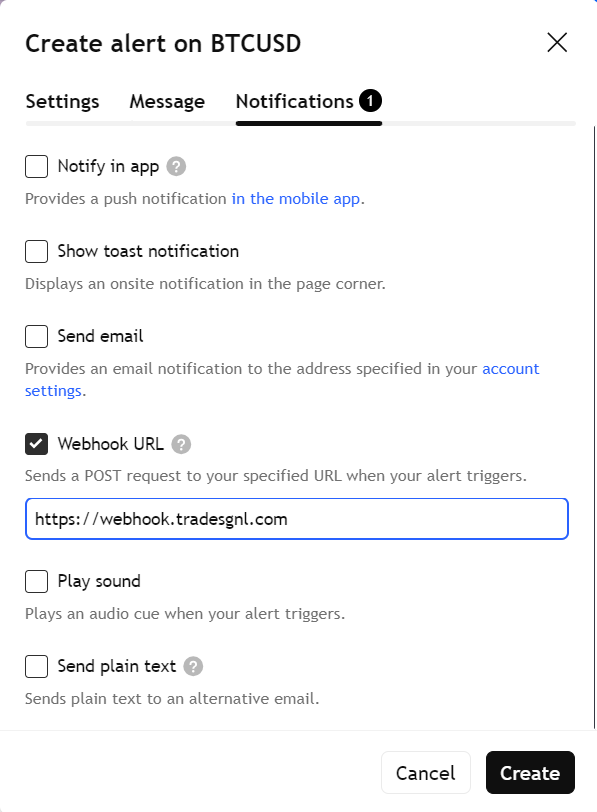
Save the Alert. Click Create to save your alert. Your strategy will now send signals to your trading account.
Requirements
- On a paid TradingView plan, alerts reach TradeSgnl by webhook. On a free plan, install the TradeSgnl Chrome extension, turn on Forward alerts to TradeSgnl in its menu, and keep TradingView open: the extension sends your alerts to TradeSgnl the moment they fire.
- Set up separate alerts for each symbol and timeframe you want to automate.
Best Practices
- Start with Demo Trading. Test all strategies on demo accounts first to verify alerts, position sizing, and stop loss/take profit functionality before risking real capital.
- Configure Alerts Properly. Use 'Once Per Bar Close' trigger, set appropriate expirations, and name alerts clearly with symbol and timeframe information.
- Manage Risk Carefully. Always use stop losses, start with small position sizes (0.01 to 0.1 lots), and set daily/weekly loss limits in your EA configuration.
- Select Strategies Wisely. Choose strategies with proven backtest results, favorable profit factors (above 1.5), reasonable drawdowns, and consistent performance across different market conditions.
Important Reminder
Automated trading involves risks. Never risk more than you can afford to lose and monitor your automated systems regularly.
Additional Resources
Strategy Builder
Build TradingView strategies and connect them to your trading account with one-click alert setup. Configure entry, exit, and risk signals visually. No code required.
Backtesting
Learn how to backtest your trading strategies with TradeSgnl. Analyze historical performance and optimize your automated trading systems.