
TradingView AI
TradingView AI in your browser side panel. The TradeSgnl Chrome extension reads your chart in real time, runs indicators, draws levels, creates alerts, and guides automation setup in plain English.
Overview
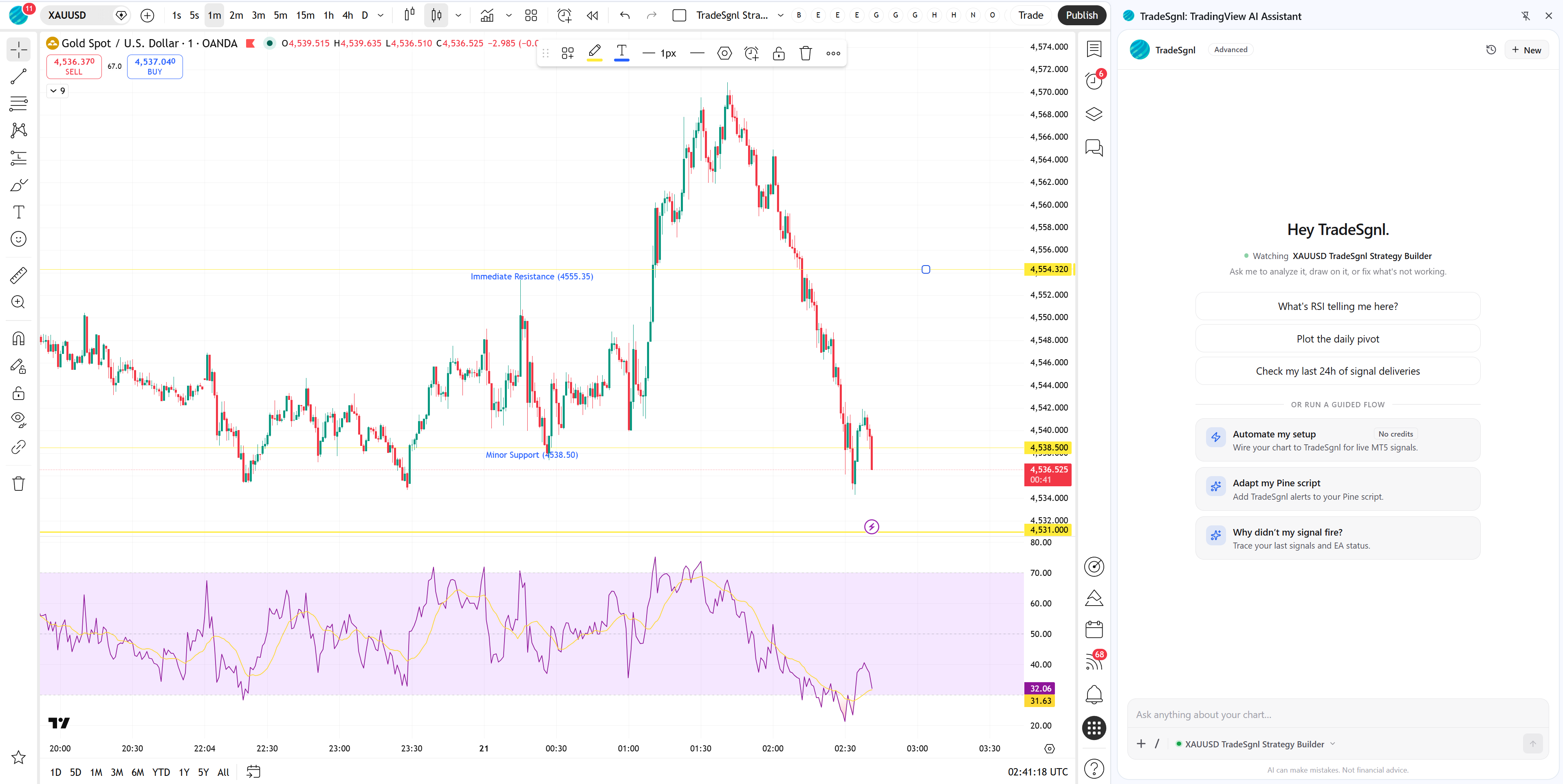
The TradeSgnl extension turns your TradingView side panel into a working surface for analysis and automation. Open it on any chart and you get two tools sharing one space: an AI assistant that reads your chart in real time and can act on it, and guided workflows that walk through your TradeSgnl automation setup step by step.
Both tools know your account. The assistant can see your signal presets, broker configuration, and connection limits. The workflows use that same context to skip questions you have already answered elsewhere.
AI Assistant
Ask anything about your chart, your indicators, or your trades. The assistant reads live data, answers in plain English, and can execute actions on the chart for you.
Guided Workflows
Step-by-step flows for common automation tasks. Pick a signal preset, set up TradingView alerts, and confirm broker settings without leaving the chart.
Install
The extension is published on the Chrome Web Store. It runs on Chrome and on any Chromium-based browser that supports the side panel API, including Microsoft Edge, Brave, and Arc.
Add to Chrome. Open the Chrome Web Store listing and click Add to Chrome. Confirm the permissions prompt.
Pin to toolbar. Click the puzzle icon in the browser toolbar and pin TradeSgnl, so the icon is always one click away.
Sign in. Open the side panel on a TradingView chart and sign in with your TradeSgnl account.
Open the Side Panel
Visit any chart on tradingview.com and click the TradeSgnl icon in your browser toolbar. The side panel docks to the right of the page and stays attached to the tab as you switch symbols and timeframes.
On first launch, the panel asks you to sign in with your TradeSgnl account. After that, it picks up where you left off, including your recent conversation history.
What the panel sees
Once attached, the panel reads the live state of the chart in front of you:
- The symbol and timeframe currently loaded
- Indicators on the chart, including their inputs and current values
- Recent OHLCV data so the assistant can talk about the last bars
- Visible drawings and overlays
If you open the side panel before signing in to TradingView, sign in to TradingView first and then reload the tab. The chart context is read at page load.
AI Assistant
AI Credits
TradingView AI Assistant consumes AI credits. If you run out of your monthly credits, you can purchase extra AI credits at any time on the Billing page in your portal.
The assistant is a chat surface in the side panel. Ask it anything about your chart, your indicators, or your trades. It answers in plain English and can run actions on TradingView for you. You will see each action stream as it executes, so you always know what the assistant is touching.
Chart analysis and control
Analyze the chart
Reads your symbol, timeframe, indicator values, and recent OHLCV. Ask what RSI is doing, whether the last bar broke a level, or where the next support sits.
Navigate the chart
Switch symbols and timeframes, flip between candles, bars, line, area, Heikin Ashi, or Renko. Zoom to a date range or overlay another ticker for side-by-side comparison.
Control indicators
Add a study, change its inputs, hide it, or remove it. Pull saved Pine indicators onto the current chart by name. Read live values straight from the data window.
Draw on the chart
Trendlines, rectangles, Fibonacci retracements, horizontal levels, channels. Just describe where and the assistant places the drawing.
Capture screenshots
Take a snapshot of the current chart and have the assistant analyze price action, annotate structure, or save it for later reference.
Alerts and automation
Manage TradingView alerts
Create, list, modify, pause, restart, and delete native TradingView alerts in plain English. Includes the webhook wiring needed for TradeSgnl signal delivery.
Configure Strategy Builder
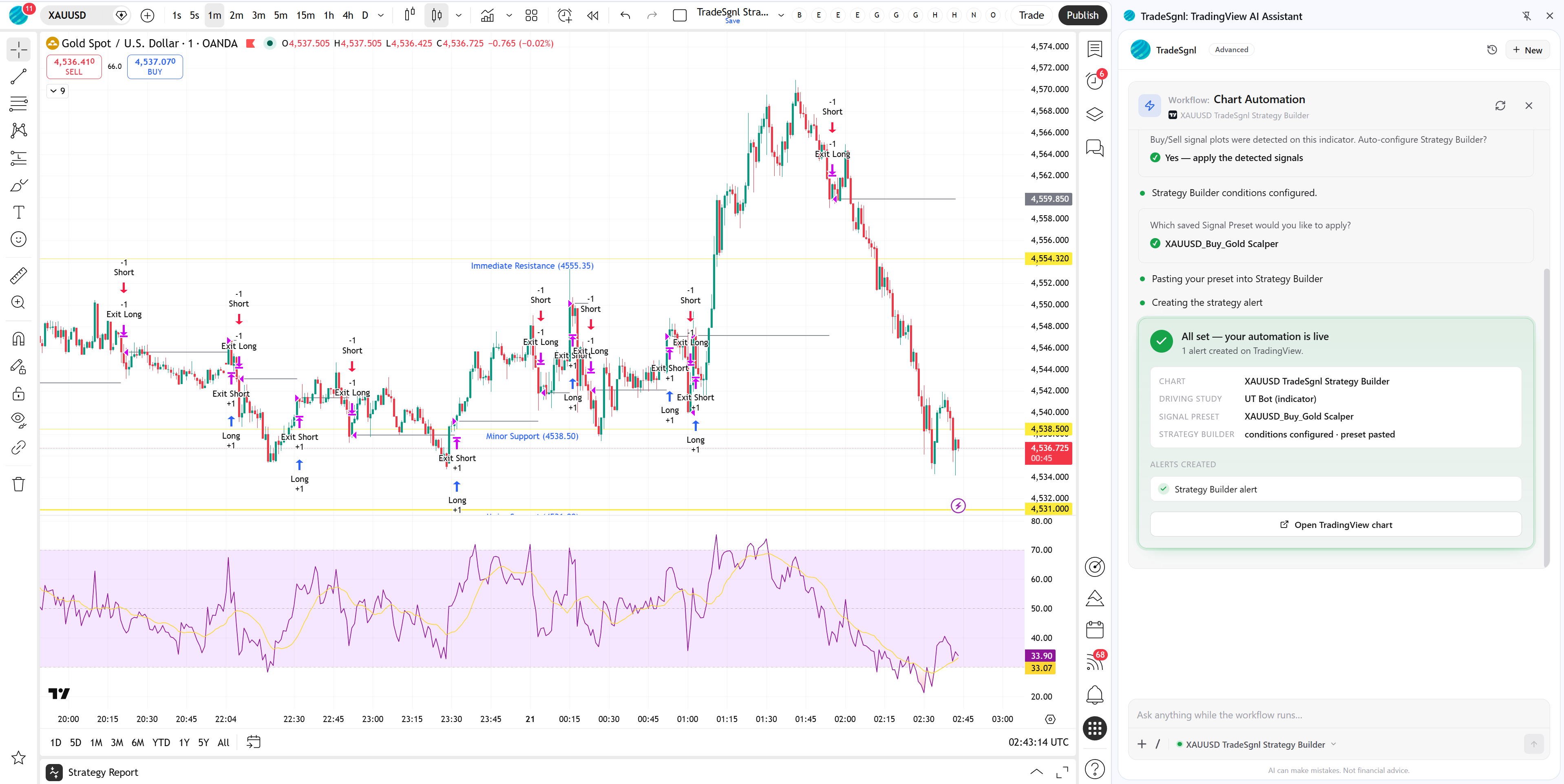
Wires up TradeSgnl Strategy Builder studies. Sets entry and exit conditions, TP / SL, position sizing, and pastes signal preset payloads so messages and conditions line up in one shot.
Edit Pine scripts
List your saved Pine scripts, read or search a script's source, and edit specific blocks. Useful for adapting an existing strategy for TradeSgnl alerts without leaving the side panel.
Performance and history
Analyze your trades
Reads your TradeSgnl signal history and connected accounts. Ask why a signal did not fire, what your win rate is by symbol, where your drawdown came from, or how a specific account is performing.
Review backtest results
Pulls strategy report metrics (net profit, profit factor, win rate, drawdown, Sharpe) and per-trade fills from any Pine strategy on the chart. Drill into individual trades on demand.
Example prompts
The assistant works best with concrete, conversational prompts. Try things like:
Add RSI 14 and tell me if we're oversold

Draw a trendline from the swing low at March 12 to the most recent low

Create an alert when EURUSD crosses above 1.0850 on the 1H

Switch to BTCUSDT on the 4H chart and overlay ETHUSDT

Why didn't last Tuesday's BUY signal fire on my IC Markets account?

Show me my win rate by symbol over the last 30 days

What's the profit factor on this Pine strategy and where's the largest drawdown?

Wire up Strategy Builder with my "EMA Cross" preset and 1% stops

Find where my MACD strategy script handles divergence

Take a screenshot and tell me if structure looks bullish
Stay specific. "Add RSI 14" is more reliable than "Add an oscillator". Naming the symbol, timeframe, level, or indicator parameters helps the assistant pick the right tool the first time.
Guided Workflows
Workflows are step-by-step automations triggered from the slash menu inside the side panel. Type / in the chat input to see the available flows.
Each workflow knows your TradeSgnl account state and skips steps you have already completed. The most common one walks through your full automation setup: pick a signal preset, generate the TradingView alert syntax, create the alert on the current chart, and confirm broker settings. Decision points hand off to the AI assistant, so you never get stuck on a question with no answer.
When to use a workflow vs. ask the assistant
- Use a workflow when you want to complete a multi-step setup reliably, with the same checks every time. Good for: connecting a strategy, publishing alerts, configuring a new signal preset.
- Ask the assistant when you have a one-off question or change. Good for: analyzing a setup, tweaking an indicator, drawing a level, creating a single alert.
Workflows that touch paid features (Strategy Builder wiring, signal preset management, performance analytics) require an active TradeSgnl subscription. The workflow will tell you up front if a step needs an upgrade.
Troubleshooting
Most extension issues come down to authentication or page state. Try the items below before opening a support ticket.
Symbol Mapping
Configure symbol mapping for different brokers. Learn how to handle symbol differences between TradingView and MetaTrader.
Strategy Lab
Generate or adapt TradingView Pine Script strategies by chatting with the TradeSgnl AI. Copy the result into TradingView, set up the alert, and trade automatically on MT5. No coding required.