
CloudConnect Guide
Connect your broker through the portal and start trading in minutes — no setup required.
Introduction
CloudConnect lets you connect your MT5 broker accounts directly from your TradeSgnl dashboard. Enter your broker credentials, and we provision a dedicated CloudConnect instance for each account — with MetaTrader 5 and the TradeSgnl EA pre-installed and connected to your broker automatically.
Each terminal runs 24/7 in the cloud, even when your computer is off. You can see your live balance, equity, and profit right from your dashboard — no need to open the terminal itself to check how your accounts are doing.
Why Use CloudConnect?
Connect in Minutes
Enter your broker credentials in the portal and your terminal is provisioned automatically. No downloads, no VNC sessions, no manual MT5 setup — just connect and trade.
Live Account Info
See your balance, equity, and profit for each broker account directly in your dashboard. Monitor all your accounts at a glance without opening any terminals.
One Terminal Per Broker
Each broker account gets its own dedicated terminal. Connect multiple accounts up to your plan's connection limit — each managed independently from your dashboard.
24/7 Always On
Your terminals keep running even when you close the browser. Trades execute around the clock — never miss a signal because your PC went to sleep.
Trade From Any Device
Access your full MT5 desktop from any browser — laptop, tablet, or phone. Open your terminal to adjust positions, check charts, or troubleshoot connections.
Low-Latency Execution
Direct connection to broker servers with optimized network routing. Execute trades with minimal delay — the same low-latency performance as a dedicated VPS.
Terminal vs. VPS — Choose One
Advanced and Professional plans include one cloud hosting product at a time — either CloudConnect or Cloud VPS. You cannot run both simultaneously.
CloudConnect
- Connect accounts directly from your dashboard
- One managed terminal per broker account
- Live balance, equity, and profit in your dashboard
- 24/7 uptime with automatic EA recovery
Cloud VPS
- Full Windows desktop via RDP
- Install any additional software you need
- Dedicated server resources
- Best for power users who need full OS control
Connect Your Account
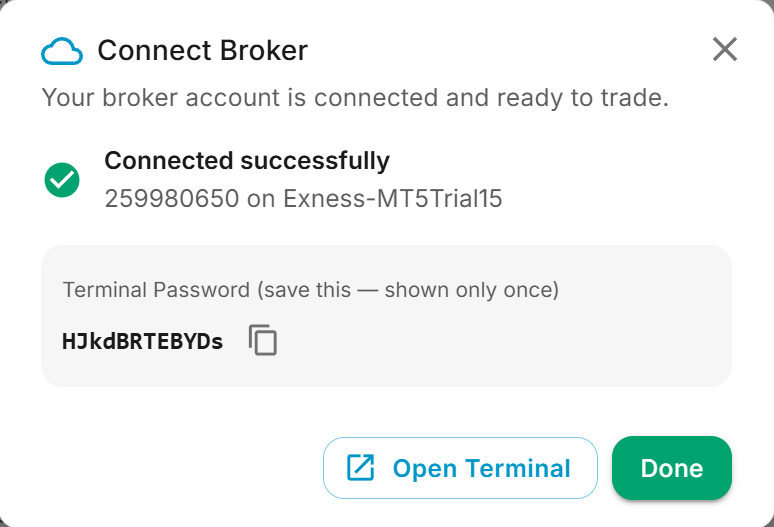
Connecting a broker account takes just a few steps. Click the Connect Account button on your CloudConnect page, enter your broker credentials, and your terminal will be provisioned automatically.
How to Connect
- Go to the CloudConnect page in your Client Portal.
- Click the Connect Account button. A dialog will open.
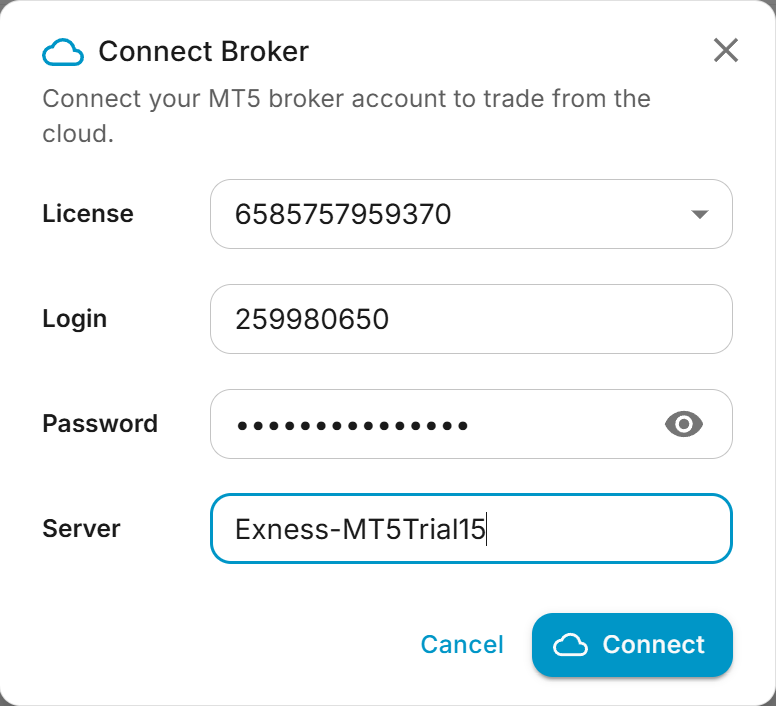
- Select your license, then enter your broker login number, password, and server name (e.g. ICMarkets-Demo03).
- Click Connect. A cloud terminal will be assigned to your account and the connection process will begin automatically.
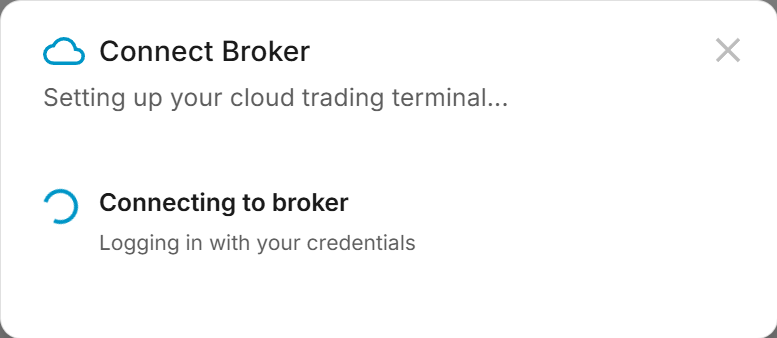
- Wait for the connection to complete. You'll see progress updates as the system locates your broker, logs in, and verifies the connection.
- Once connected, your terminal card will appear on the dashboard showing your broker name, account number, and live status.
Your Terminal Dashboard
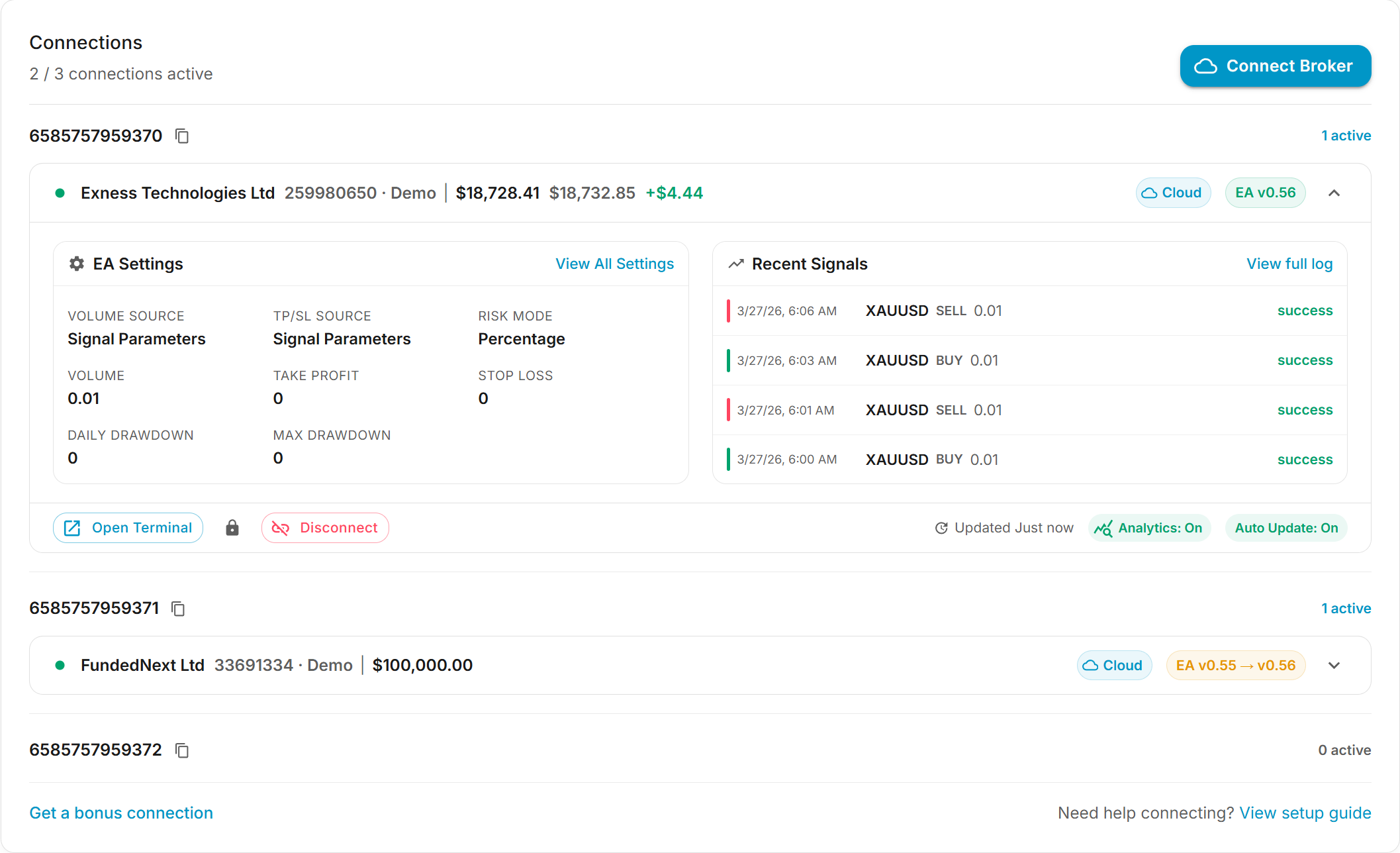
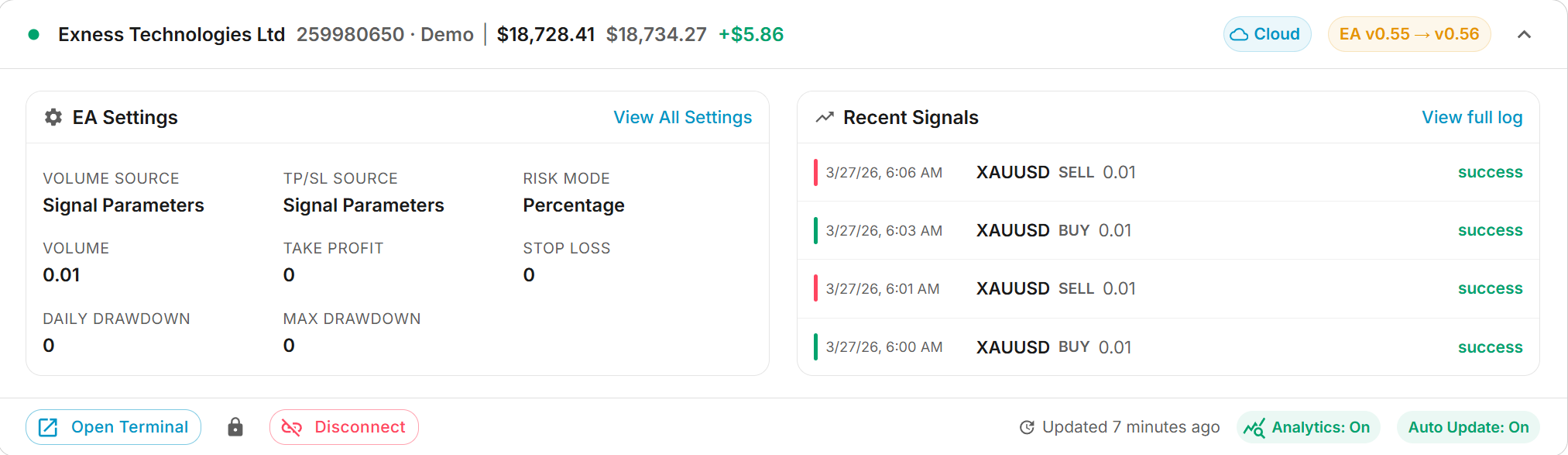
Once connected, each broker account appears as a connection card on the Connections page. The card header shows your broker name, account number, account type, and a Cloud chip indicating it's a CloudConnect connection. Click the card to expand it and see everything at a glance.
Live Account Info
The card header displays live trading data right next to your broker name:
- Balance — Your current account balance, updated in real time.
- Equity — Your balance adjusted for open positions (shown when you have active trades).
- Profit — Your unrealized P&L from open positions, color-coded green for profit and red for loss.
EA Settings
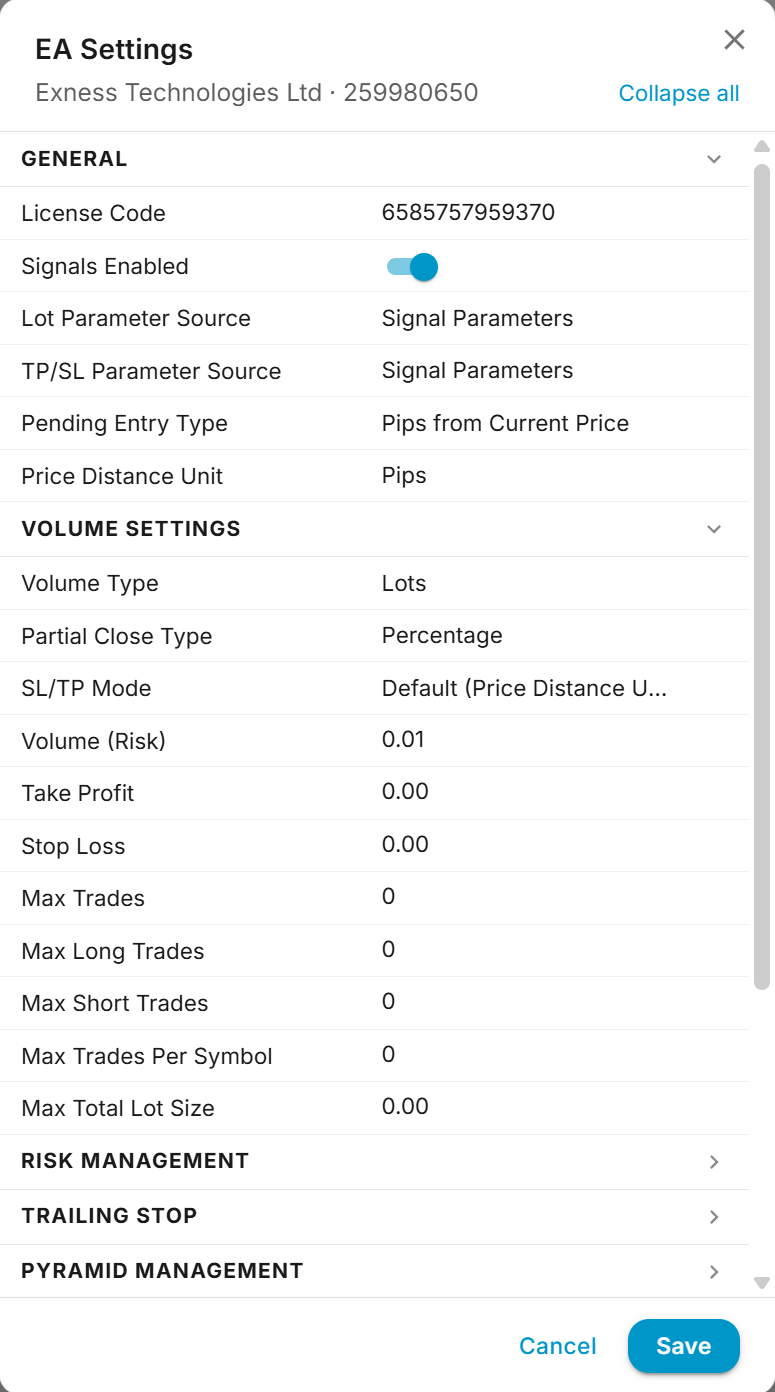
The expanded card shows a summary of your current EA configuration — volume source, TP/SL source, risk mode, default values, and drawdown limits. Click View All Settings to open the full settings editor where you can modify any parameter. Changes require a brief MetaTrader restart — your broker connection will reconnect automatically within a few seconds.
Recent Signals
The right side of the expanded card shows your most recent signals — symbol, direction, volume, and delivery status. Click View full log to open the complete signal history for that account.
EA Version & Updates
The EA version chip in the card header shows which version your EA is running. When a new version is available, the chip turns yellow and shows the update (e.g. EA v0.55 → v0.56). Click it to update — MetaTrader will restart briefly to install the new version, and your broker connection will resume automatically.
Quick Actions
The bottom bar of the expanded card gives you quick access to:
- Open Terminal — Launch the full MT5 desktop in your browser to view charts, place manual trades, or troubleshoot.
- Change Password — Reset the terminal access password (the lock icon).
- Disconnect — Disconnect the broker account from the terminal.
EA Settings
CloudConnect connections give you full control over your EA configuration directly from the portal — no need to open the terminal.
Full Settings Editor
Click View All Settings on any connection card to open the full EA settings dialog. From here you can configure every EA parameter — volume type, risk management, SL/TP modes, trailing stops, breakeven, drawdown limits, and more.
Changes require a brief MetaTrader restart — your broker connection will reconnect automatically within a few seconds.
Managing Your Terminals
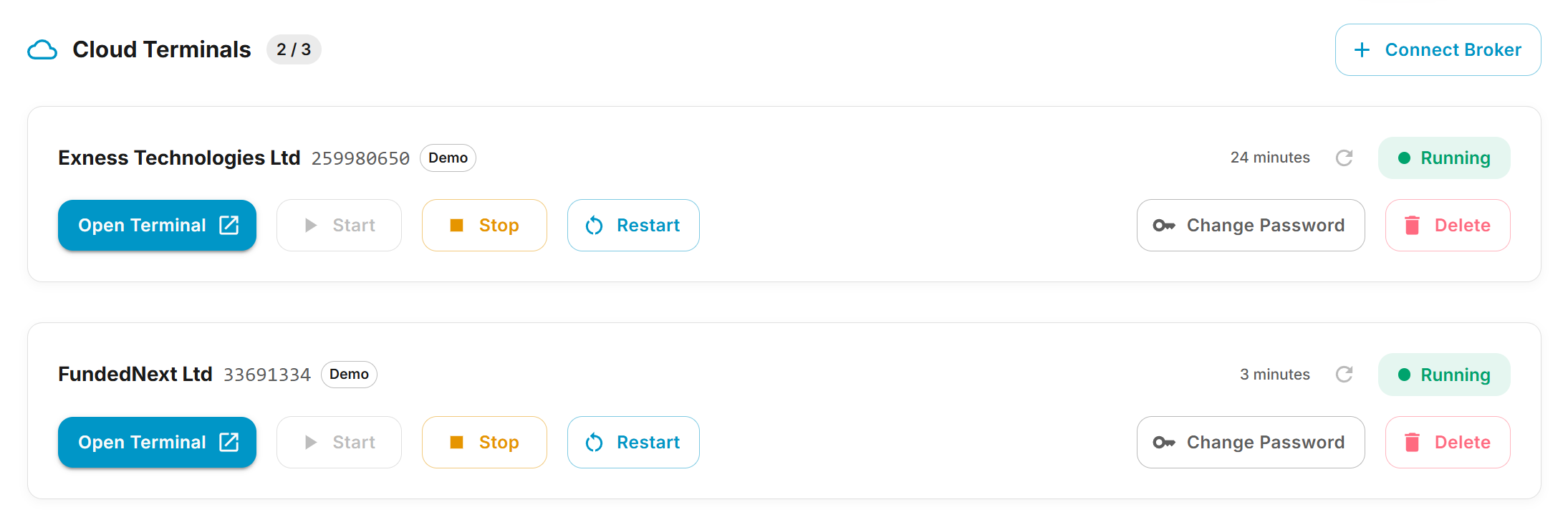
Each terminal card on your dashboard gives you full control over that broker connection. You can start, stop, restart, open, or delete terminals — all from one place.
Terminal Controls
Use the action buttons on each terminal card:
Open Terminal
Start
Stop
Restart
Change Password
Delete
Opening Your Terminal
While most management happens from your dashboard, you can open any terminal directly in your browser to access the full MT5 desktop. This is useful for:
- Viewing charts and placing manual trades
- Checking the MT5 journal for detailed logs
- Troubleshooting connection issues with your broker
- Adjusting MT5 settings that aren't available through the portal
Password Management
Each terminal has its own access password for when you open it in the browser:
- Initial password — Generated when the terminal is first created. Shown only once — save it immediately.
- Reset password — Click Change Password on the terminal card to set a new one. You can enter a custom password or generate a random one.
- Instant effect — Password changes take effect immediately. No restart required.
Deleting a Terminal
Click Delete on any terminal card to permanently remove it. This frees up a connection slot so you can connect a different broker account.
Need Additional Help?
Our support team is ready to assist you with any questions you might have.