

Strategy Lab
Author and edit automation-ready TradingView Pine Script with an AI developer in the TradeSgnl Portal
Introduction
Strategy Lab is a Pine Script workspace in the TradeSgnl Portal. It includes a code canvas and an AI developer that edits whatever script is open in the canvas. The AI's edits appear as a diff that you accept or reject before saving.
You can use Strategy Lab to:
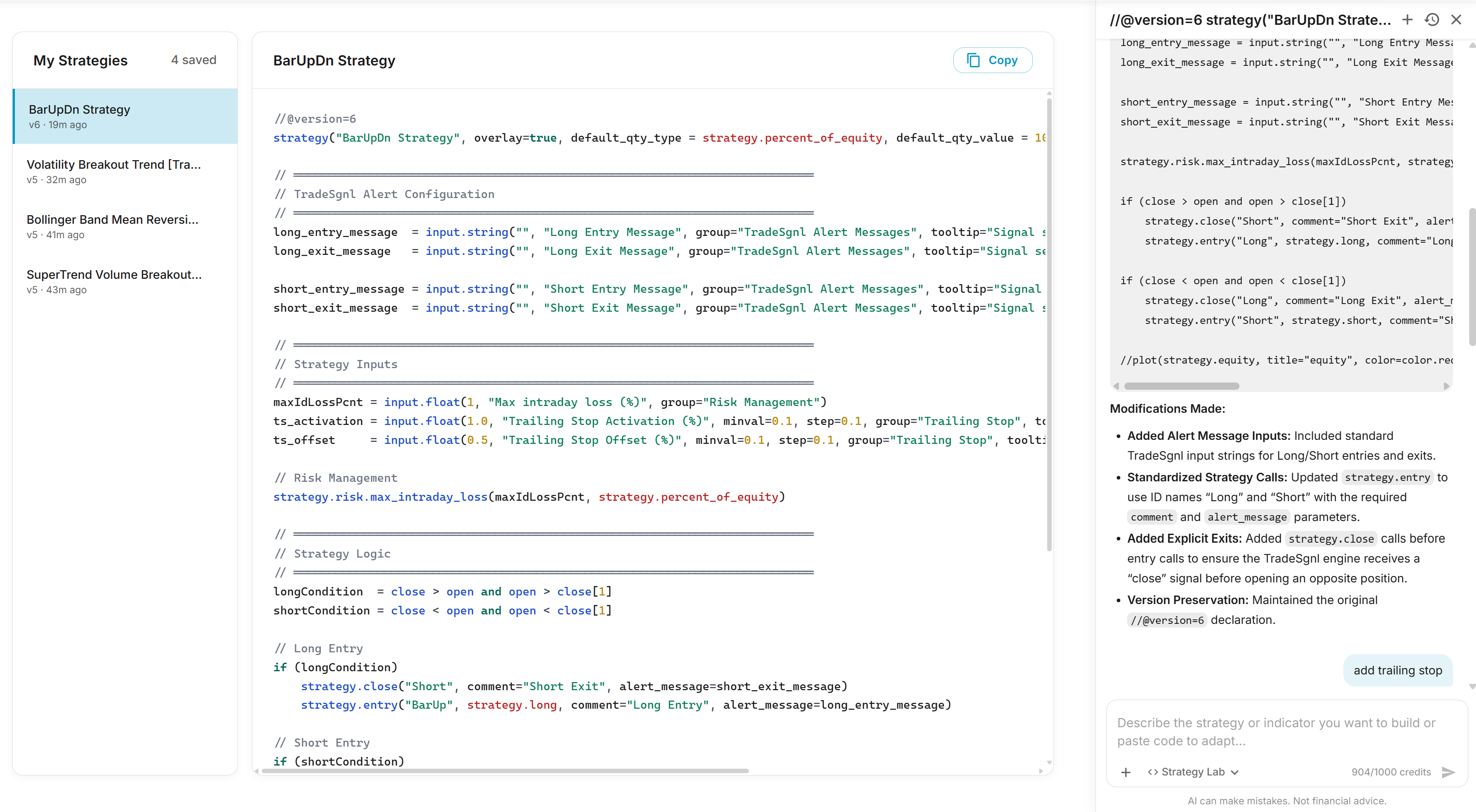
Adapt any strategy
The AI can convert an indicator into a strategy, or add TradeSgnl alerts to an existing strategy. The script can be your own, a friend's, or a public one from TradingView.
Paste your script into the canvas. The AI works on whatever strategy is currently open in the canvas, so the script needs to be there before you start chatting.
In the chat, type one of these prompts:
“adapt this indicator”
“adapt this strategy”
The AI reads the canvas and applies the right changes. An indicator is converted into a tradeable strategy, with its buy/sell signals turned into entries and exits. An existing strategy gets the four alert message inputs (Long Entry, Long Exit, Short Entry, Short Exit) connected to every entry and exit. Your original logic, calculations, and plots are preserved.
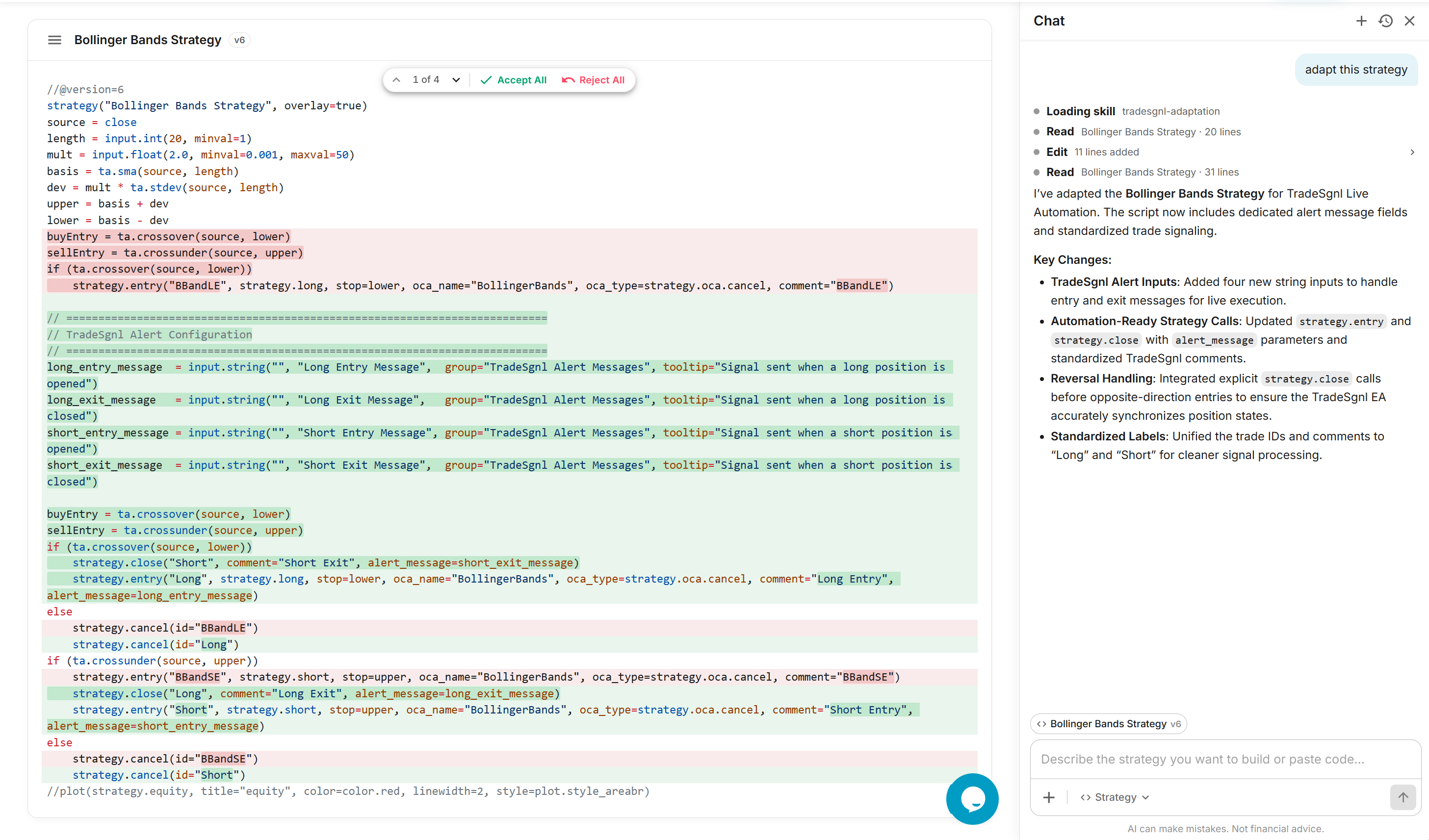
The AI can only convert indicators with clear buy/sell logic (crossovers, threshold breaks, signal flips). For indicators that only plot values, you'll need to define entry conditions before the AI can build a strategy.
Enhance & edit
Saved strategies stay in the sidebar across visits. Open one and ask the AI to modify it. The AI changes only the parts of the script you mention; the rest is preserved.
Examples of what to ask:
- Add risk management. “Add an ATR-based stop loss and a 2:1 take-profit target.”
- Tweak entry conditions. “Only enter long when the 200 EMA is sloping up.”
- Swap indicators. “Replace the SMA with an EMA, and use RSI(14) instead of stochastic.”
- Add session filters. “Block entries outside the London/New York overlap.”
- Fix bugs. “The short exit isn't closing the position. Find and fix it.”
Reviewing the AI's edits
Each AI edit appears as a diff chunk in the canvas. Every chunk has inline Accept and Reject buttons. A floating toolbar above the canvas lets you step through chunks with arrow keys, or use Accept All / Reject All to handle them in bulk. Click Save in the canvas header to commit the changes.
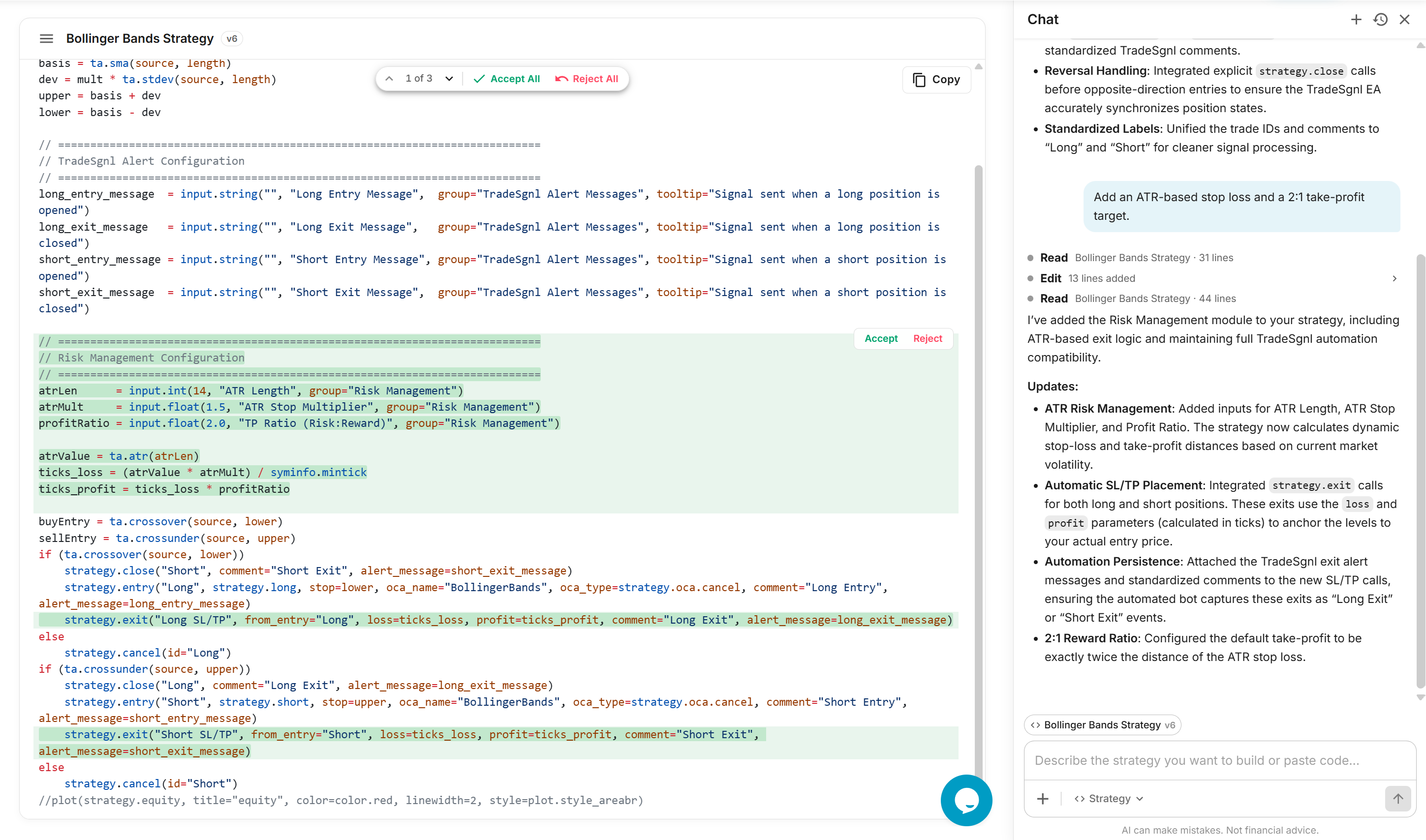
You can also edit Pine Script directly in the canvas. Manual edits and AI edits both go through the same Save button.
Create from scratch
To start a new strategy, click + in the sidebar to open an empty canvas. Describe the strategy you want in chat. The AI generates the script as a new saved strategy and opens it in the canvas with TradeSgnl alerts wired in. The AI will ask follow-up questions if your description is missing details.
Example prompts:
“Build me a moving average crossover strategy. Use a 20 EMA and a 50 SMA on the 1-hour chart. Long when the fast crosses above the slow, exit on the opposite cross. Wire TradeSgnl alerts.”
“I want a momentum strategy that buys breakouts of the 20-day high and exits when price closes back below the 10-day moving average. Add a 1.5x ATR stop loss.”
“Build a mean-reversion strategy on RSI(14): buy when RSI crosses above 30, sell when it crosses below 70. Long-only.”
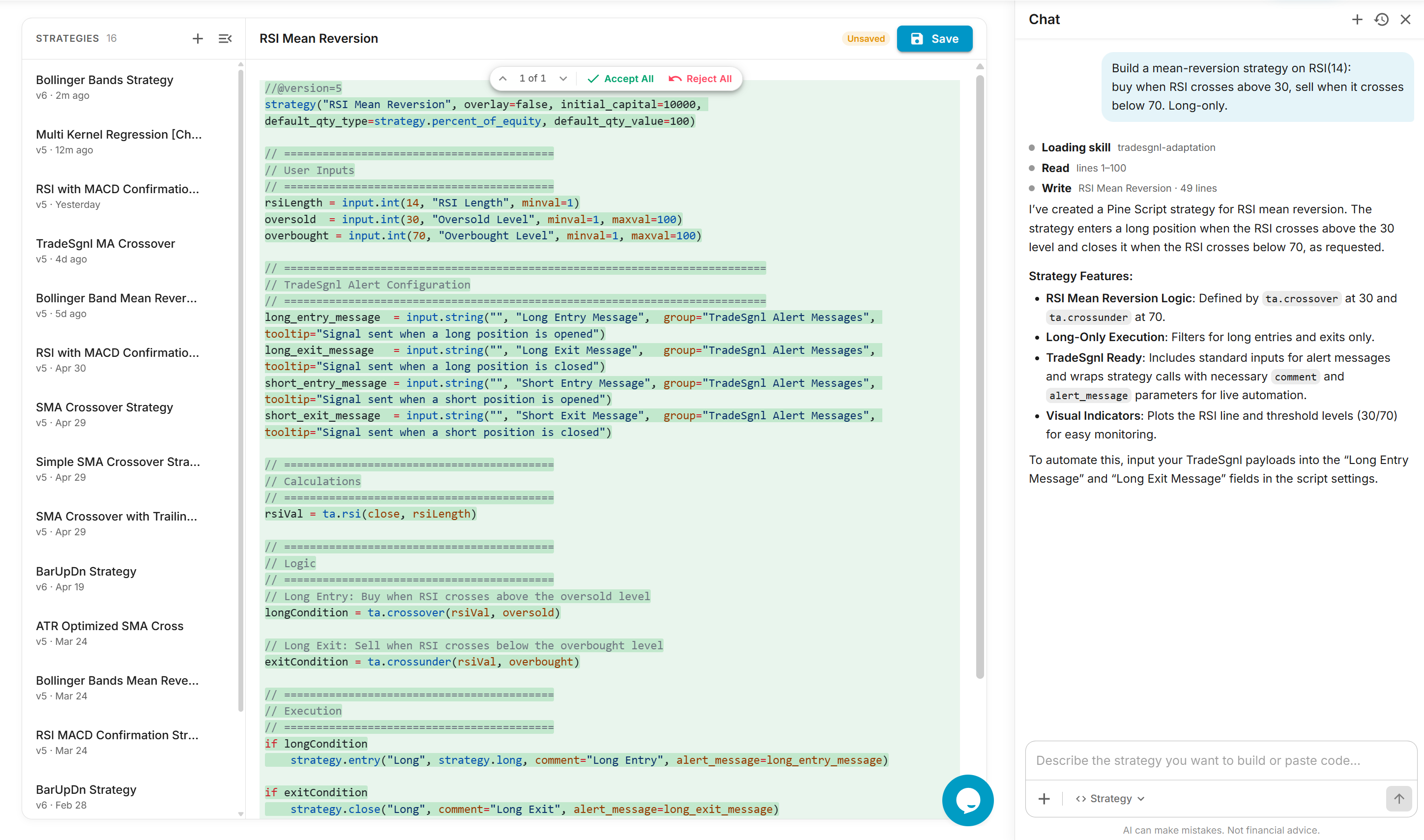
New strategies are saved automatically with a version number and last-updated time. To modify them later, see the Enhance & edit section.
Connect to TradingView
Once you have a saved strategy in the Strategy Lab canvas, copy it into TradingView, fill in the alert message fields, and create a webhook alert that points at TradeSgnl.
Copy the script into TradingView's Pine Editor
Copy the strategy from Strategy Lab. In TradingView, open the Pine Editor at the bottom of any chart, paste the script, click Save, then Add to chart. Save it under a recognizable name; you'll select that name from the alert Condition dropdown later.
Fill the TradeSgnl alert message fields
Open the strategy's settings on the chart and find the TradeSgnl Alert Messages group. Strategy Lab created four fields here: Long Entry, Long Exit, Short Entry, and Short Exit. Each one needs a complete signal string that includes your license ID and the action you want the EA to take when that direction fires.
The fastest way to build these is the Syntax Generator in the portal: pick your license, symbol, risk, and any optional SL/TP, copy the resulting strings, and paste one into each field.
Format reference:
Format
LicenseID,SYMBOL,ACTION,risk=VOLUME,[OPTIONAL_PARAMS]Example: EURUSD strategy
Long Entry:   LICENSE_ID,EURUSD,buy,risk=0.01
Long Exit:    LICENSE_ID,EURUSD,closebuy
Short Entry:  LICENSE_ID,EURUSD,sell,risk=0.01
Short Exit:   LICENSE_ID,EURUSD,closesell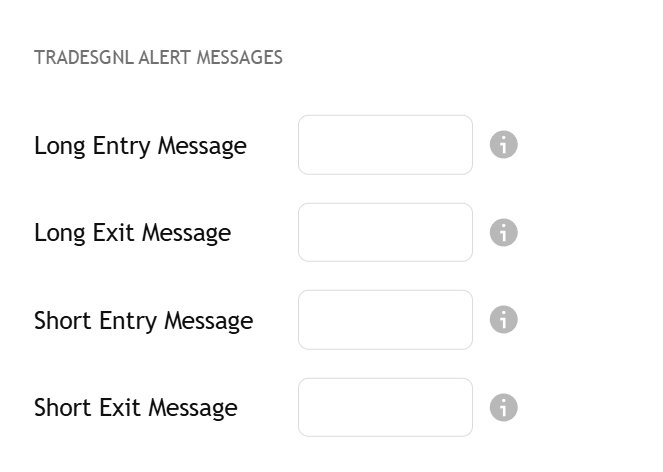
For a complete reference of every parameter (sl, tp, comment, etc.), see the Signal Syntax guide.
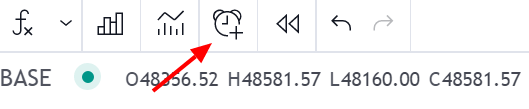
Click the Alerts button
In TradingView's top toolbar, click the Alerts button (bell icon) to open the alert creation dialog.
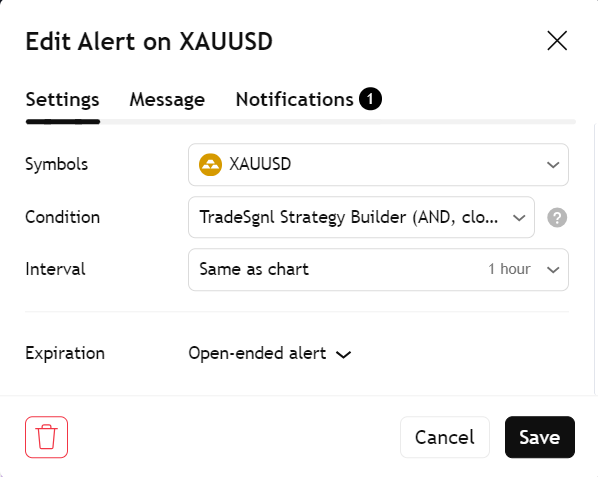
Configure the alert condition
In the Settings tab, open the Condition dropdown and select the strategy you saved in Step 1. You can also set Interval and expiration here if you want to scope the alert.
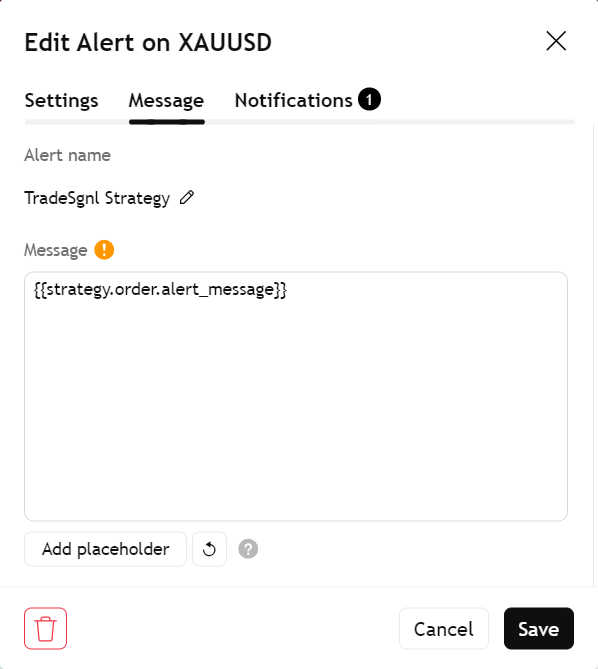
Configure the alert message
Open the Message tab in the alert dialog and paste this placeholder into the Message field:
{{strategy.order.alert_message}}TradingView replaces this with whichever signal string fired (the Long Entry, Long Exit, Short Entry, or Short Exit value from Step 2). One alert handles every direction.
Set up the webhook
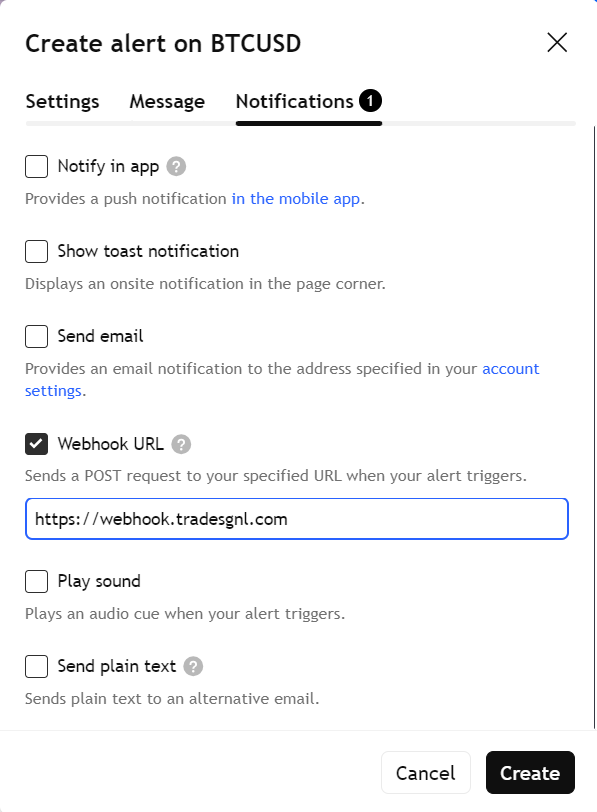
Open the Notifications tab in the alert dialog and enable Webhook URL. Paste:
https://webhook.tradesgnl.comClick Create to save the alert.
Test before going live
Verify the alert end-to-end before connecting it to a live account.
Use a demo account first
Connect the alert to a demo MT5 account and confirm trades execute as expected before pointing it at a live account.
Check the EA log
The TradeSgnl EA logs every signal it receives. If TradingView fires the alert but the EA log shows nothing, the alert configuration is wrong, not the script.
Reduce risk on live
When switching to a live account, lower the risk parameter for the first several trades until the strategy behaves as expected.
Need Additional Help?
Our support team is ready to assist you with any questions you might have.